As of this writing, Elementor does not have a built-in element for adding a Gravity Forms form to your pages. However, you can still use Gravity Forms with Elementor, and in this article, I will show you three different methods you could use to add your forms to your pages in Elementor.
- Using the Gravity Forms Shortcode
- Using the Gravity Forms Widget
- Using an Elementor Add-On (also adds supports styling)
Let’s get started!
#1 The Shortcode Method
By default, Gravity Forms uses shortcodes to embed your forms on a page and with the Elementor shortcode element you can continue to use this method.
The only challenge, there is no “shortcode generator” like there is in the Classic Editor and in the Block Editor.
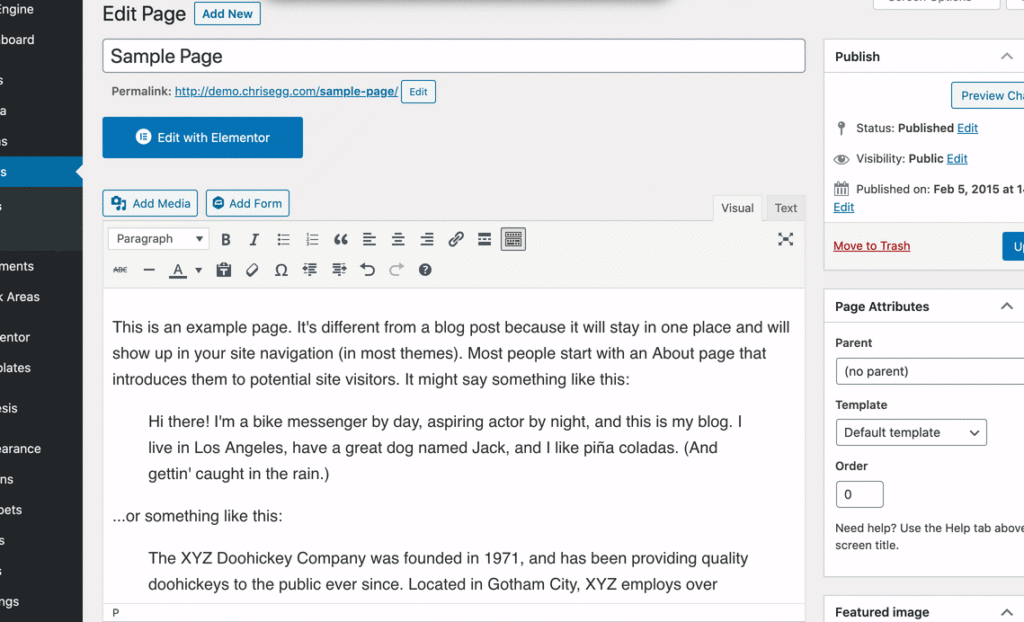
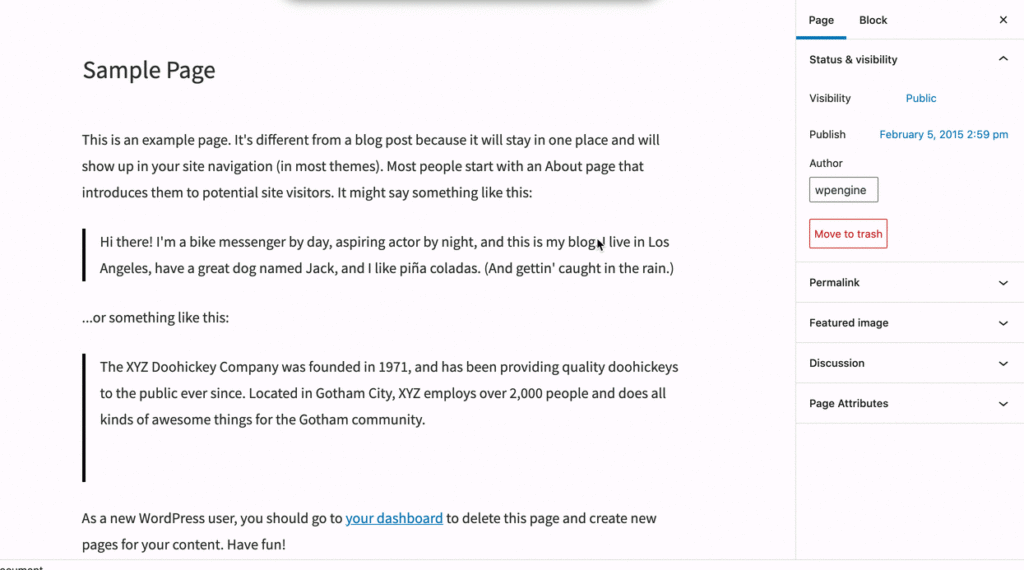
How to Get Your Shortcode
Gravity Forms has a document on how to create your shortcode, however, it’s a bit overkill when you just want a basic shortcode.
Below is the basic shortcode, you can copy and use it on your site, just be sure to change 1, in id=”1″, to your form ID.
[gravityform id="1" title="false" description="false" ajax="true"]Adding Your Shortcode in Elementor
You will need to know your form ID, which you can locate by following the steps below.
- Go to Forms > Forms
- Locate your form and identify your form ID
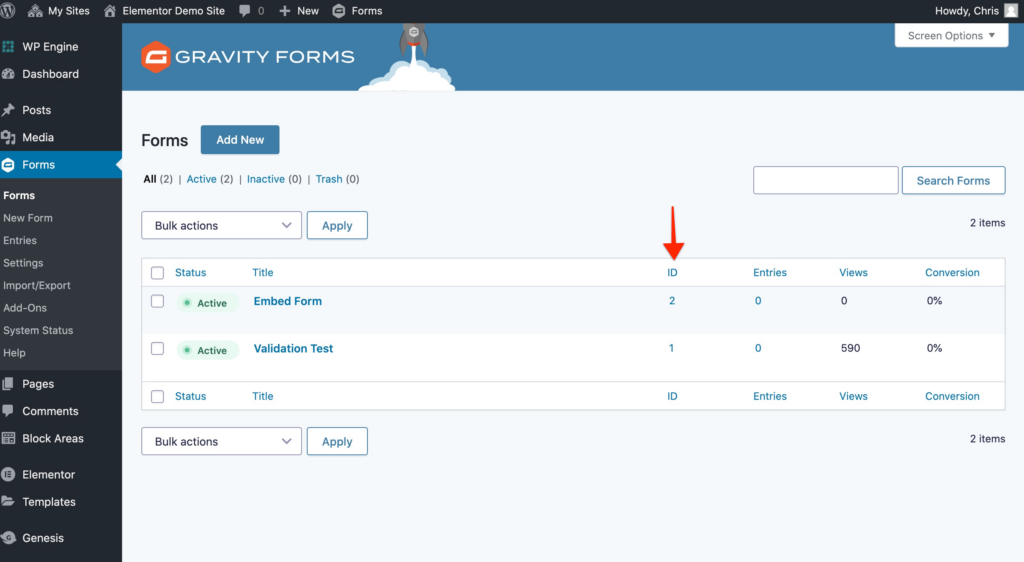
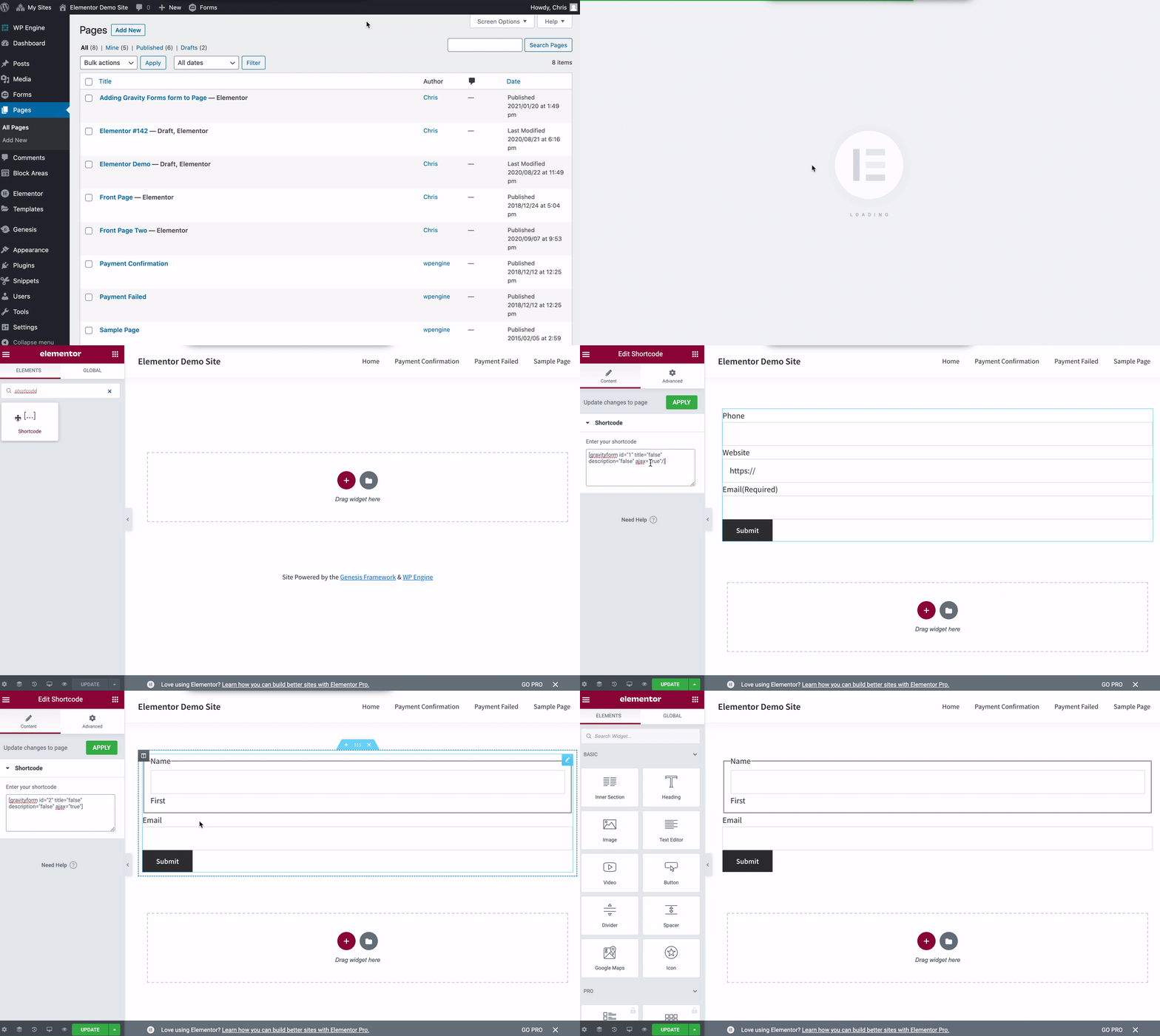
Complete the next steps once you are in the Elementor editor for the page you want to add your form to.
- Search for shortcode
- Drag the element onto the page
- Past the shortcode into the element editor
- Change the ID to your forms ID number
- Click Apply
#2 The Gravity Forms Widget Method
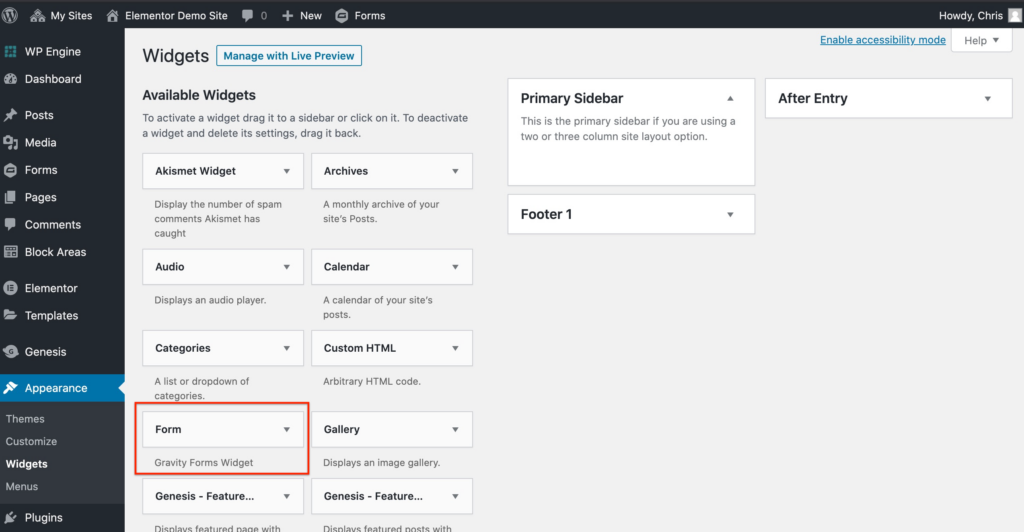
This method is simpler and does not require that you generate a shortcode or know your forms ID. You only need to know the name of your form.
When Gravity Forms is installed on your site, it adds a Form widget to the Appearance > Widgets area.
Adding the Form Widget in Elementor
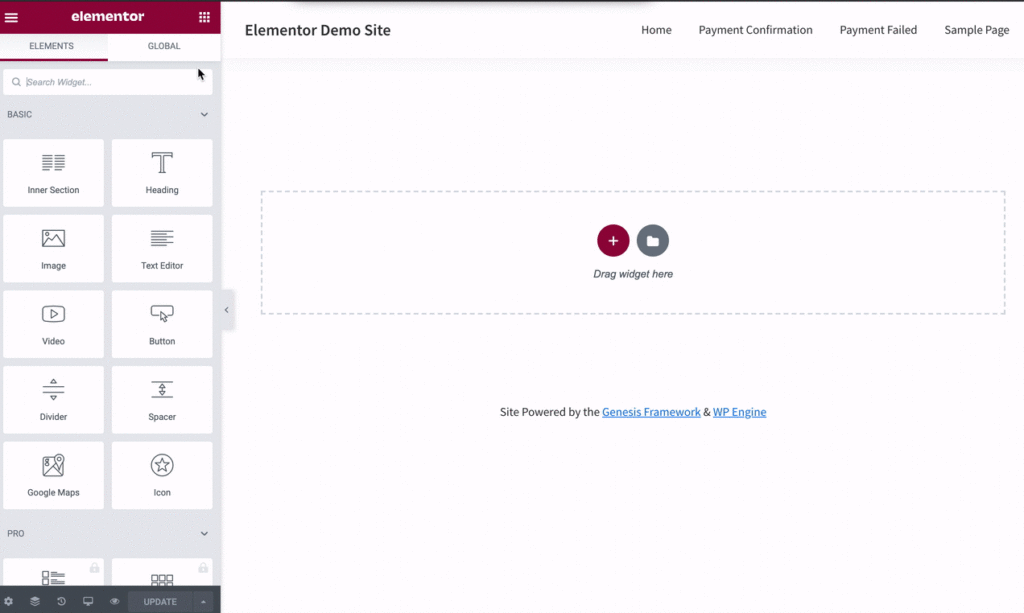
Complete the next steps once you are in the Elementor editor for the page you want to add your form to.
- Search for Form
- Drag the Form widget element onto the page
- Use the widget element editor to select your form
- Click Apply
#3 Elementor Add-Ons
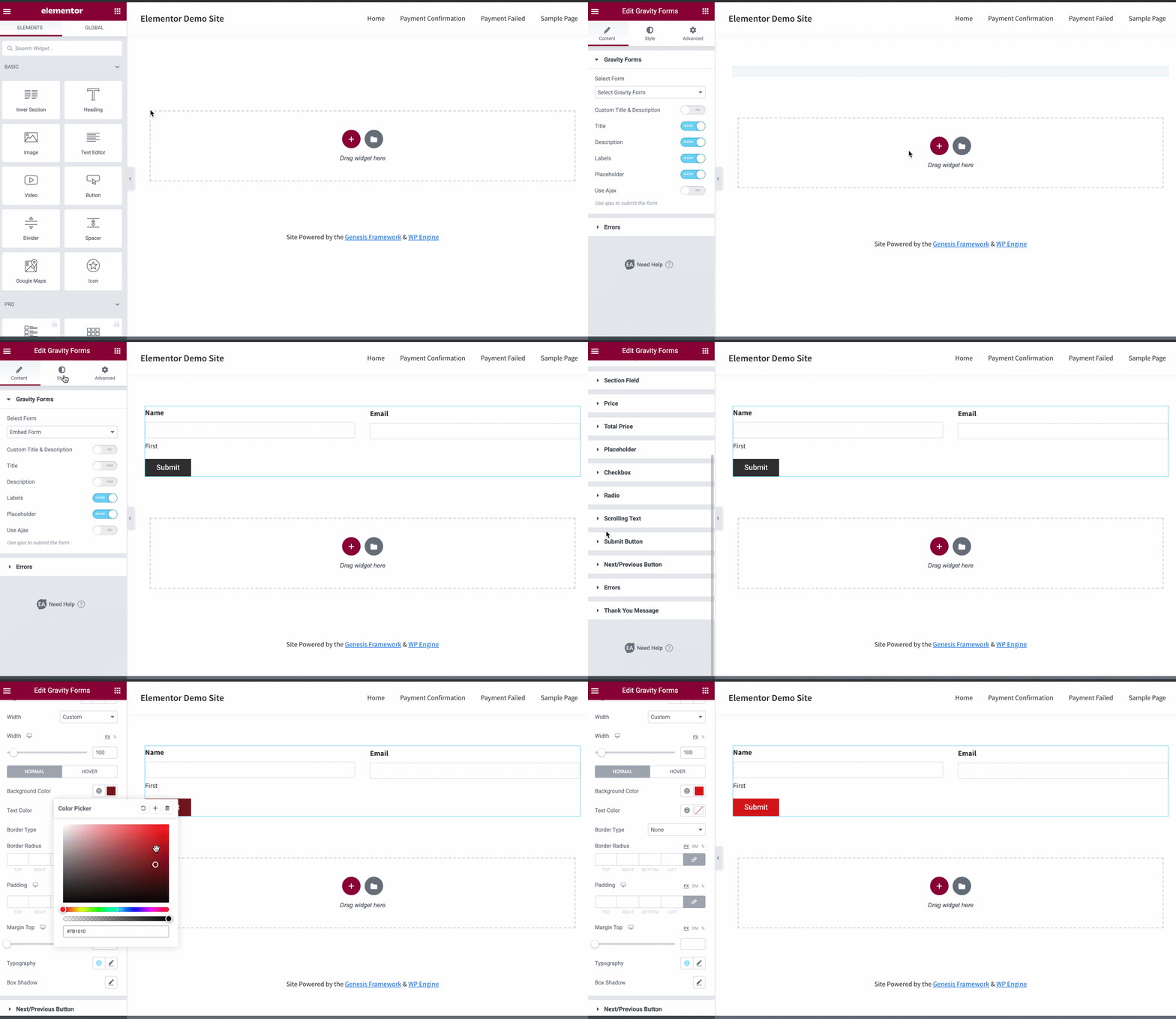
Using the Essential Addons for Elementor plugin does more than just add a new Gravity Forms element to the Elementor page builder, it also adds tools for styling your forms from within the page builder.

You’ll need to download, install, and activate the plugin, but once that is done, head on over to the Elementor editor for the page you want to add the form to and follow the steps below.
The Essential Addons Plugin
- Search for Gravity Forms
- Drag the element onto the page
- Use the widget element editor to select your form
- Optional: Use the Style Tab to design your form
- Don’t forget to click Update
Get this add-on here > Essential Addons for Elementor plugin
The Wrap Up
I’m sure there are other plugins that can aid in the effort of adding a Gravity Forms form to your page with the Elementor page builder, but hopefully this article has helped you figure out how to get it done easier!
If you need styling help. The only method that supports that is the Essential Addons for Elementor.
If you have any questions, use the comments below.


Thank you for this tutorial! it helped so much and was so easy for me to follow.
Hi Amber, you’re welcome. Thank you for letting us know!
Best!