
A reader running youth basketball tournaments asked this one: teams pick as many tournament dates as they like at $165 each, and they should be able to pay the full amount now or a $50 deposit per tournament and the rest later. It’s a common request for any multi-event registration: camps, classes, race series, workshops.
Most people reach for a calculation. Count the dates, multiply by $165 or $50, done. In Gravity Forms that falls apart quickly, because a checkbox field in a formula gives you its choice text, not how many boxes are ticked.
There’s a cleaner way that needs no formulas, no code and no extra add-ons, works with Stripe, Square and PayPal, and can’t be tricked into charging the wrong amount.
How It Works
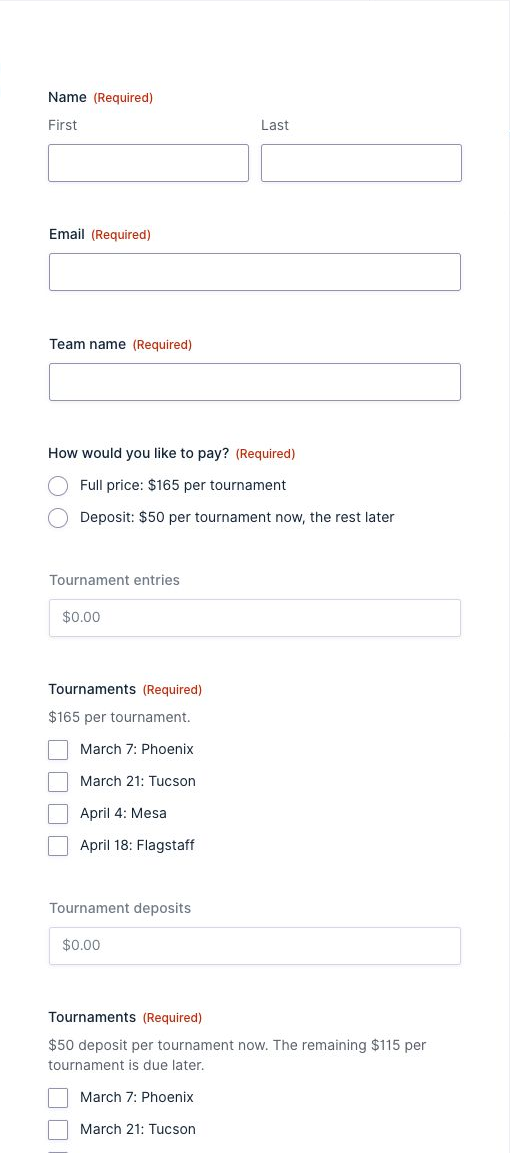
The form has two copies of the tournament list: one priced at $165 per tournament and one at $50. Conditional logic shows only the list that matches the visitor’s payment choice.
That’s enough, because Gravity Forms leaves conditionally hidden product fields out of the total. It does this on the server when the form is submitted, not just on the page, so the payment add-on only ever charges for the list that was showing. Prices are checked on the server too: a submitted price that doesn’t match the form is rejected.
Want the finished form? Download it free at the end of this post. Or build it yourself:
Build It Step by Step
1. Add the Payment Choice
Add a Radio Buttons field, label it How would you like to pay? and make it required. Give it two choices:
- Full price: $165 per tournament
- Deposit: $50 per tournament now, the rest later
Turn on show values and set the values to Full and Deposit. Short values make the conditional logic in the next steps easier to read, and you can reword the labels later without breaking anything.
2. Add the Full-Price Product and List
- Add a Product field. Set Field Type to Hidden, name it Tournament entries and set the price to $0.00. It’s only there to hold the options.
- Add an Option field. Set Field Type to Checkboxes, label it Tournaments, choose Tournament entries as its product, and make it required.
- Add one choice per tournament (for example March 7: Phoenix) and give each a price of $165.00.
- On both fields, turn on Conditional Logic: Show this field if How would you like to pay? is Full.
3. Duplicate Them for the Deposit
- Duplicate the product and rename the copy Tournament deposits. Change its conditional logic to Deposit.
- Duplicate the Tournaments option field. Point the copy at Tournament deposits, change every price to $50.00, and change its conditional logic to Deposit.
- Update the copy’s description so deposit payers know what’s coming: $50 deposit per tournament now. The remaining $115 per tournament is due later.
Keep both lists labeled Tournaments. Visitors only ever see one, so to them it’s a single list whose prices change with their payment choice.
4. Add the Total
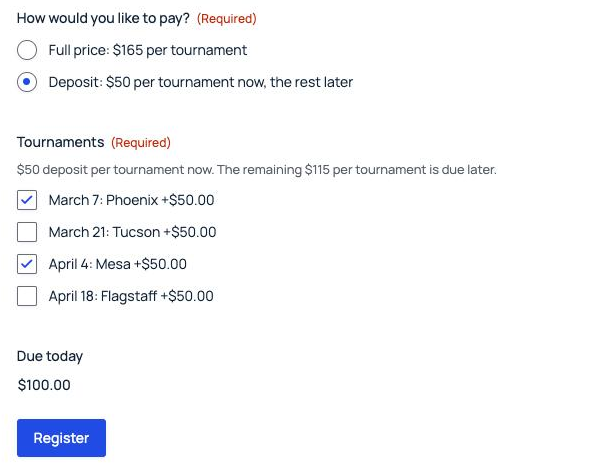
Add a Total field and label it Due today. It updates as visitors tick tournaments or switch between full price and deposit.
5. Tell Deposit Payers What’s Left
In Settings → Confirmations, use the conditional shortcode so only deposit payers see the balance note:
Thanks, {Name (First):1.3}! {Team name:3} is registered.

You paid {Due today:9} today.

[gravityforms action="conditional" merge_tag="{How would you like to pay?:4:value}" condition="is" value="Deposit"]You chose the deposit, so the remaining $115 per tournament is due later. We will email you an invoice before your first tournament.[/gravityforms]
Your field IDs may differ; use the merge tag picker to insert your own. Add the same line to the user notification so it’s in their inbox too.
6. Connect Your Payment Add-On
Create a Stripe, Square or PayPal feed as usual and set the payment amount to Form Total. Nothing else is needed: the hidden list never reaches the total, so the feed charges $165 or $50 per tournament depending on the choice.
Test These Before You Go Live
These are the cases I ran on the Vault form:
| Submission | Due today |
|---|---|
| Full price, 2 tournaments | $330 |
| Deposit, 2 tournaments | $100 |
| Deposit, 4 tournaments | $200 |
| Ticked full-price dates, then switched to Deposit and picked 1 | $50 (the hidden ticks are ignored) |
| No tournaments ticked | Blocked: the list is required |
| A tampered $1 price | Rejected by Gravity Forms |
Collecting the Balance
The deposit entry already records which tournaments each team picked, so collecting the rest is straightforward. The simplest option is a balance form: duplicate this form, remove the payment choice and the deposit list, and change the remaining list’s prices to $115.00. Email deposit payers a link to it before the first tournament.
To find who still owes, filter the registration form’s entries where How would you like to pay? is Deposit.
Keeping It Tidy
- Change both lists together. When you add, rename or remove a tournament, do it in both Tournaments fields so the choices match.
- Different prices per event work too. Give each choice its own price in each list, such as $165 and $50 for one tournament and $200 and $75 for another.
- Selections don’t carry over. If someone ticks dates and then switches payment choice, they’ll need to tick them again in the other list. Putting the payment choice first, as above, avoids that.
Download the Form Template
It’s free. Get the registration form from this tutorial, ready to import.
If you still need help, use the chat or leave a comment below and we’ll get back to you.
Comments