
A staff directory, a team of real estate agents, a list of departments: sooner or later a site needs visitors to reach a specific person. You don’t need a separate form for each one. One Gravity Forms form can send each message to the right inbox with email routing.
This tutorial builds that form, then shows how to preselect the right person when the form sits on a staff member’s own page.
Step 1: Add a “Who Would You Like to Contact?” Field
- Open your contact form and add a Drop Down field (Radio Buttons work too).
- Label it something like Who would you like to contact? and make it required.
- Add one choice per person or department: Sam Ortiz, Priya Shah, Billing, and so on.
Don’t put email addresses in the choices. Choice values are printed in the page source, where spam bots harvest them. Use names, and let routing turn each name into an address on the server.
Step 2: Route the Notification
- Go to Settings → Notifications and edit the Admin Notification (or create a new one).
- Under Send To, choose Configure Routing.
- Add one rule per choice: send to [email protected] if Who would you like to contact? is Sam Ortiz, and so on down the list.
- Set Reply To to the form’s Email field (use the merge tag picker), so each staff member can reply straight to the visitor.
- Put the choice in the Subject too, for example New message for {Who would you like to contact?:3} (your field ID may differ), so it’s obvious who it was meant for.
- Save the notification and send a test entry for each choice.
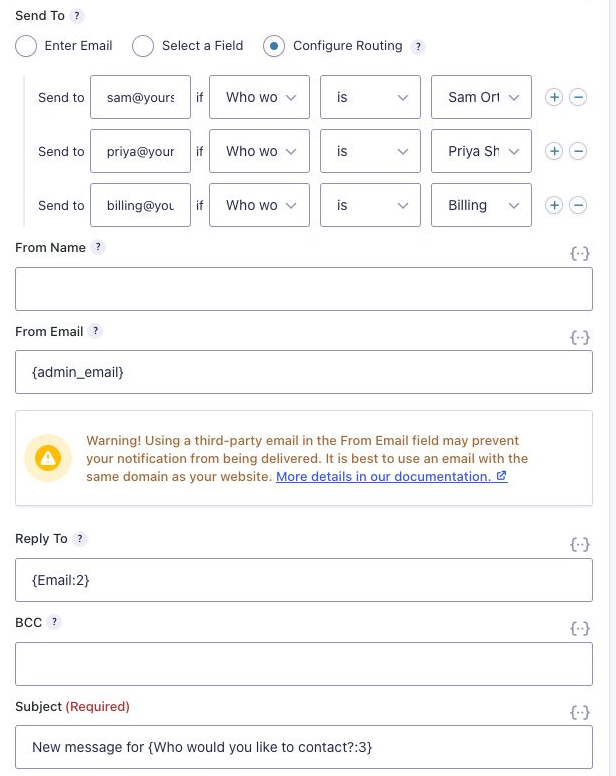
Cover every choice. If a choice has no routing rule, the notification still runs with an empty Send To and nobody gets the message. The same happens if you edit a choice later and forget to update its rule. Email Routing vs. Notification Conditional Logic explains why, and when to use conditional logic instead.
Step 3: Preselect the Person From Their Own Page
If each staff member or agent has a profile page, you don’t want visitors picking their name again from a list. Let the page fill it in.
- Open the Drop Down field’s Advanced tab, tick Allow field to be populated dynamically, and enter a parameter name such as
staff. - On each profile page, embed the form with that person’s choice filled in:
[gravityform id="4" title="false" field_values="staff=Sam Ortiz"]Or keep a single contact page and link to it with the name in the URL: /contact/?staff=Sam%20Ortiz (a space in a link is written %20). Either way the value has to match the choice exactly, spelling and capitals included, or nothing gets preselected.
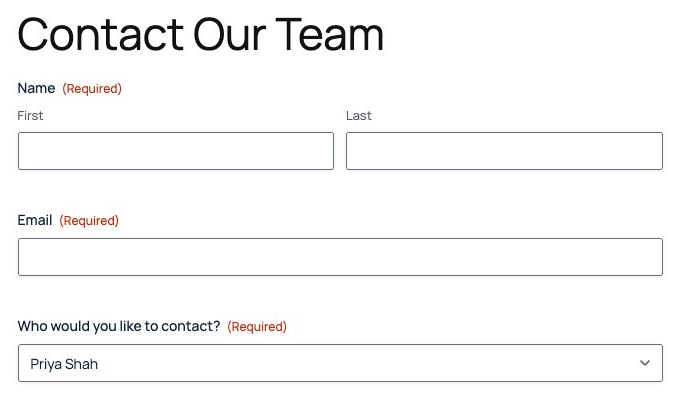
?staff=Priya%20Shah: Priya is already selected.Because the routing rules don’t change, the message still goes to the right inbox, and the visitor can still switch to someone else if they meant to.
When the List Gets Long
Routing works well for a handful of people or departments. With dozens of agents who come and go, keeping a choice and a rule in sync for each one gets tedious. At that point it’s better to store each person’s email on their profile (with ACF, for example) and have the form look it up, so adding a new agent means filling in their profile and nothing else. That’s a members-only lesson.
Download the Form Template
It’s free. Get the contact form from this tutorial, ready to import.
Need More Help?
If you still need help, use the chat or leave a comment below and we’ll get back to you.
Comments