
What We’re Building
You’ve seen these on agency and software sites: “See how much you could save.” Visitors type in a few numbers about their business, the savings and return show up as they type, and to get a copy they enter their email address. They get a useful estimate. You get a lead, along with the numbers they care about.
This guide builds one in Gravity Forms for a common case: a task your visitor’s team does by hand that your product or service would automate. Everything here is core Gravity Forms: Number fields with calculations, conditional logic and a notification. No add-ons and no code.
Looking for a classic investment ROI calculator (what you put in versus what you got back)? That one is on FormOasis as a free ROI calculator, with a step-by-step Gravity Forms template to build your own.
Step 1: Add the Inputs
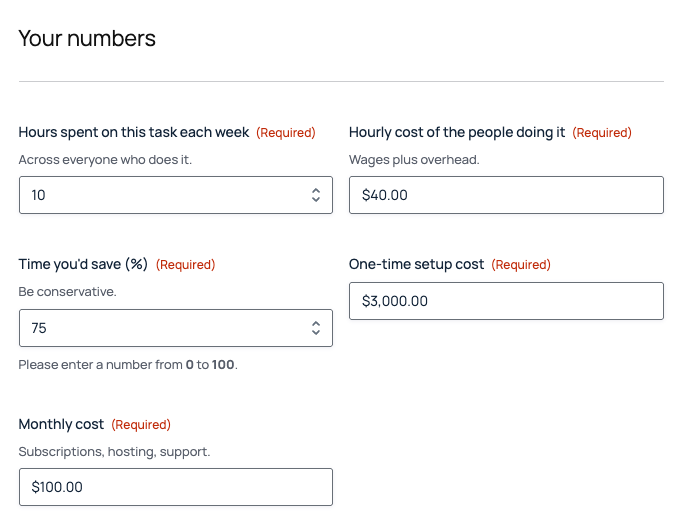
Add a Section called “Your numbers”, then five Number fields. Give each a default value so the results show something the moment the page loads. A calculator that starts at zero looks broken.
| Field | Number Format | Default | Notes |
|---|---|---|---|
| Hours spent on this task each week | 9,999.99 | 10 | Description: “Across everyone who does it.” |
| Hourly cost of the people doing it | Currency | 40 | Description: “Wages plus overhead.” |
| Time you’d save (%) | 9,999.99 | 75 | Range 0 to 100 |
| One-time setup cost | Currency | 3000 | |
| Monthly cost | Currency | 100 | Subscriptions, hosting, support |
Step 2: Add the Results
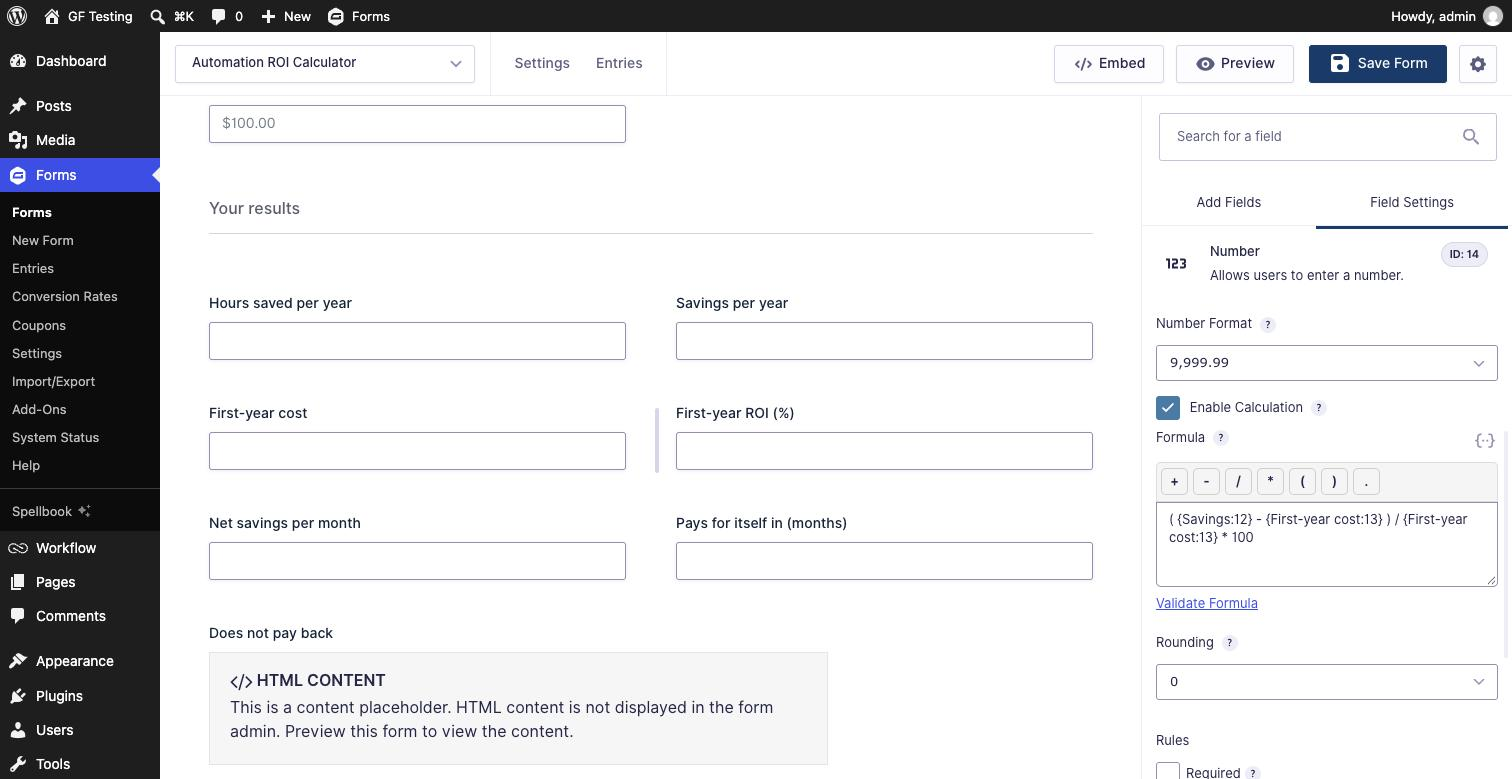
Add a second Section called “Your results”. Each result is another Number field with Enable Calculation checked. Gravity Forms makes calculated fields read-only, so visitors can’t type over them. Use the merge tag picker (the {..} icon) to insert fields into the formula, so the field IDs match your form.
| Field | Formula | Format / Rounding |
|---|---|---|
| Hours saved per year | {Hours:1} * {Time saved:3} / 100 * 52 | 9,999.99 / 0 |
| Savings per year | {Hours:1} * {Time saved:3} / 100 * 52 * {Hourly cost:2} | Currency / 2 |
| First-year cost | {Setup:4} + {Monthly:5} * 12 | Currency / 2 |
| First-year ROI (%) | ( {Savings:12} - {First-year cost:13} ) / {First-year cost:13} * 100 | 9,999.99 / 0 |
| Net savings per month | {Savings:12} / 12 - {Monthly:5} | Currency / 2 |
| Pays for itself in (months) | {Setup:4} / {Net savings per month:15} | 9,999.99 / 1 |
A few things that keep the numbers right:
- A formula can use another calculated field, like First-year ROI using Savings per year, as long as that field comes earlier in the form.
- Savings per year repeats the hours math instead of using the “Hours saved per year” field. That field is rounded to whole hours, and using the rounded number would make the savings slightly off.
- Formulas only do
+,-,*,/and parentheses. Use Validate Formula under the box to catch typos.
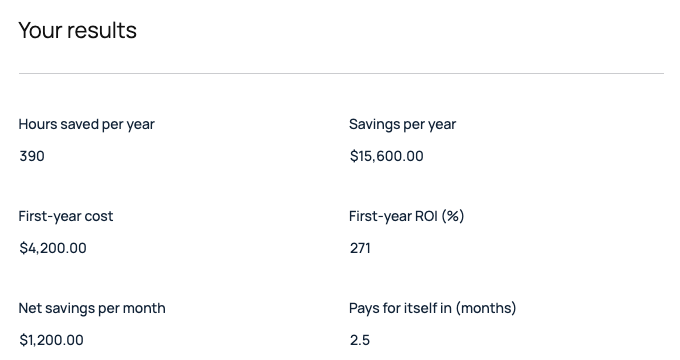
With the defaults: 10 hours × 75% × 52 weeks is 390 hours a year, worth $15,600. The first year costs $4,200, so the first-year ROI is 271%. Saving $1,200 a month, the $3,000 setup pays for itself in 2.5 months.
Step 3: Handle the Awkward Numbers
People will type in numbers where the math stops making sense. Two cases to plan for:
When It Doesn’t Pay for Itself
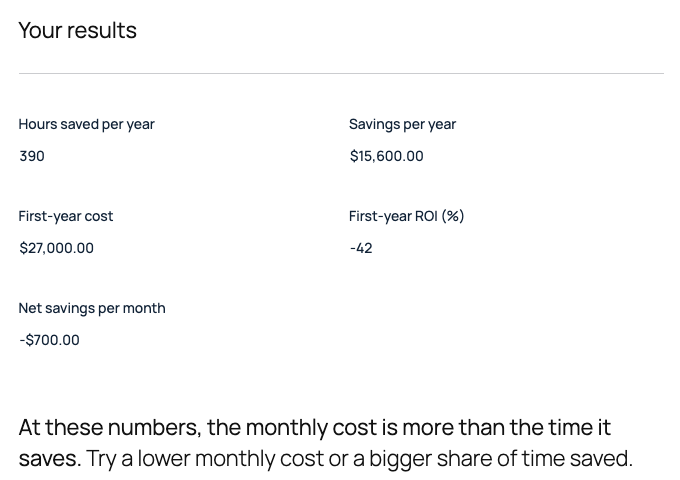
If the monthly cost is more than the monthly savings, the payback formula gives a negative number of months. Instead of showing that:
- Give Pays for itself in (months) conditional logic: show if Net savings per month is greater than
0. - Add an HTML field with a short message, such as “At these numbers, the monthly cost is more than the time it saves. Try a lower monthly cost or a bigger share of time saved.” Show it if Net savings per month is less than
0.01.
When the Cost Is Zero
If someone enters $0 for both costs, the ROI formula divides by zero. Gravity Forms shows 0 when that happens, which is the opposite of the truth. Give First-year ROI (%) conditional logic so it only shows when First-year cost is greater than 0.
Step 4: Ask for the Email
Add a third Section, “Get your results by email”, with Name, Email (required) and Company fields. Change the submit button text to Email My Results, and set the confirmation to something like “Thanks, {Name (First)}! Your ROI estimate is on its way to {Email}.”
The results stay visible while they fill this in, so they know exactly what they’re getting.
Step 5: Email the Results
Add a notification sent to the Email field, with the results in the message. Gravity Forms’ conditional shortcode leaves out the lines that don’t apply:
Hi {Name (First):21.3},

Here's your estimate:

Hours saved per year: {Hours saved per year:11}
Savings per year: {Savings per year:12}
First-year cost: {First-year cost:13}
[gravityforms action="conditional" merge_tag="{First-year cost:13}" condition="greater_than" value="0"]First-year ROI: {First-year ROI (%):14}%
[/gravityforms][gravityforms action="conditional" merge_tag="{Net savings per month:15}" condition="greater_than" value="0"]Pays for itself in: {Pays for itself in (months):16} months[/gravityforms][gravityforms action="conditional" merge_tag="{Net savings per month:15}" condition="less_than" value="0.01"]At these numbers, the monthly cost is more than the time it saves.[/gravityforms]

Based on {Hours spent on this task each week:1} hours a week at {Hourly cost of the people doing it:2} an hour, saving {Time you'd save (%):3}% of that time.

Want help getting there? Just reply to this email.
Add a second notification to yourself with {all_fields}. That’s your lead, with every number they entered.
What I Tested
| Test | Result |
|---|---|
| Default numbers, submitted in the browser | All six results saved; the visitor email showed ROI 271% and payback 2.5 months |
| $2,000 monthly cost | ROI -42%, payback hidden, and the email said the cost is more than the time it saves |
| $0 setup and $0 monthly | ROI hidden and left out of the email; payback 0 months |
| Changing the results in the browser before submitting | Ignored: Gravity Forms recalculates every formula on the server, so the saved savings and ROI were the real ones |
Things to Know
- Hidden results aren’t saved. When conditional logic hides the payback or ROI field, that field is left empty in the entry. That’s why the email uses the conditional shortcode.
- Keep the math honest. Defaults that make everyone look like a winner get you leads that don’t close. The “Be conservative” hint on the time-saved field helps.
- Change the labels to fit your business. The same five inputs work for any “hours saved” pitch: bookkeeping, scheduling, data entry, support tickets.
Download the Form Template
It’s free. Get the calculator from this tutorial, ready to import.
Need More Help?
If you still need help, use the chat or leave a comment below and we’ll get back to you.
Comments