
Gravity Forms finally has a shopping cart. The new Cart Add-On from Gravity Labs turns any form with a Product field into an “add to cart” form. Shoppers can add items from several forms, see them in a slide-out cart, and pay for everything at once on a single checkout form, using the payment add-on you already have.
First look, October 2026, version 0.1.0-alpha.3 (released October 22). I built a small demo store on my test site with three product forms and a Stripe checkout, and placed real orders in Stripe test mode. Every screenshot below comes from that store, and you can download all four forms at the end of this post.
What It Does
- Product forms add their submission to the cart instead of creating a finished order. Options (like Size) and any fields you pick (like Color or a website URL) show under the item.
- One checkout form with a new Cart Summary field shows everything in the cart, lets shoppers change quantities or remove items, and charges the whole order through your payment feed.
- A slide-out cart drawer and a header mini-cart with a count badge (
[gravityforms_cart_icon]), plus an inline cart for a cart page ([gravityforms_cart]). - Built-in coupons: percentage or flat amount off the cart, with usage limits, per-customer limits, a minimum subtotal and dates.
- Held notifications and feeds: a product form’s notifications and add-on feeds wait until the item is paid for.
- A Customer Receipt emailed after payment with the full order summary, and new merge tags such as
{cart_summary},{cart_total}and{cart_discount}. - Persistent carts: guests keep their cart in a cookie, logged-in users in their account (merged when they log in), with automatic cleanup of abandoned items.
Setting Up a Store
There are no new form types. You build normal Gravity Forms and give each one a role under Form Settings → Cart:
- Product forms: a Product field, plus Option or Quantity fields if you need them. Set the role to “A product form”.
- Checkout form: the Cart Summary field (in Pricing Fields), a Total field, your customer fields (Email, Address, Shipping) and your payment add-on’s field. Set the role to “The checkout form” and add a payment feed that charges the Form Total.
- Global settings: under Forms → Settings → Cart, enter the checkout page URL, turn on the drawer, and adjust colors and cart lifetime.
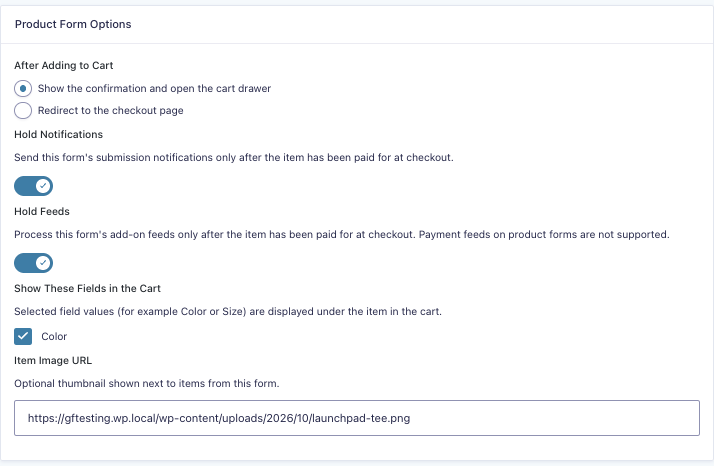
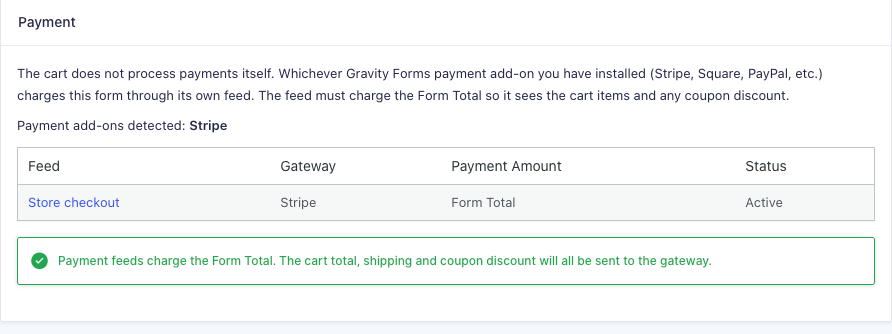
The checkout form’s Cart settings include a Payment panel that checks your setup: it lists your payment add-ons and feeds and warns you if a feed doesn’t charge the Form Total, or if a product form has its own payment feed. That check alone will save people a lot of confused support tickets.
What Shoppers See
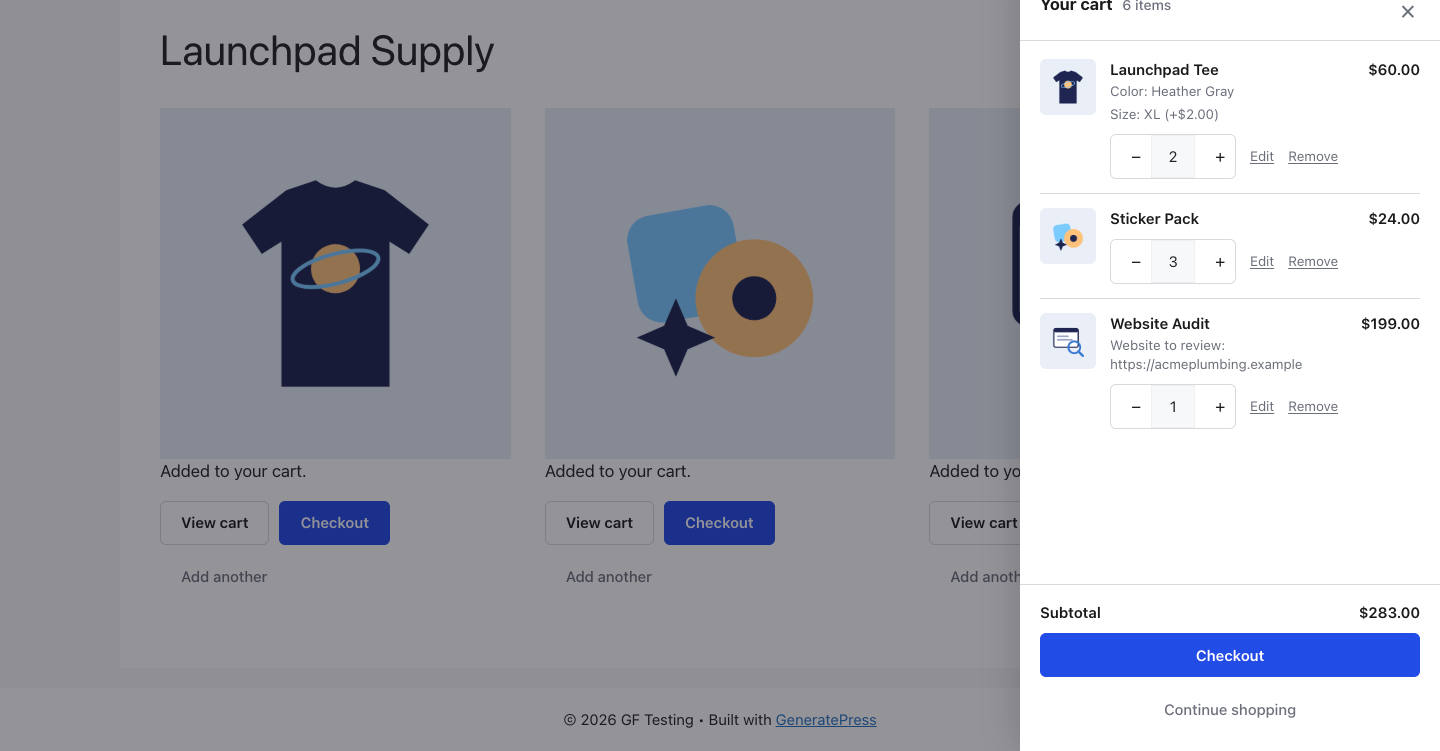
Submitting a product form shows “Added to your cart” with View cart, Checkout and Add another buttons, and opens the drawer. I added two XL tees in Heather Gray (the XL option adds $2), three sticker packs and a website audit with the shopper’s site URL. The drawer kept the options and fields under each item and got the math right: $60 + $24 + $199 = $283.
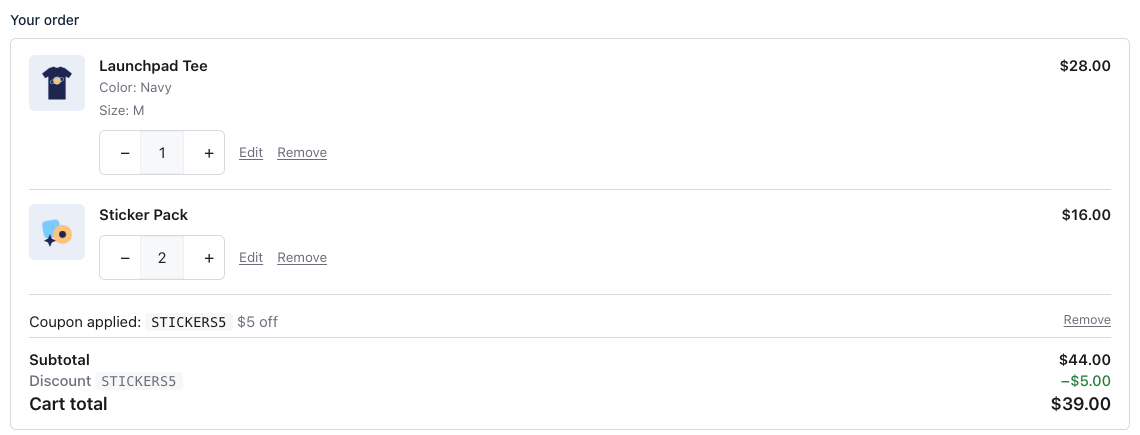
On the checkout page, the Cart Summary field shows the same items with quantity controls and a coupon box. The discount is applied to the cart subtotal only, so shipping is charged in full.
Coupons
Coupons live under Forms → Cart, and you don’t need the Coupons Add-On. You can set a percentage or flat discount, a total usage limit, a per-customer limit, a minimum cart subtotal and start and end dates. Usage counts when the order is paid, not when the code is applied, and codes are checked again at checkout.
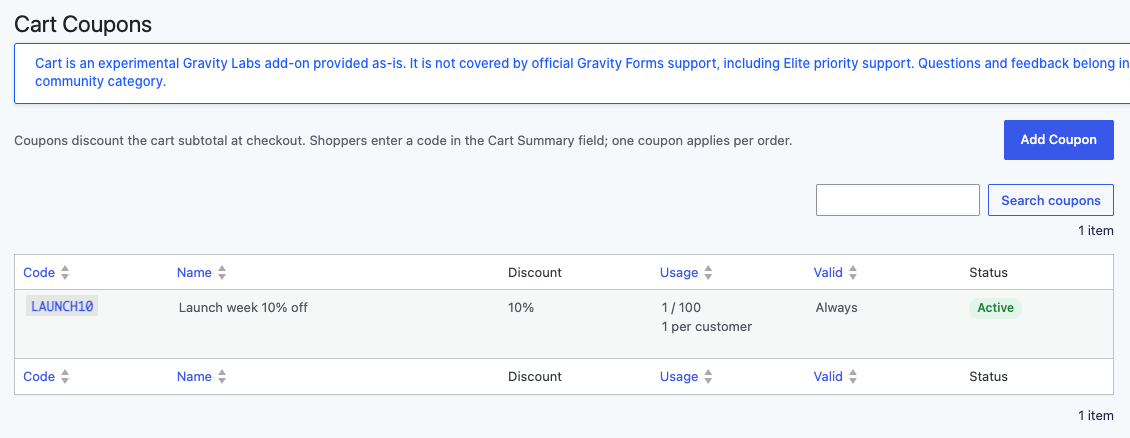
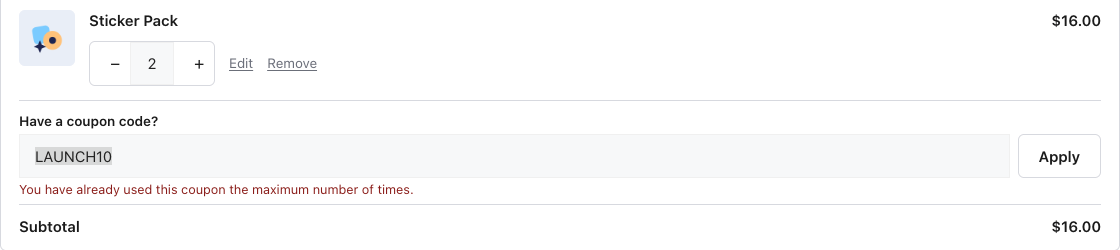
I set my LAUNCH10 code to one use per customer. After the first order, trying it again gave a clear message:
Orders, Payments and Receipts
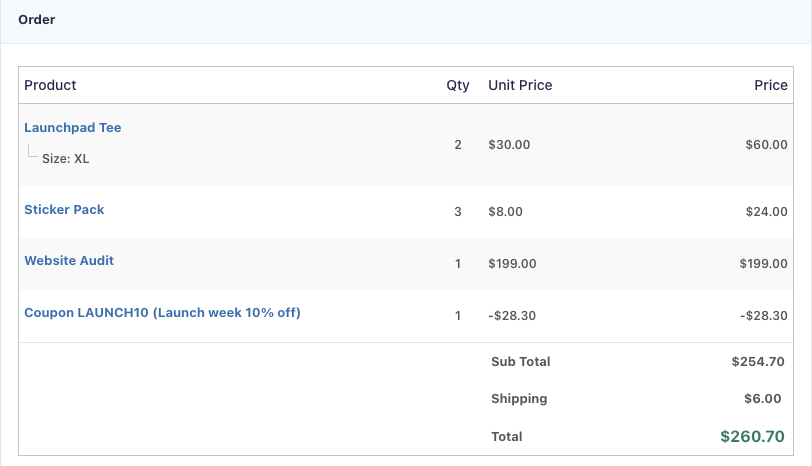
My first order was $254.70 for the cart (after 10% off) plus $6 shipping, $260.70 in total, paid with the Stripe Add-On in test mode. The checkout entry holds the whole order, with the coupon as a negative line, so the Stripe charge, the entry and the receipt all match.
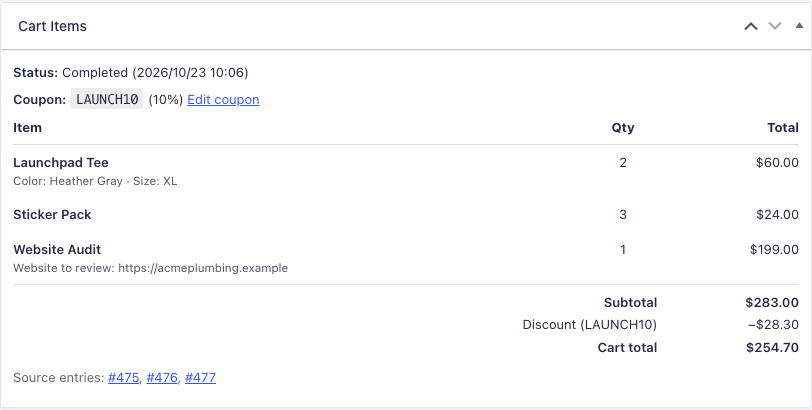
A Cart Items box on the entry links back to the product form entries behind the order, and those entries are marked as ordered. The entries list also gets “In Cart” and “Ordered” filters.
Two things happened after Stripe confirmed the payment. The Website Audit form’s team notification, which had been held since the item was added to the cart two minutes earlier, was sent. And the shopper got a Customer Receipt with the order summary.
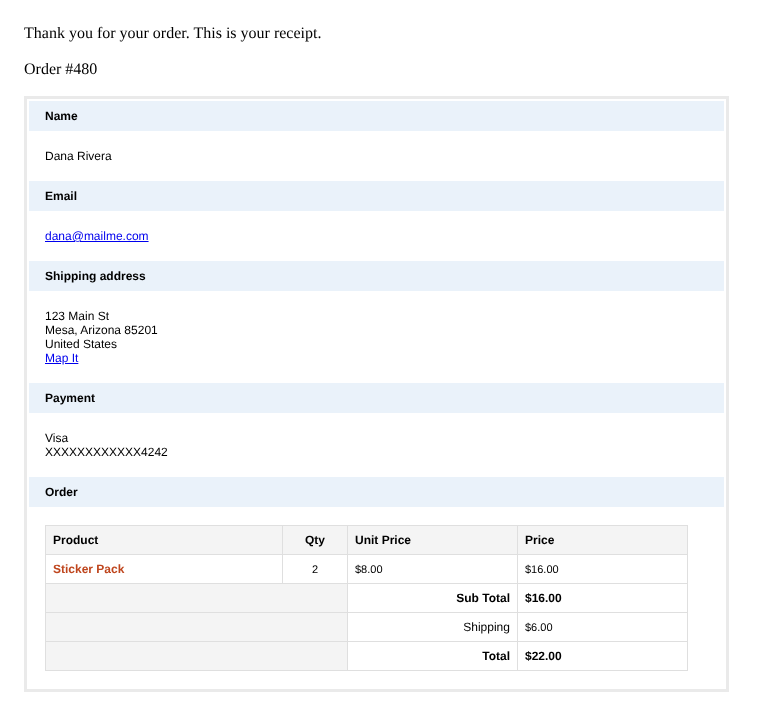
Tip: the Customer Receipt notification is added when you save the checkout form’s Cart settings. If you import a checkout form, open its Cart settings and click Save once, or check Notifications for “Customer Receipt” before your first order.
Things to Know
- It’s an early alpha from Gravity Labs and isn’t covered by Gravity Forms support, including Elite priority support. Feedback goes to the Labs topic on the community forum.
- Orders complete when the gateway confirms the payment. With the Stripe Field that happens by webhook, so test on a site Stripe can reach (or with the Stripe CLI on a local site). A checkout form with no payment feed completes right away, which works for free items.
- One coupon per cart, applied to the whole cart subtotal. There are no product-specific coupons, and shipping isn’t discounted.
- Payment feeds go on the checkout form only. Product forms with a payment feed are flagged.
- Not a full store. I didn’t see settings for inventory, tax or product catalog pages. You build the shop pages yourself with your product forms.
- Fields you choose to show in the cart (like my Color field) appear in the drawer, checkout and Cart Items box, but the checkout entry’s order table and the receipt list only the product options (Size).
Pricing
There is no separate price. Cart is a Gravity Labs download for Gravity Forms license holders. You also need a payment add-on to charge for orders, and those come with the Pro and Elite licenses. See Gravity Forms pricing to compare.
Who Should Use It
Anyone who sells a handful of products or services with Gravity Forms and has been stuck with “one form, one purchase”: merch, event add-ons, workshop seats, service packages, or a mix of products from different forms. If your customers buy more than one thing, they no longer have to check out more than once.
If you need inventory, taxes, product pages and order management, WooCommerce is still the better tool. But for a small catalog, this keeps everything inside Gravity Forms, with your existing payment add-on, notifications and feeds.
The Verdict
This is the feature Gravity Forms users have asked for longer than almost anything else, and the first alpha is already solid. In my testing, every total was right, coupons and limits worked, held notifications waited for payment, and the receipt and entries matched the Stripe charge. It’s alpha, so try it on a staging site first, but I’d start planning stores around it now.
Download the Demo Store Forms
Get the four forms from this post (three product forms and the Stripe checkout) plus the product images and a setup checklist.
Frequently Asked Questions
Does Gravity Forms have a shopping cart?
Yes, as of October 2026, through the Cart Add-On from Gravity Labs. Each product form adds its submission to a cart that stays with the shopper, and one checkout form pays for everything at once through your Gravity Forms payment add-on.
Is the Gravity Forms Cart Add-On free?
There is no separate price. It is a Gravity Labs download for Gravity Forms license holders: log in to labs.gravity.com with your Gravity Forms account to get it. You also need a payment add-on, such as Stripe, Square or PayPal, to charge for orders.
Which payment gateways work with the Cart Add-On?
Any Gravity Forms payment add-on. The cart does not process payments itself: the payment feed on the checkout form charges the Form Total, which includes the cart items, any coupon discount and shipping. I tested it with the Stripe Add-On.
Do I need the Gravity Forms Coupons Add-On?
No. The Cart Add-On has its own coupons under Forms → Cart: a percentage or flat amount off the cart subtotal, with total and per-customer limits, a minimum subtotal and start and end dates. One coupon applies per cart, and it does not discount shipping.
Is the Cart Add-On a replacement for WooCommerce?
For a small catalog of products or services sold through forms, it can be. It has a persistent cart, a drawer, a mini-cart, coupons and receipts. It does not have product catalog pages, inventory or tax settings, so a full online store is still a better fit for WooCommerce.
Need More Help?
If you still need help, use the chat or leave a comment below and we’ll get back to you.
Comments