
To add a one-time password to Gravity Forms, install the One-Time Password add-on from Cosmic Giant. For logins, turn on “Show One-Time Password Field on Login form” in its settings. For any other form, add the One-Time Password field and set its Source Field to the form’s Email field. The visitor clicks Send Verification Code, gets a 6-digit code by email (or text message), and can’t log in or submit until they enter it.
A password alone isn’t much protection if it’s been reused or leaked. A one-time code sent to the account’s email proves the person logging in also has access to that inbox. On a regular form, the same code proves the email address is real and belongs to the person filling in the form, which keeps fake addresses and a lot of spam out of your entries.
I set up both on a test site: a login form that asks for a code after the password, and a quote request form that won’t submit until the email address is verified. Here’s how, with what I saw at each step.
What You Need
- Gravity Forms 2.7 or later.
- One-Time Password by Cosmic Giant. I used version 4.3.0. The Personal license ($49 a year) covers email codes on regular forms. Login form codes and SMS codes need the Professional license ($79 a year).
- For login codes: the User Registration Add-On, which provides the Gravity Forms login form.
- For SMS codes: a Twilio account with a phone number. Twilio charges for the number and each message.
- Working email. The codes go out like any other WordPress email, so if your notifications don’t arrive, the codes won’t either. An SMTP plugin is worth it here.
Part 1: Add a One-Time Password to Your Login Form
This works on login forms created with the User Registration Add-On, whether you add one with the Login Form block, the widget or the shortcode. You don’t edit the login form itself; the add-on adds the field for you.
Step 1: Turn on the login field
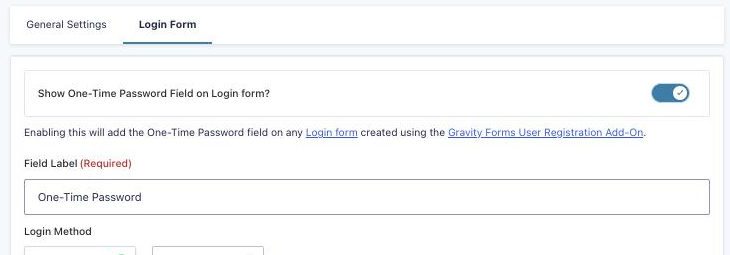
Go to Forms → Settings → One-Time Password and open the Login Form tab. Turn on Show One-Time Password Field on Login form?, change the field label if you like, and choose the Login Method: Email or SMS.
Step 2: Write the code email
Below that, under Email Configuration, set the from address and name, the subject and the message. The {One-Time Password:4} merge tag is the code. The code goes to the email address on the user’s WordPress account, not to anything typed into the form.
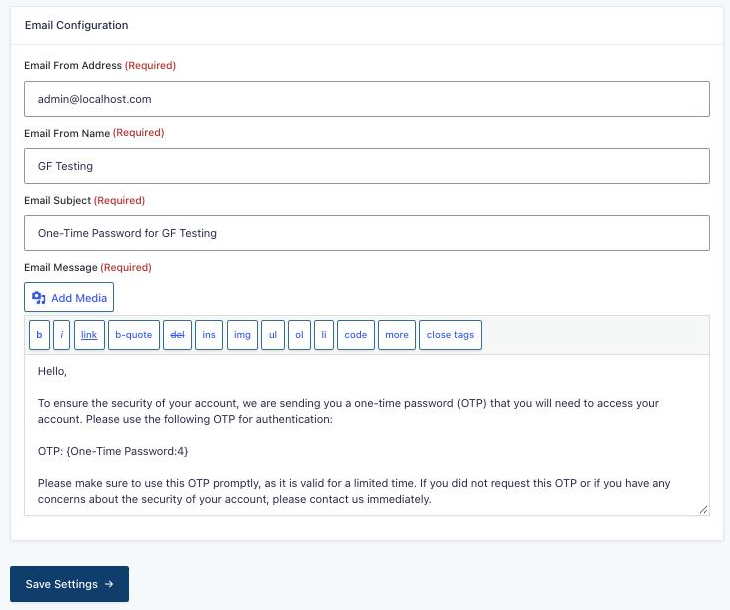
Click Save Settings.
Step 3: Log in with a code
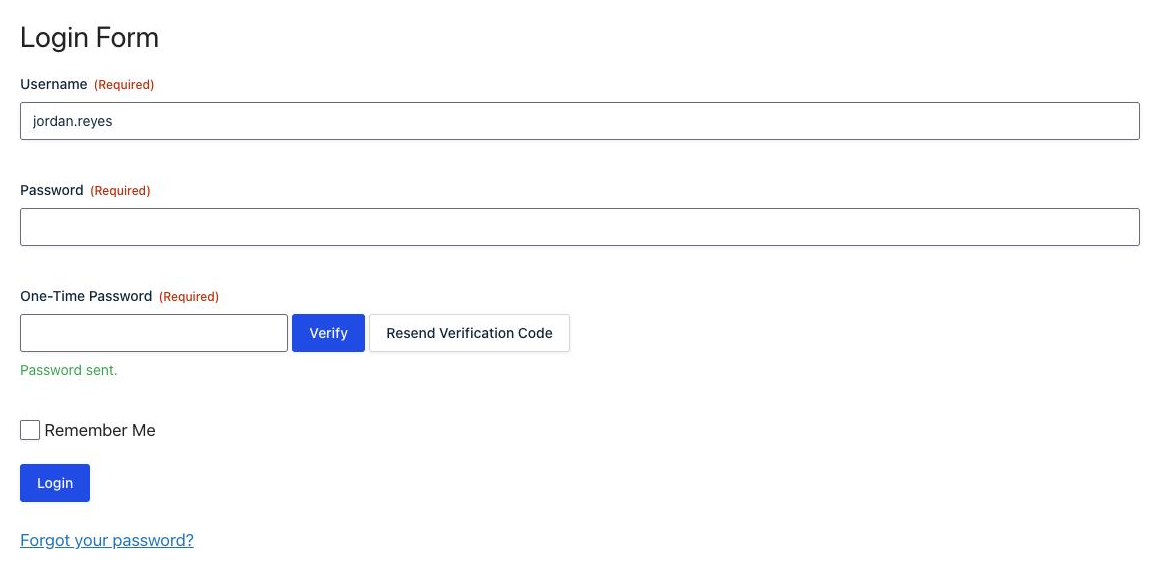
Open the page with your login form in a private window. You’ll see a new One-Time Password field with a Send Verification Code button. Here’s how logging in went for my test member:
- Enter the username, then click Send Verification Code. The add-on looks up that user and emails the code to their account address.
- Type the code and click Verify. The field shows “Password verified.”
- Enter the password and click Login.
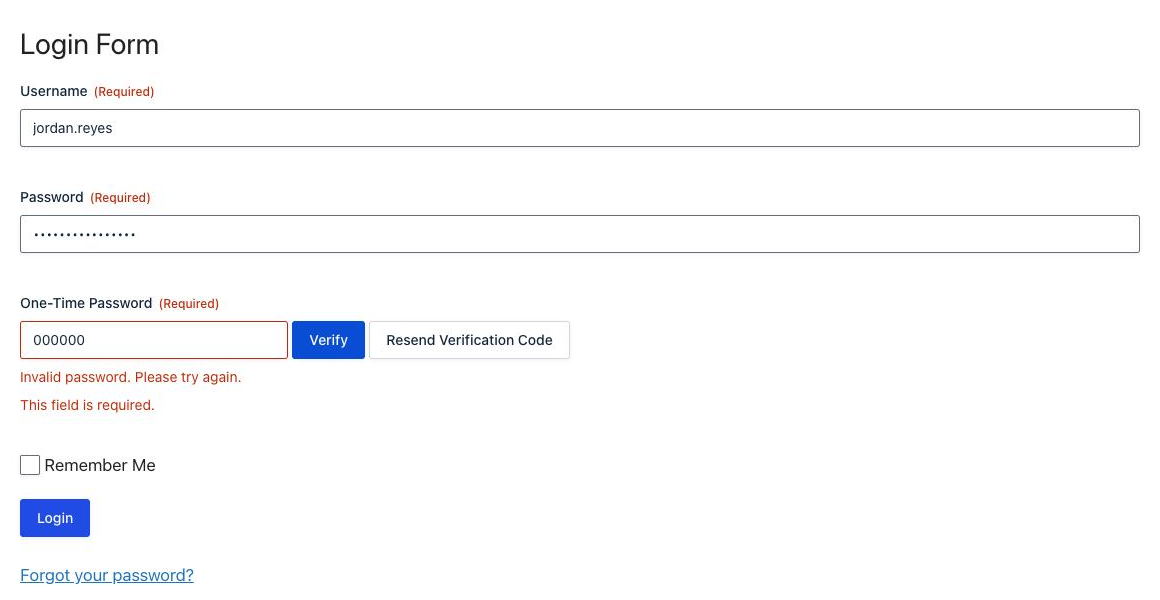
Then I tried to get around it. With the right password but no code, the login was refused with “This field is required.” With a wrong code, the field said “Invalid password. Please try again.” and the login was refused again. The password alone is no longer enough.
One thing to know: this protects the Gravity Forms login form, not wp-login.php. If you want everyone to use the protected form, send people to it instead of the default login screen (the login/logout shortcode and a redirect help with that), and use a security plugin’s two-factor login for wp-login.php and admins.
Part 2: Verify the Email Address on Any Form
The same add-on gives you a One-Time Password field you can put on any form. I used a simple quote request form (name, email, what do you need) so only people with a working email address can send a request.
Step 1: Add the One-Time Password field
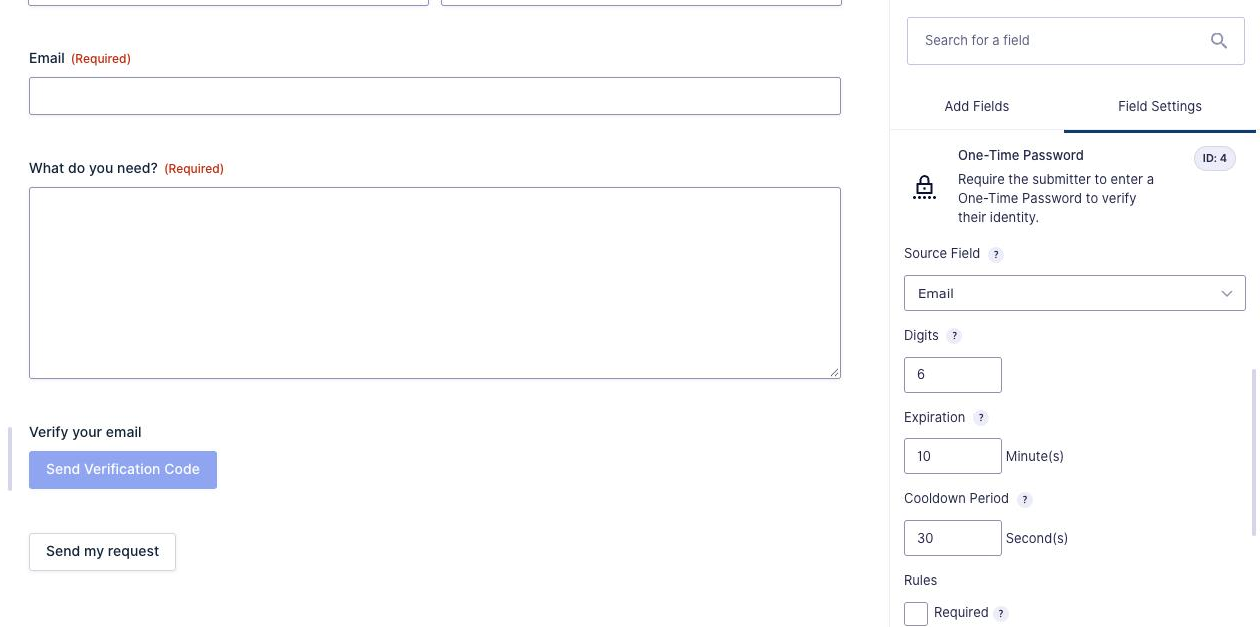
Open the form, then add One-Time Password from Advanced Fields. Put it somewhere after the Email field. In its settings:
- Source Field: your Email field. This is where the code is sent. Only Email fields (and Phone fields, once SMS is set up) are listed.
- Digits: the length of the code. 6 is the default.
- Expiration: how many minutes the code works, up to 300. 10 is the default.
- Cooldown Period: how many seconds someone must wait before asking for another code, up to 60.
I also changed the label to “Verify your email” and added a description saying a code will be emailed.
Step 2: Make the field required
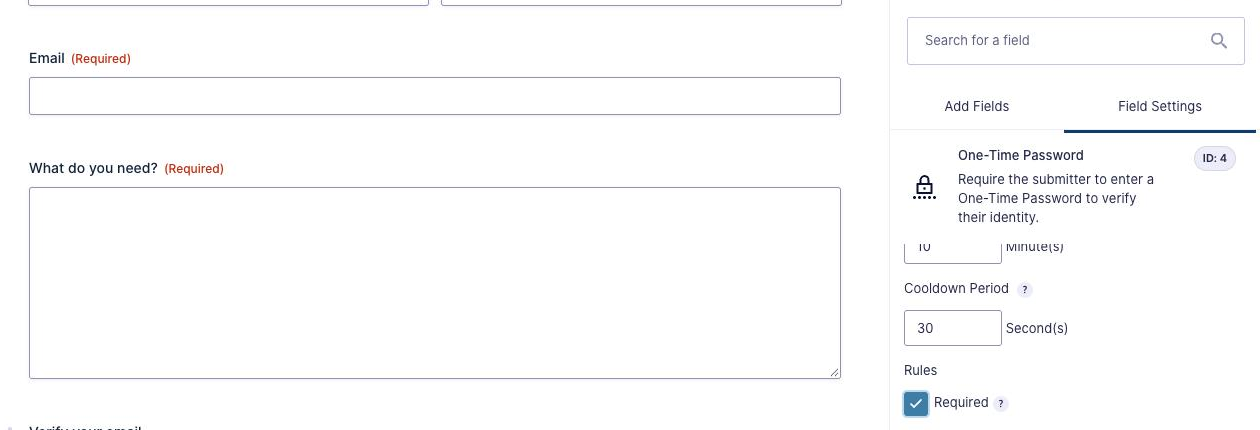
Tick Required under Rules. Don’t skip this. The field isn’t required when you add it, and when I submitted the form without a code while it wasn’t required, the entry went through. Required is what makes verification mandatory.
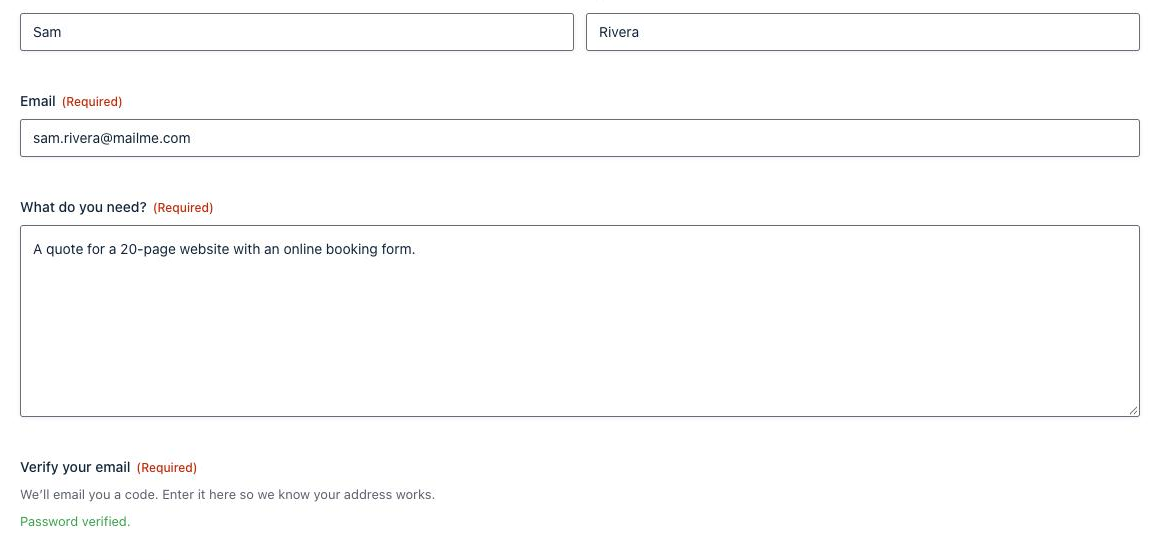
Under Appearance you can also change the button text and messages. The defaults say “Password sent.” and “Password verified.”, which reads oddly on a contact form, so “Code sent. Check your email.” and “Email verified.” are worth the minute.
Step 3: Edit the code email
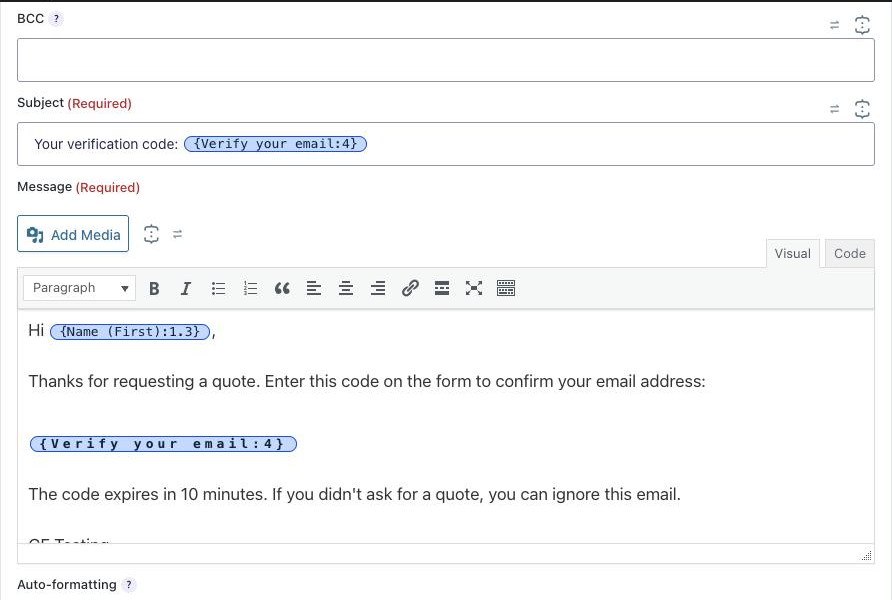
Adding the field also adds a notification to the form, named “One-Time Password for” plus your field label, with the event One-Time Password. You’ll find it under Settings → Notifications. It’s sent to the Source Field automatically, so there’s no Send To setting.
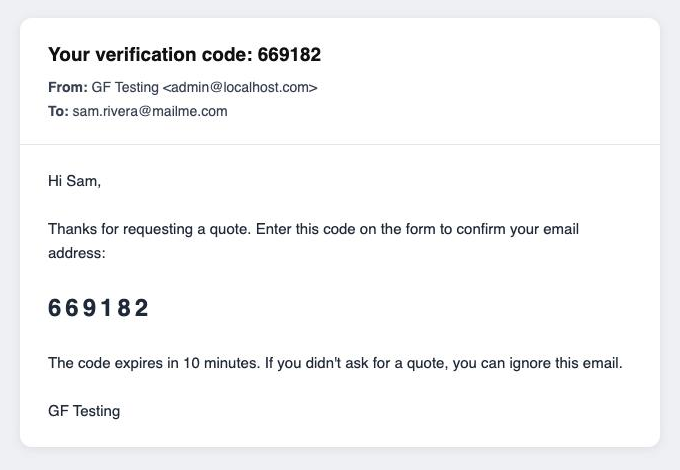
The default message talks about “access to your account”, which doesn’t fit a quote form, so I rewrote it. The field’s merge tag (here {Verify your email:4}) is the code, and other fields work too: I greeted people with their first name and put the code in the subject line so it shows in the inbox preview.
Step 4: Test the form
Fill in the form in a private window and click Send Verification Code. The field turns into a code box with Verify and a Resend button that counts down the cooldown.
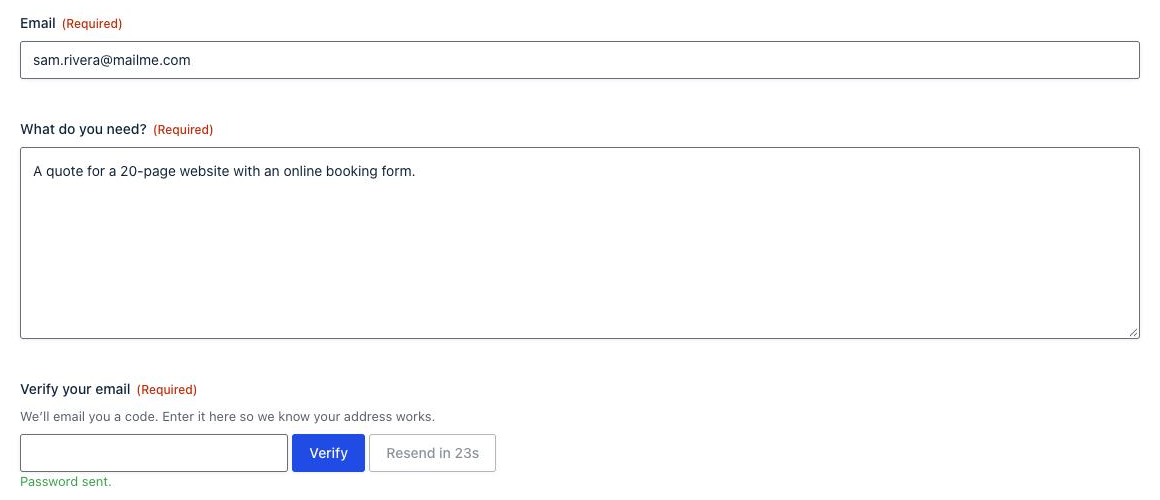
Enter the code from the email and click Verify, then submit. The entry saved normally.
Submitting without verifying gives the usual Gravity Forms validation error, so no entry is created and none of your other notifications or feeds run.

Sending Codes by Text Message
With the Professional license you can send codes by SMS through Twilio. Connect your Twilio account on the General Settings tab of the One-Time Password settings. Then:
- On a form: set the field’s Source Field to a Phone field, choose a From Phone Number from your Twilio numbers, and write the text in the field’s Message setting.
- On the login form: choose SMS as the Login Method.
Twilio’s test mode sends from Twilio’s test number, so you can try the setup before paying for messages. I tested with email only.
Things to Know
- Built-in limits. Besides the cooldown, the add-on allows 10 code requests per visitor IP an hour and locks verification for 15 minutes after 5 wrong codes. Developers can change these with the
cg_otp_max_send_requests,cg_otp_send_rate_limit_window,cg_otp_max_verify_attemptsandcg_otp_verify_lockout_durationfilters. - The code is saved with the entry. The field stores the code and the time it was sent, which is handy if someone says they never got it. Set the field’s Visibility to Administrative if you don’t want it in the merge tag list for {all_fields}.
- No Duplicates still applies. If the Email field has No Duplicates turned on, the add-on refuses to send a code to an address that’s already been used.
- It works with Conversational Forms (since version 2.5), and you can have more than one One-Time Password field on a form (since 4.0).
- Email delivery is the weak spot. A code that lands in spam is a visitor who can’t submit. Send from your own domain through an SMTP service, and keep the expiration long enough for slow inboxes.
- It isn’t a replacement for spam protection. It stops fake addresses, but bots with real inboxes can still verify. Keep your other spam settings on.
FAQ
Does Gravity Forms have two-factor authentication?
Not on its own. The User Registration Add-On’s login form only asks for a username and password. The One-Time Password add-on from Cosmic Giant adds a code sent by email or SMS, so logging in needs the password and the code.
Can I verify an email address before a Gravity Form is submitted?
Yes. Add the One-Time Password field, set its Source Field to the Email field and make it required. The visitor has to enter the code emailed to that address before the form will submit.
Where does the login code get sent?
To the email address on the user’s WordPress account (or their phone number when the SMS method is used). The person types only their username; the add-on looks up the address.
Which license do I need?
Personal ($49 a year at the time of writing) covers email codes on regular forms. Login form codes and SMS codes need Professional ($79 a year).
How long does a code last?
10 minutes by default. You can set the Expiration on the field from 1 to 300 minutes.
Need More Help?
If you still need help, use the chat or leave a comment below and we’ll get back to you.
Comments