
A field won’t show up. The total is wrong. The notification never arrived. The webhook “just stopped”. Gravity Forms does most of its work where you can’t see it, so when something doesn’t happen there is usually no message, just nothing. Finding out why means opening the form editor in one tab, the entry in another, turning on logging, downloading a log file and reading it. The Gravity Forms Dev Console Add-On from Gravity Labs puts all of that in one panel at the bottom of the page with the form.
Tested November 2026 with version 0.1.0-alpha.1 on a test site, with Gravity Forms 3.2.1, WordPress 7.1 and the Webhooks Add-On. I used it on two forms: an event registration form with conditional logic and calculated prices, and a lead form that posts to a “CRM” I could switch off.
What the Dev Console Does
Once it is on, every page with a form gets a dark Gravity Dev Console bar at the bottom, visible only to administrators. Visitors never see it. It has a tab for each question you usually ask when a form misbehaves:
| Tab | Answers |
|---|---|
| Log | What happened when the form was submitted: entry saved, confirmation, each notification, each feed, and feeds that failed in the background. |
| Form | Why a field is shown or hidden, what a merge tag turns into, how a price or total is worked out, and the form’s settings and embeds. |
| Messages | Which notifications and confirmations would go out for the values in the form, and why the others wouldn’t. |
| Feeds | Which feeds would run, their conditions, and (on staging) a preview of what a webhook would send. |
| Queue | What is waiting in the Gravity Forms background queues, and whether a queue is paused. |
| Entries, Plugins, Workflows | Recent entries, the active Gravity Forms add-ons and versions, and Gravity Flow steps when Gravity Flow is active. |
| Live Preview | The form in your theme with AJAX on, hidden fields shown, required fields made optional, and other test options. |
Two buttons sit next to the tabs: Populate fills the form with a made-up person whose name, email and phone match, and Clear empties it again. AI Assist, top right, is a chat that can read the form and answer questions about it on WordPress 7.0 or newer.
What You Need
- Gravity Forms 2.9.24 or newer (2.9.25 or newer to log failed background feeds).
- WordPress 6.9 or newer. AI Assist needs WordPress 7.0 or newer and an AI provider.
- The Dev Console Add-On from Gravity Labs. Labs add-ons are free for Gravity Forms license holders.
- Ideally a staging copy of your site. Most of the console only reads, but a few options send real emails and feeds.
Step 1: Turn It On
Go to Forms → Settings → Dev Console, make sure Enable Dev Console is on, and click Save Settings. The console won’t appear until the settings have been saved once.
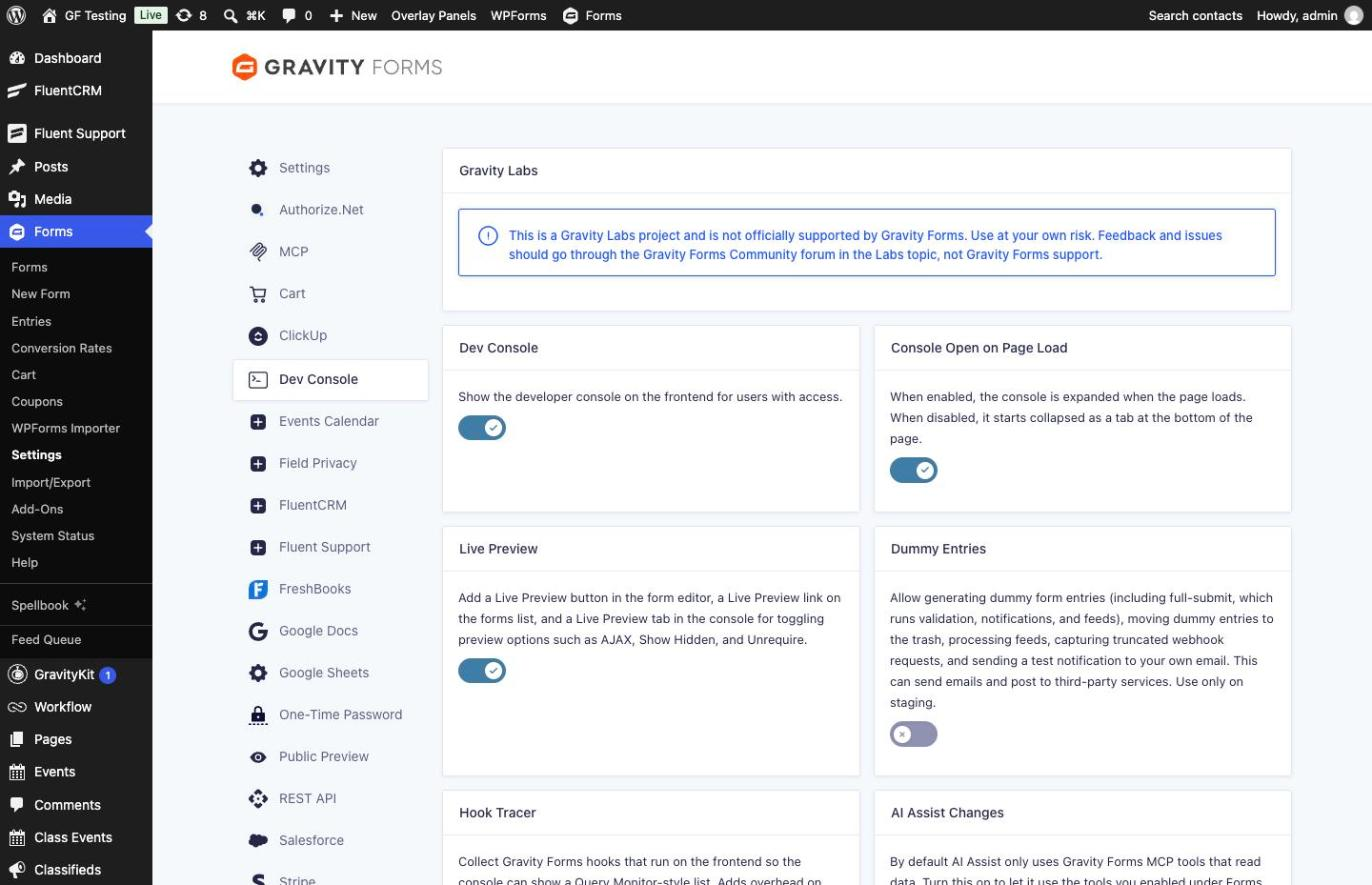
| Setting | Turn it on when |
|---|---|
| Console Open on Page Load | You are debugging one form all day and don’t want to click the tab each time. |
| Live Preview | You want to test the form in your theme with options like Unrequire (see Step 6). |
| Dummy Entries and Side-Effect Testing | You are on staging and want to create test entries, replay feeds and send test notifications. These send real emails and webhooks. |
| Hook Tracer | You are a developer chasing a snippet that runs on the wrong hook. It slows every page down while it is on. |
| AI Assist Changes | You are on staging and want AI Assist to change forms and entries, not just read them. Off by default. |
Every form also gets a Show Console on This Form setting, so you can hide the console on a form you aren’t working on.
Step 2: Read the Log After a Submission
Open the page with the form, submit it, and click Log. Every submission gets a line for each thing Gravity Forms did: the entry, the confirmation, each notification, each feed. Problems are orange.
My lead form posts each entry to a CRM with a Webhooks feed called “Send lead to CRM”. I switched the CRM off and submitted. The form said thanks, the entry was saved, and the log showed the rest:
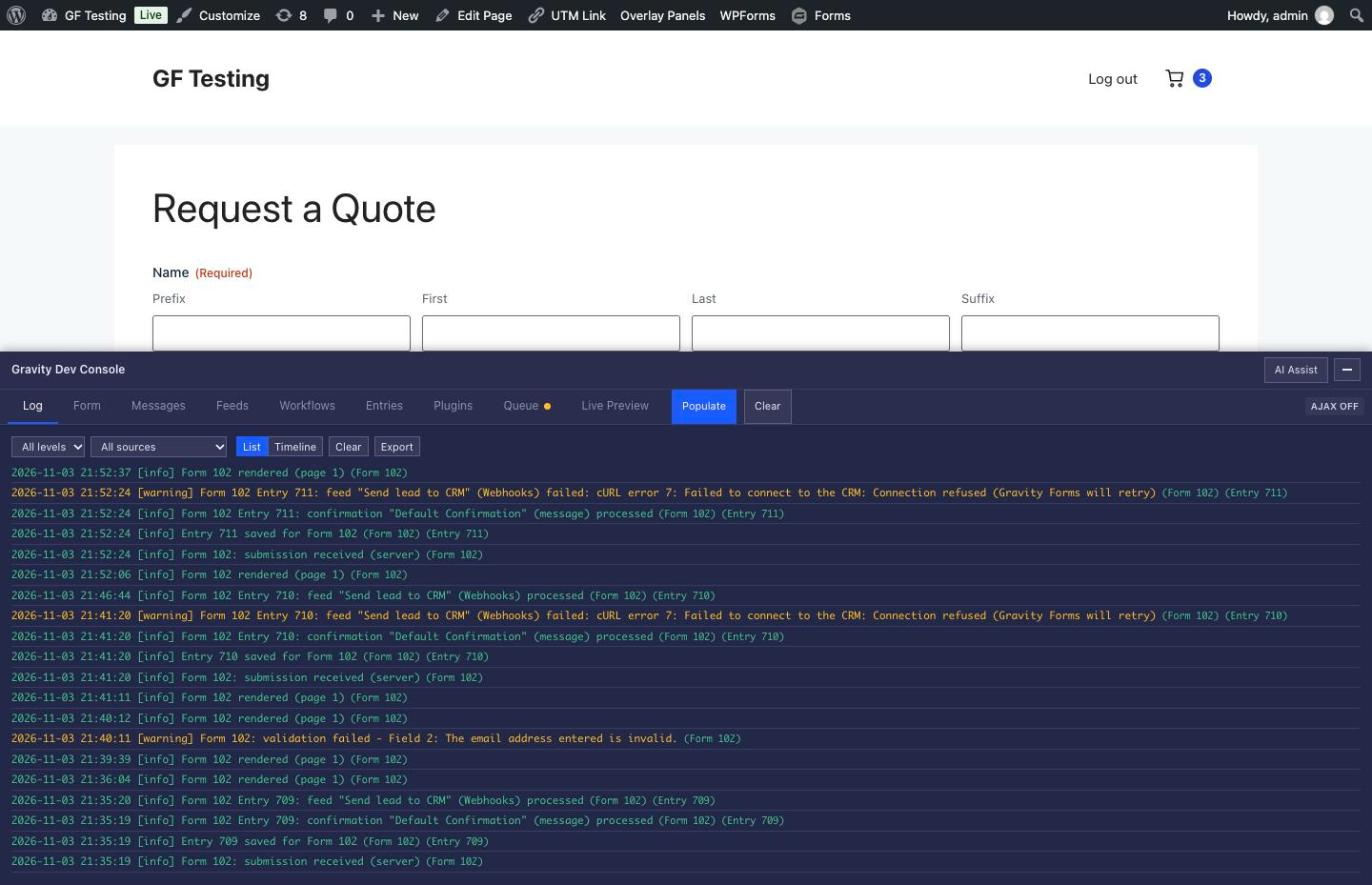
Without the console, that failure only shows up in the entry notes, and only after you go looking. Webhooks, Mailchimp, HubSpot, Zapier and most other feeds run in the background, so the visitor never sees an error and neither do you. The Gravity Forms will retry part matters: Gravity Forms has paused that add-on’s queue and will try once more in a few minutes.
- Use the level and source menus to show only warnings, or only one add-on.
- Timeline groups the lines by submission.
- Export downloads the log, handy for a support thread. Recipient emails are masked.
- Logs are kept for 30 days in
wp-content/uploads/gf-devconsole-logs/.
Step 3: Check the Queue
A dot next to Queue means something is waiting. Here is the lead from the last step:
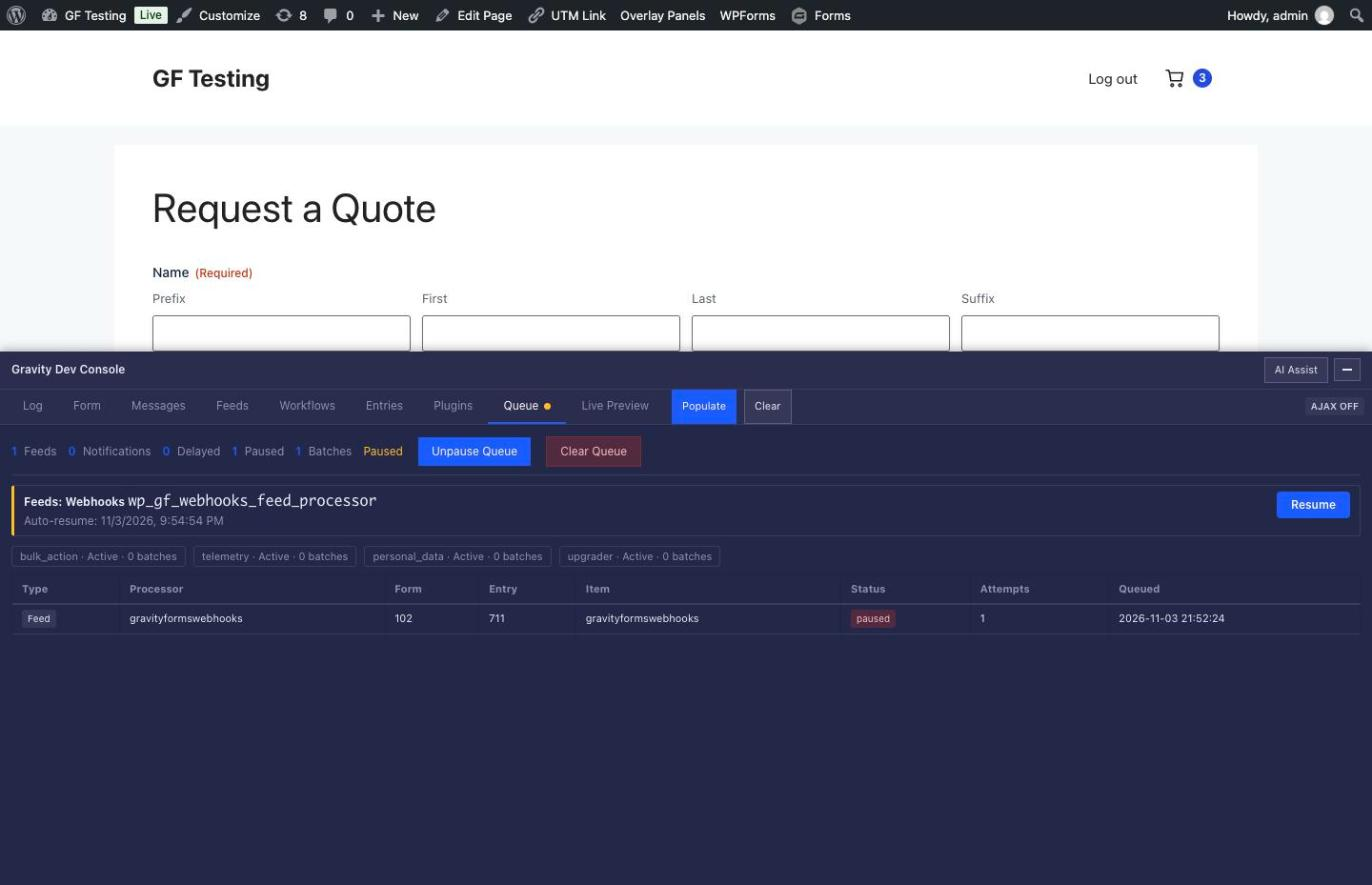
Once the CRM is back, click Resume to retry straight away instead of waiting, or Unpause Queue to resume every paused queue. Clear Queue deletes the waiting feeds and notifications so they are never sent. If a queue keeps getting stuck, the Queue Manager Add-On covers this screen in much more depth.
Step 4: Find Out Why a Field Is Hidden
Conditional logic is the most common “it doesn’t work” in Gravity Forms. Fill the form (or click Populate), then open Form → Conditional Logic:
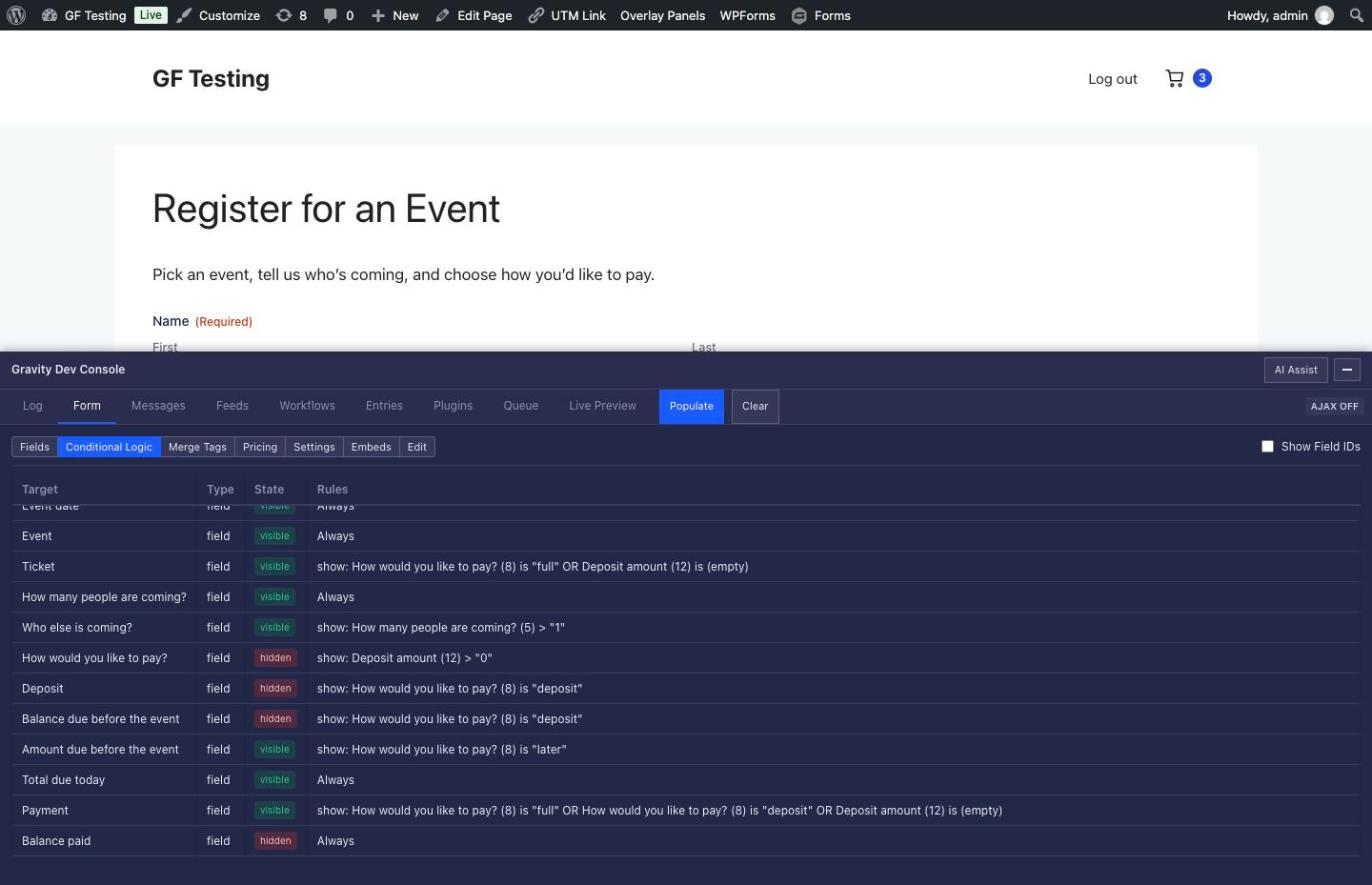
On my registration form, How would you like to pay? was hidden, which looked like a bug. The rule says why: it only shows when Deposit amount (12) > “0”, and the online event I had picked has no deposit. Field 12 is filled in from the event and visitors never see it, so I would never have spotted that from the form. The labels make it easy to follow a chain of rules, and the state column changes as you change the form.
Tick Show Field IDs to print each field’s ID on the form itself, which saves a trip to the form editor when you are writing merge tags or snippets.
Step 5: Check Totals, Merge Tags and Notifications
Pricing
Form → Pricing lists every product, calculation and total, with the formula, the raw value, the quantity and the number Gravity Forms will actually use:
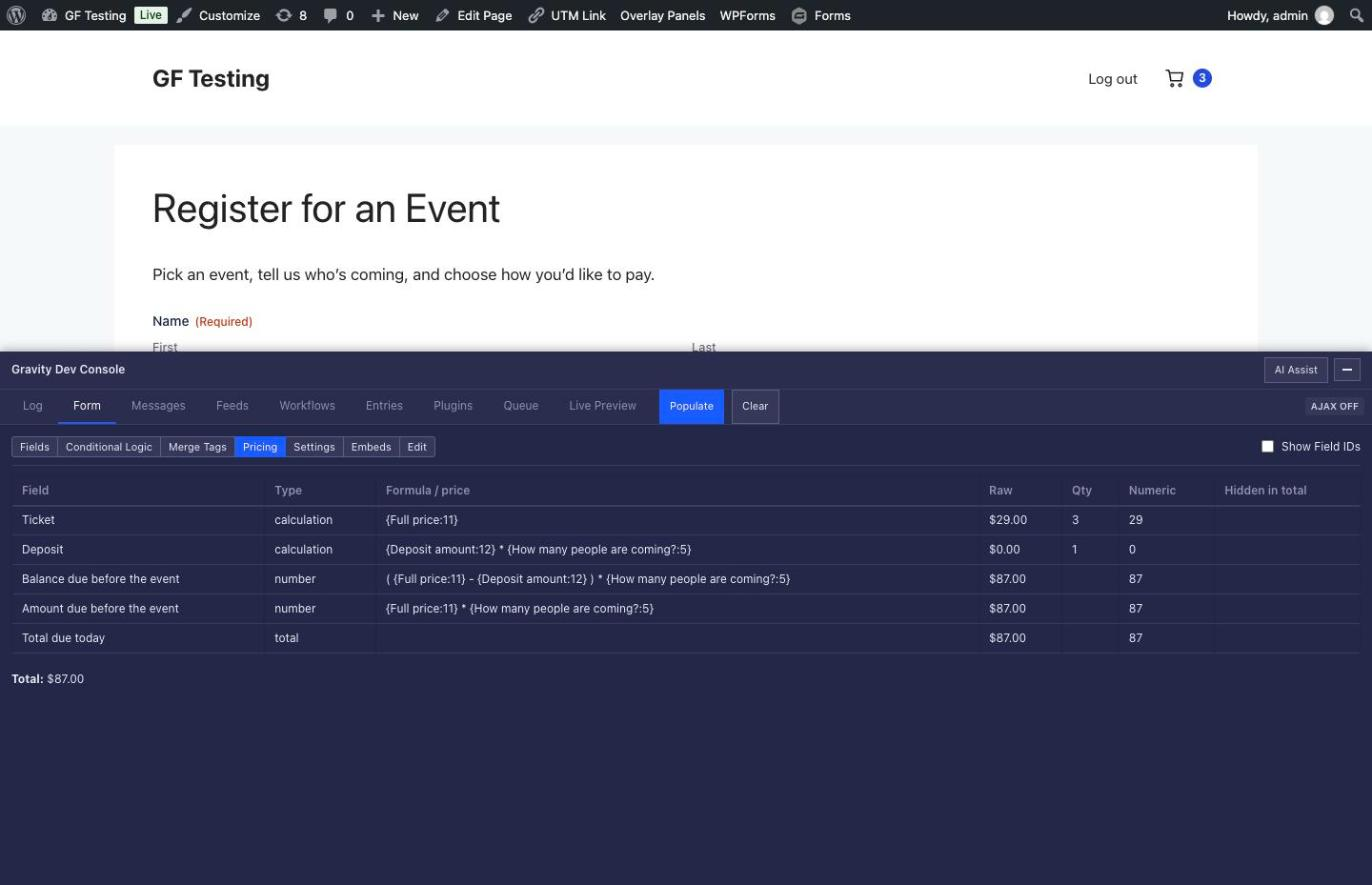
When a total is wrong, it is usually one field that isn’t what you think: a calculation that refers to a hidden field that is empty, a quantity field that isn’t linked to the product, or a price with the wrong currency format. This table shows each one. If you build calculated forms, my conditional pricing guide has more on how the pieces fit.
Merge tags
Form → Merge Tags turns any text into what Gravity Forms would send, using the values in the form or a saved entry from the Entry menu. Paste in a confirmation or notification message and click Resolve:
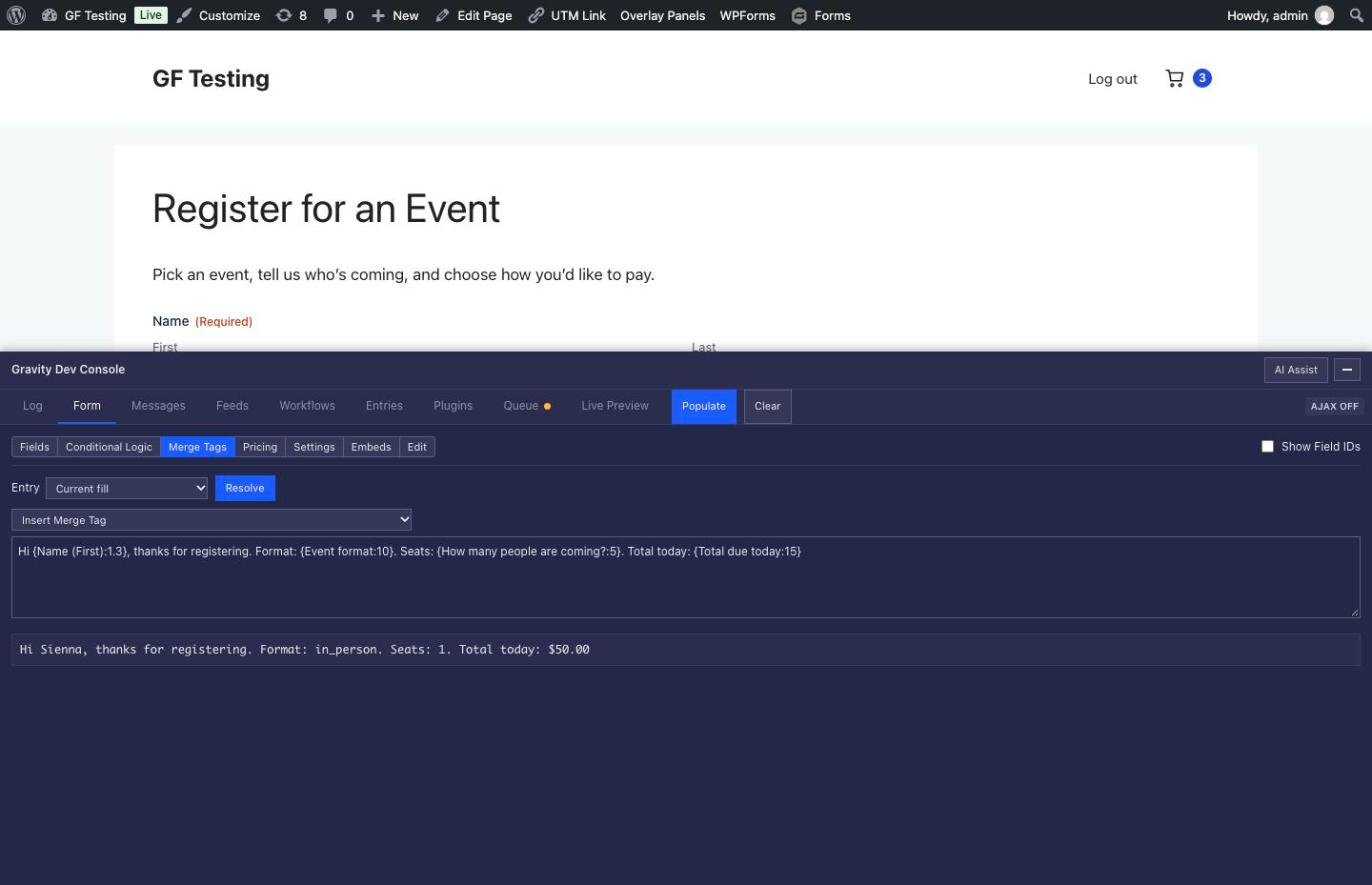
This one caught something useful: Event format holds the event’s internal value, in_person, not a friendly label, so it doesn’t belong in an email as it is. Much quicker to find out here than from a test email.
Notifications and feeds
Messages says which notifications and confirmations would go out for the values in the form, and why the others wouldn’t:
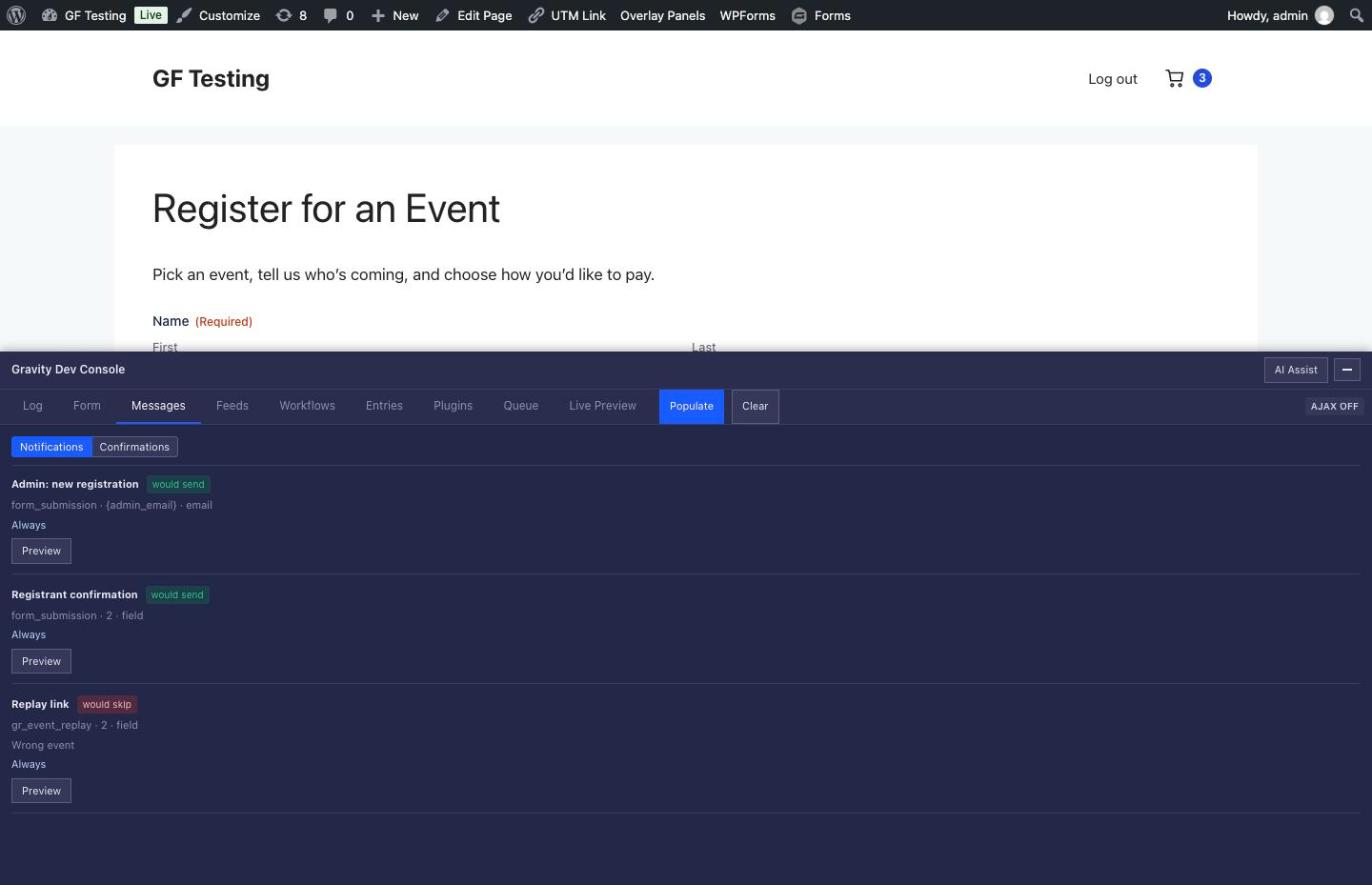
Preview shows the email with the merge tags filled in. The reasons cover the event, conditional logic and routing, so “the admin never got the email” is quickly narrowed down to the logic, the routing rules, or delivery (for delivery, see Gravity SMTP). If you mix routing and conditional logic, this comparison explains when each one applies.
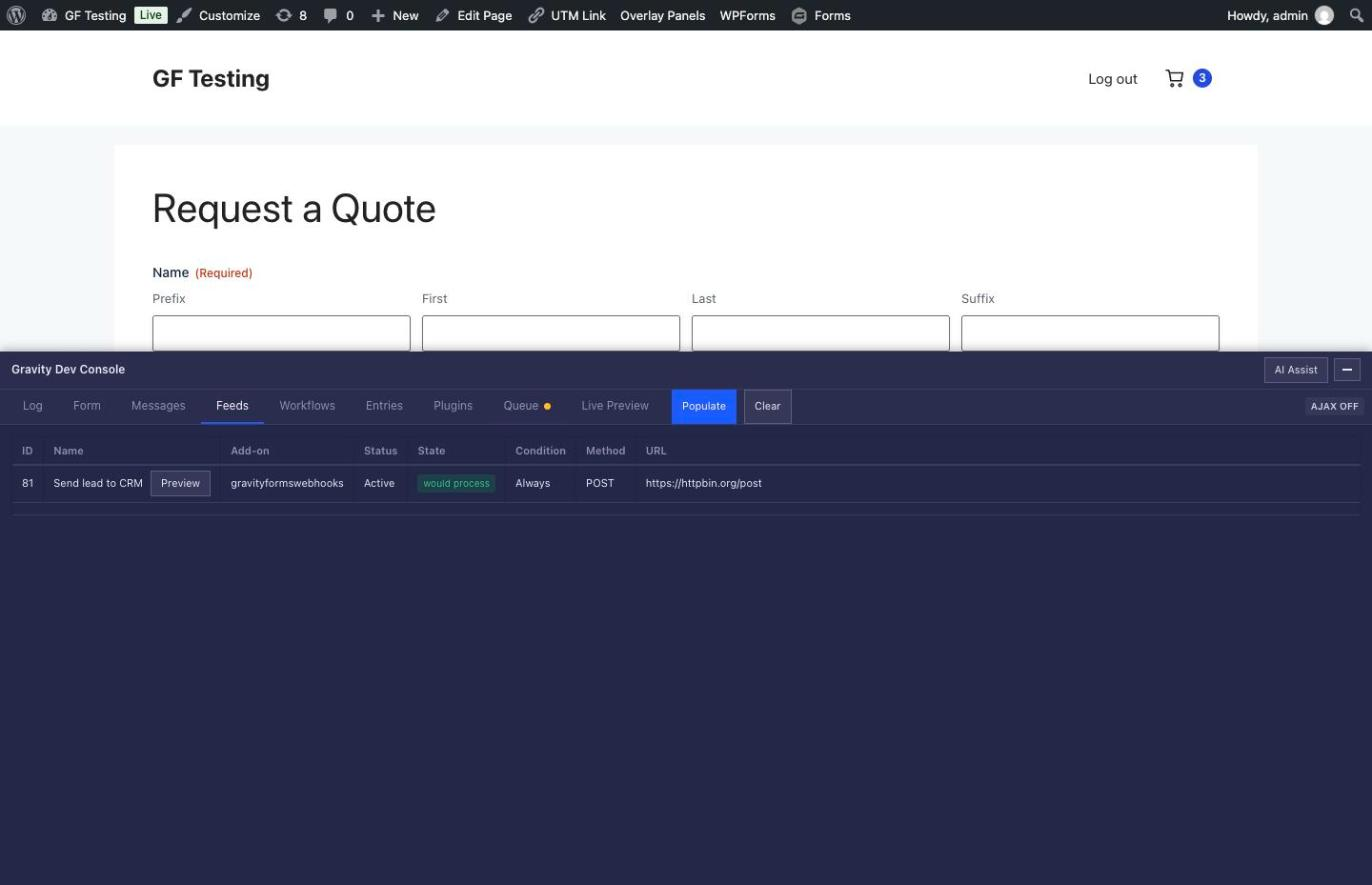
Feeds does the same for every feed on the form, with its condition and, for webhooks, the method and URL. Query strings in URLs are hidden so API keys don’t end up on screen.
Step 6: Test With Live Preview
Turn on Live Preview in the settings and the console gets a Live Preview tab, the form editor gets a Live Preview button, and the forms list gets a Live Preview link. Unlike the built-in preview, it shows the form in your theme. Tick the options you want and click Apply:
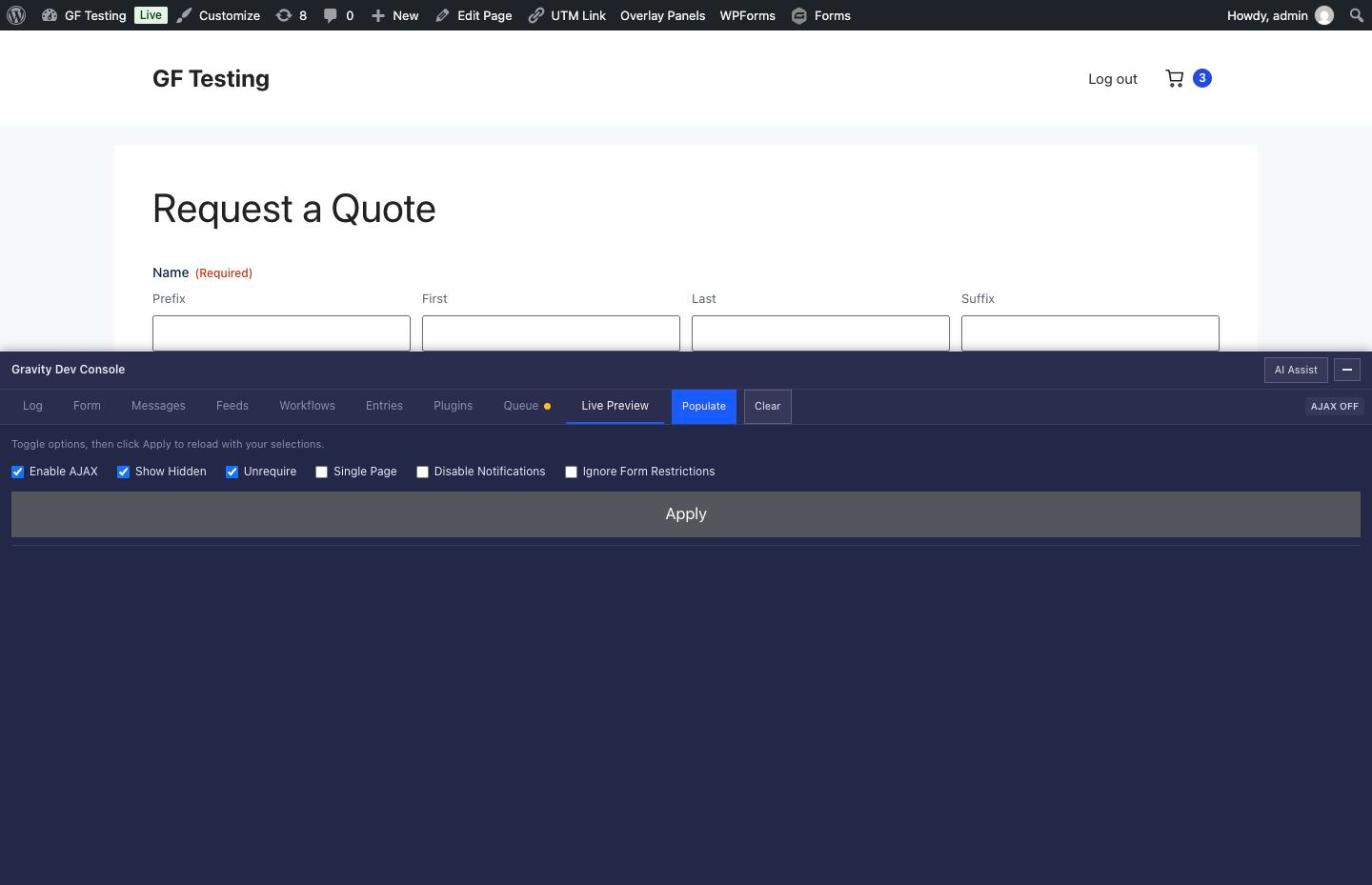
- Enable AJAX submits without reloading, to test AJAX-only problems.
- Show Hidden shows Hidden fields, fields with their visibility set to hidden, and fields hidden with the gf_hidden or gf_invisible CSS classes, so you can see what they hold.
- Unrequire makes every field optional, so you can get to page 4 without filling pages 1 to 3.
- Single Page shows every page of a multi-page form at once.
- Disable Notifications stops emails while you test.
- Ignore Form Restrictions lets you submit a form that is closed, scheduled or over its entry limit. Those test entries don’t count toward the limit.
The options only apply to your preview, never to visitors.
Populate and Dummy Entries
Populate fills every visible field with one made-up person: Paxton Cresthill gets [email protected] and a matching phone number, which makes notifications easy to check. Email addresses use example.org, a domain reserved for testing, so nothing is delivered to a real inbox. It also picks a real choice for fields whose choices are added by another plugin, like my event list.
With Dummy Entries and Side-Effect Testing on, the Entries tab can create several test entries at once. They go through the normal submission, so validation runs, notifications are sent and feeds run, including webhooks and payment feeds. Use it on staging. Dummy entries are marked in the entry list, and Trash dummy moves them all to the trash.
AI Assist
On WordPress 7.0 or newer, the AI Assist button opens a chat about the form on the page. It needs an AI provider, which you add under Settings → Connectors in WordPress; without one it tells you so. It is sent the page address and the form’s fields (IDs, types and labels), not the page itself.
If you have turned on Gravity Forms MCP (Forms → Settings → MCP), AI Assist can also use those tools to look up entries, feeds and notifications, so you can ask things like “why didn’t entry 711 reach the CRM?” By default it only uses tools that read. The AI Assist Changes setting lets it create, update and delete as well, without asking first. Leave that off on a live site: entries are written by visitors, and a visitor could write something meant to steer the AI.
Things to Know
- It is a Gravity Labs project. It isn’t covered by Gravity Forms support. Questions go to the Labs category on the community forum, the feedback form on the Labs page, or GitHub.
- Only administrators see it. It needs the
gravityforms_devconsolecapability, which administrators have. - Logging stops when the console is off. Turn off Enable Dev Console when you are done.
- On nginx, the log folder isn’t blocked automatically. The file names are random, but ask your host to deny
/wp-content/uploads/gf-devconsole-logs/. - Replay on the Feeds tab tells you the feed was handed to the add-on, not that the add-on succeeded. Check the log and the entry notes.
- The form restriction check covers schedule dates and the total entry limit, not the schedule time or a per-day/week/month limit.
- If the Queue Manager Add-On is also active, its Background Queues section on System Status is used instead of the Dev Console’s.
Alternatives
Without the add-on: Gravity Forms logging (Forms → Settings → Logging) records most of what the Log tab shows, in a text file you download (see how to reach the logs from an entry). Entry notes show feed results.
The closest add-on is Gravity Forms Dev Tools from Gravity Wiz, a free plugin you install through Spellbook. It previews forms on the front end with testing controls (show hidden fields, skip required fields, turn AJAX on or off, disable notifications), shows the Gravity Forms log in Query Monitor after each submission, and generates dummy entries in bulk. Gravity Wiz’s Live Preview also inspired the options in Step 6. The difference: Dev Tools helps you reproduce and log a problem, while the Dev Console also explains it (why a field is hidden, why a notification didn’t send, what is waiting in the queue) in one panel next to the form, without Query Monitor.
Who Should Use It
Anyone who builds Gravity Forms for a living: agencies, freelancers and support people who spend their day answering “why didn’t this work?” It is most useful on forms with conditional logic, calculated prices, several notifications or feeds to other systems. Install it on staging, or on a live site while you debug, and turn it off when you are done.
Frequently Asked Questions
How do I debug Gravity Forms conditional logic?
Fill the form, then look at each rule and the value of the field it depends on. The Dev Console Add-On shows every rule in plain words with field labels and IDs, and whether each field is visible for the current values, so you can see which rule is hiding a field.
How can I tell why a Gravity Forms notification wasn’t sent?
Check the notification’s event, conditional logic and routing for that entry, then check email delivery. The Dev Console’s Messages tab says which notifications would send for the values in the form and why the others would be skipped, and the Log shows which were sent.
Why are my Gravity Forms webhooks failing without an error?
Webhooks and most other feeds run in the background after the entry is saved, so errors don’t appear on the form. They are added to the entry notes. The Dev Console logs every failed attempt with the error, and its Queue tab shows whether Gravity Forms paused the queue.
Can visitors see the Gravity Forms Dev Console?
No. It is only shown to users with the gravityforms_devconsole capability, which administrators have.
Is the Gravity Forms Dev Console Add-On free?
It is a Gravity Labs download, free for anyone with an active Gravity Forms license. Labs projects are experimental and not covered by Gravity Forms support.
Need More Help?
If you still need help, use the chat or leave a comment below and we’ll get back to you.
Comments