
The Problem
Some fields only exist to make a form work: hidden fields that pass a value to a feed, calculation helpers, consent fields, tracking data. They still show up on the entry details screen, so every time you open an entry you scroll past information you never need to read.
Gravity Forms doesn’t have a setting to leave a field off that screen. Field visibility set to Administrative hides a field from the visitor, not from you.
The Solution
Tag the fields you don’t want to see with a CSS class, and use the gform_admin_pre_render filter to take them out of the entry details screen only. The values are still saved with the entry.
Step 1: Add the Snippet
Add this to your child theme’s functions.php or a code snippets plugin:
/**
 * Hide fields with the CSS class "hide-from-entries" on the Entry Details screen.
 * The values are still saved, and the fields still show when you click Edit.
 */
add_filter( 'gform_admin_pre_render', function ( $form ) {
	// Only the Forms → Entries → single entry screen.
	if ( rgget( 'page' ) !== 'gf_entries' || rgget( 'view' ) !== 'entry' ) {
		return $form;
	}

	// Leave edit mode and saving alone, so hidden values can still be edited.
	if ( rgpost( 'screen_mode' ) === 'edit' || rgget( 'screen_mode' ) === 'edit' || rgpost( 'action' ) === 'update' ) {
		return $form;
	}

	$form['fields'] = array_values( array_filter( $form['fields'], function ( $field ) {
		$classes = preg_split( '/\s+/', (string) $field->cssClass );
		return ! in_array( 'hide-from-entries', $classes, true );
	} ) );

	return $form;
} );
Step 2: Tag the Fields
- Open the form in the form editor and click the field you want to hide.
- Open the Appearance tab and add
hide-from-entriesto Custom CSS Class. If the box already has classes, add it after them with a space. - Repeat for each field, then save the form.
Open any entry from that form and the tagged fields are gone, even with show empty fields ticked.
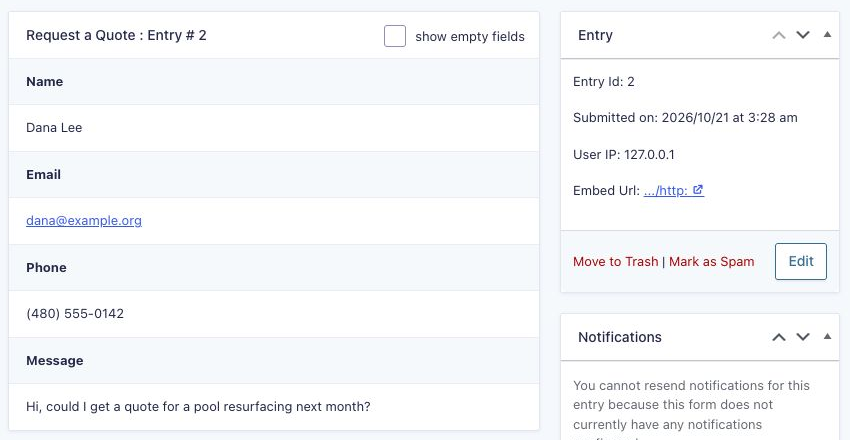
What It Doesn’t Change
- Editing. Click Edit on an entry and the hidden fields come back, so you can still correct their values. Right after you click Update, they also show on that one screen; reload the entry and they’re hidden again.
- Notifications and exports.
{all_fields}, entry exports and add-on feeds still include the fields. This only tidies the screen you read entries on. - The entries list. If a hidden field is one of the list’s columns, it still shows there. Change which columns show with the column selector at the top of the entries table.
- The form itself. The class does nothing on the front end, so visitors see the field as before.
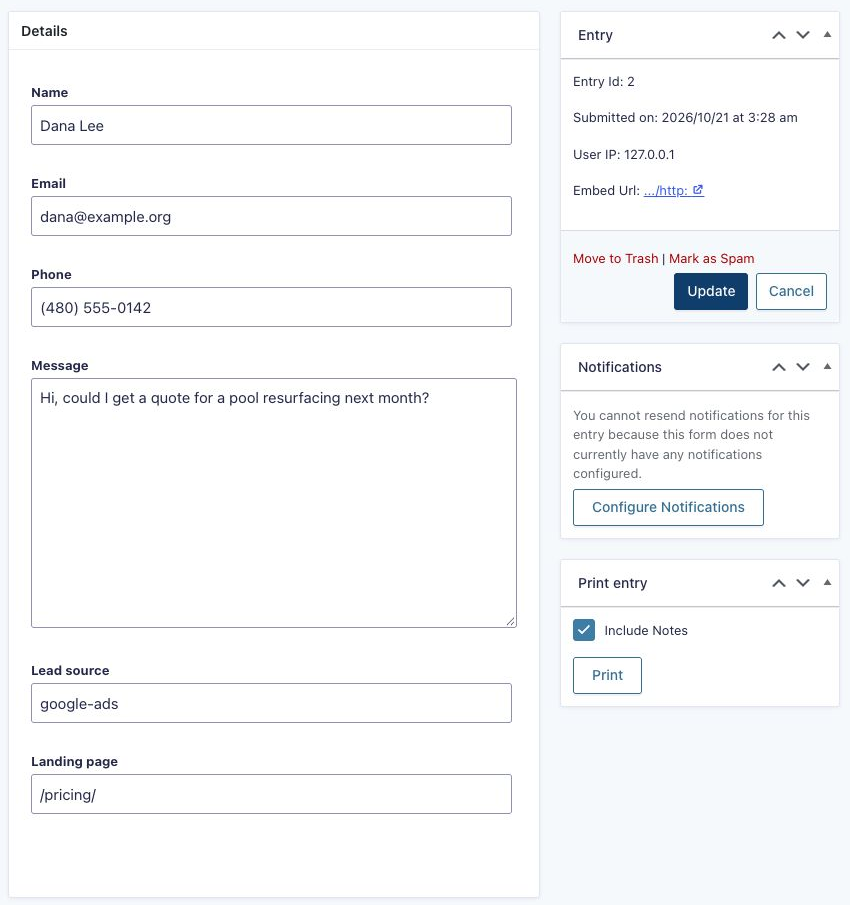
Need More Help?
If you still need help, use the chat or leave a comment below and we’ll get back to you.
Comments