
The Problem
Two questions that come up a lot:
- “I want to fill out most of a form for a new client, then send it to them so all they have to do is sign. Can I start the form, save it and send it to them to finish?”
- “Can I have two signature fields, sign the first one myself and then send a link to someone else to sign the second, like an agreement?”
Both come down to the same thing: one person starts the form and someone else finishes and submits it. Gravity Forms can do this out of the box with Save and Continue. The built-in way is below, then a free snippet that makes it cleaner for two signers.
The Solution: Save and Continue
Save and Continue saves a form part way through and gives you a link to finish it later. That link doesn’t care who opens it, so you can send it to someone else.
Turn It On
Open your form’s Settings, turn on Enable Save and Continue and change the Link Text to something that makes sense for you, like “Save and send to client”.
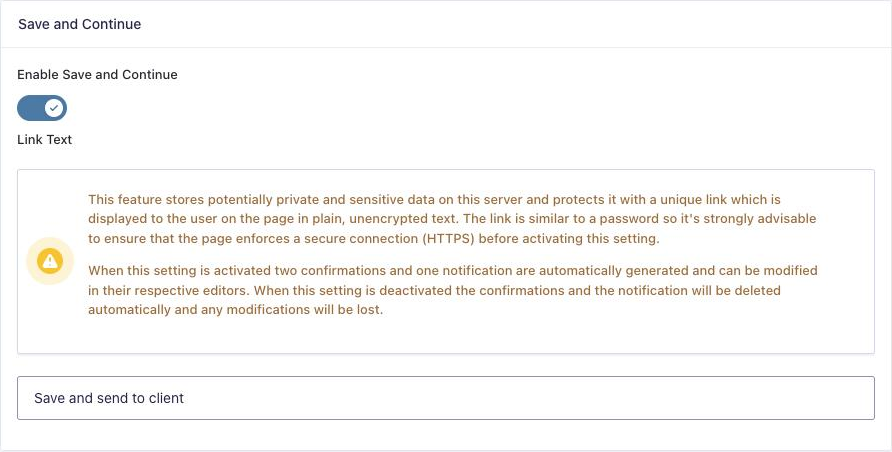
When you turn it on, Gravity Forms adds two confirmations and a notification for you. Rewrite them for sending to a client:
| Where | Name | What to change |
|---|---|---|
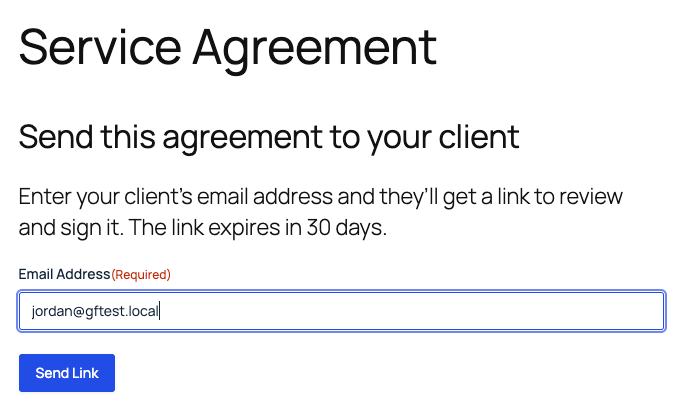
| Confirmations | Save and Continue Confirmation | What you see after saving. Keep the {save_email_input} merge tag and change the text to something like “Enter your client’s email address and they’ll get a link to review and sign it.” |
| Notifications | Save and Continue Email | The email your client gets. Keep the {save_link} merge tag. For example: “Your service agreement is ready. Please review it and add your signature here: {save_link}” |
| Confirmations | Save and Continue Email Sent Confirmation | What you see after the email goes out. The default is fine. |
Fill In Your Part and Send It
Open the form, fill in your part and sign, then click your Save and Continue link instead of submitting.
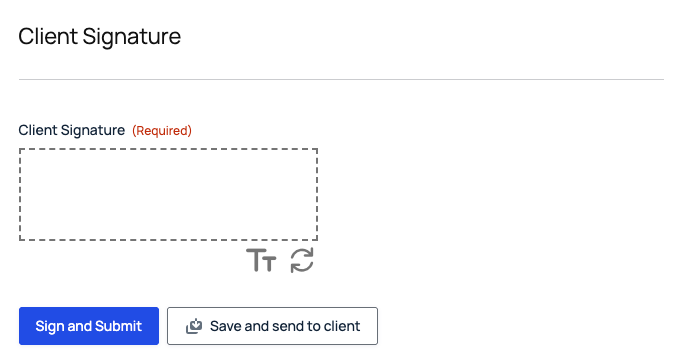
Saving skips validation, so a required field you leave empty (like the client’s signature) won’t stop you. You’ll get your confirmation with an email field. Enter your client’s address and click Send Link.
Your Client Finishes It
The link opens the form with everything you filled in, including your signature. Your client adds their signature and submits, and you get one normal entry with both signatures.
Add a notification on Form is submitted that goes to both of you, with {all_fields} in the message, so you both get a copy of the signed form.
Cleaner for Two Signers: Gravity Wiz’s Simple Approval Snippet
The built-in way works, but both people see the same form. You see your client’s signature box and a submit button you shouldn’t click, and your client sees the save link. Gravity Wiz‘s free Simple Approval snippet fixes that. It adds is_approval=1 to the Save and Continue link, so the form knows when it’s the second person opening it.
To set it up:
- Add the snippet from the Gravity Wiz Snippet Library with a code snippets plugin. At the bottom, set
form_idto your form’s ID andapprove_button_labelto your button text (I used “Sign Agreement”). Their example also setsapproval_read_onlytotrue, which needs their paid GP Read Only perk. Remove that line if you don’t have it. - Add a Hidden field called “Is Approval”. In its Advanced settings, check Allow field to be populated dynamically and set the parameter name to
is_approval. Put it near the top of the form, above your sections. - Give the Client Signature section conditional logic: show if Is Approval is
1. - Give the Submit button the same conditional logic. In the form editor, click the Submit button at the bottom of the form to open its settings.
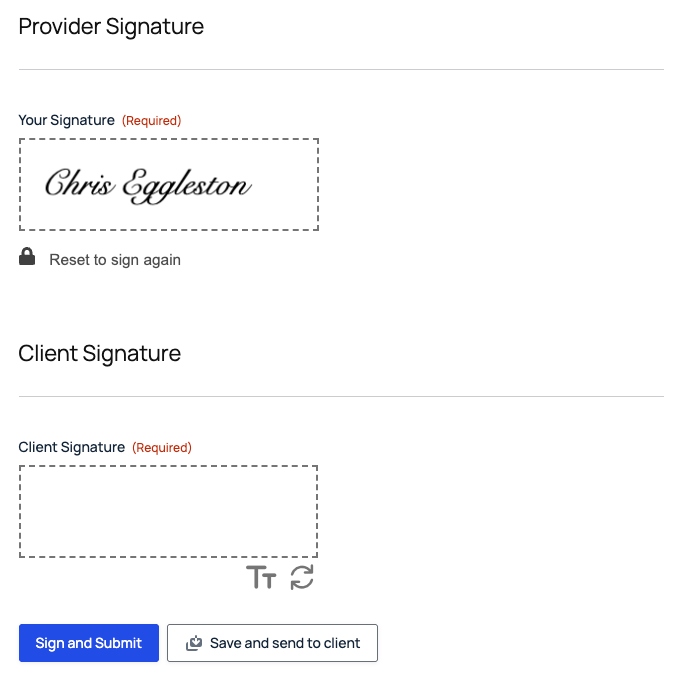
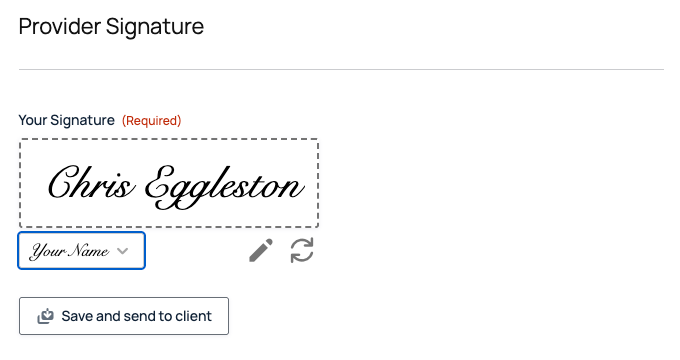
Now you only see your part and the save button:
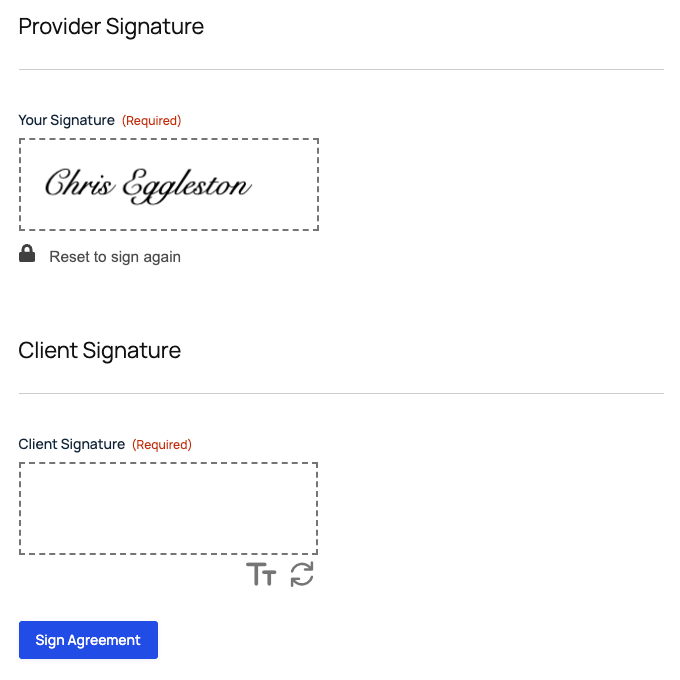
And your client sees their signature box and a submit button with your label. The save link is gone:
Why the hidden field goes above the sections: a field belongs to the section above it. If Is Approval sits at the bottom of the form, it ends up inside the Client Signature section that it controls.
Things to Know
- The link is the key. Anyone with it can open the form and see what’s been filled in, so only send it to the person who needs to sign. Gravity Forms also recommends HTTPS for any form with Save and Continue.
- Your client can change things. Every field is still editable, including prices, and the signature you added has a “Reset to sign again” link. If that’s a problem, use a workflow (below).
- Links expire after 30 days. The default emails say so.
- Once it’s submitted, the link is used up. Opening it again shows an empty form, not the signed one.
- Saved forms aren’t entries. Until your client submits, nothing shows up under Entries, and no “Form is submitted” notifications go out.
What About Advanced Save & Continue?
Advanced Save & Continue is a paid Gravity Perk that saves as you type and lets people keep several drafts. It’s built for the same person to come back to their own form later. Gravity Wiz says visitors who aren’t logged in can only pick up their drafts in the same browser, so it isn’t the tool for handing a form to someone else. For that, the built-in Save and Continue link is what you want.
When You Need a Real Workflow
Save and Continue is great for “fill it in, then pass it on.” If you need the details locked once you’ve filled them in, a record of who signed when, or more than two people in a set order, use Gravity Flow. Each person gets their own step and only sees the fields they’re allowed to edit.
Members can follow the full build in the Contract Signing with Gravity Forms and Gravity Flow class: a draft PDF, your signature, your client’s signature from an emailed link (no account needed) and a signed PDF for both of you.
Download the Form Template
It’s free. Get the agreement form from this tutorial, ready to import.
Need More Help?
If you still need help, use the chat or leave a comment below and we’ll get back to you.
Comments