
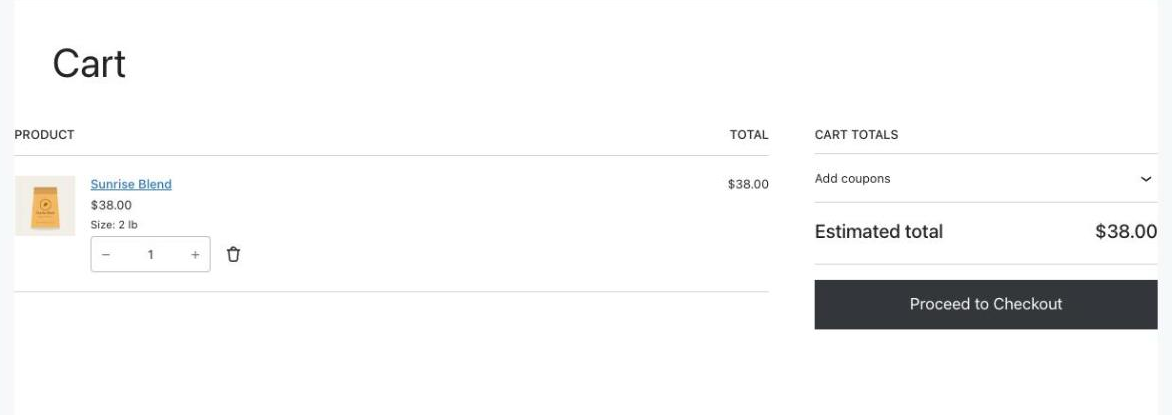
To add WooCommerce products to the cart from a Gravity Forms form, set the form’s confirmation to your Cart page and pass add-to-cart={product ID}&quantity={quantity} in the query string. WooCommerce adds the product as the page loads, so the customer lands on a cart that’s ready for checkout. For a variable product, use the variation ID. Use merge tags to fill in the ID and quantity from the form, and conditional confirmations to send different answers to different products.
I first wrote about this in 2022. This is a rebuilt, tested version with two working forms: a product finder quiz and a quick order form that pulls products straight from WooCommerce. There’s also a small plugin that tells you which form entries turned into paid orders.
When to Use This
- Product finders and quizzes: ask a few questions, then put the right product in the cart.
- Service intake: collect project details, then send the customer to pay for the matching package.
- Quick order forms: one page where someone picks a product, size and quantity without browsing the shop.
The form and the order stay separate: Gravity Forms keeps the answers, and WooCommerce handles the cart, checkout, payment and stock. If you want the form on the product page and its price added to the product instead, use a product add-on such as Gravity Wiz Product Configurator.
How WooCommerce Add-to-Cart URLs Work
WooCommerce adds a product to the cart when a page URL has an add-to-cart parameter. Using my demo store’s IDs:
| URL | What it does |
|---|---|
/cart/?add-to-cart=179 | Adds one of a simple product (ID 179) |
/cart/?add-to-cart=179&quantity=2 | Adds two |
/cart/?add-to-cart=174&quantity=2 | Adds two of a variation (ID 174: Canyon Roast, 12 oz) |
For variable products, use the variation ID. I also tried the parent product with the attribute in the URL (add-to-cart=176&attribute_pa_size=2-lb), and WooCommerce 11.2 refused it with “Please choose product options”. You’ll find the IDs on the product’s Variations tab:
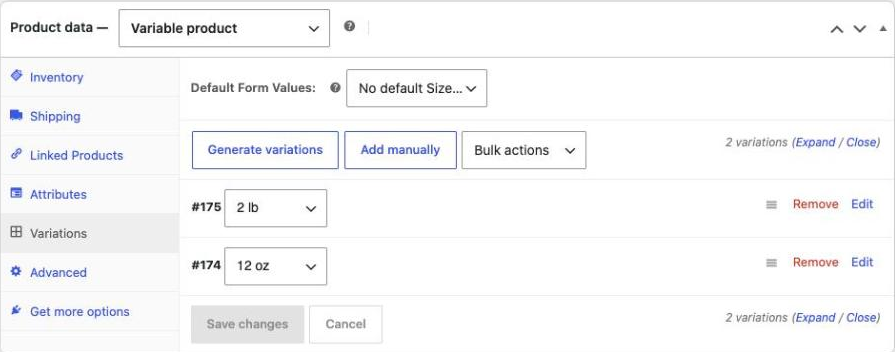
For a simple product, hover over it in Products → All Products to see its ID.
What We’ll Build
The demo is a coffee shop with three coffees, each sold in a 12 oz bag or a 2 lb bag.
- Coffee Finder: two questions, and a different confirmation for each answer adds the right coffee to the cart.
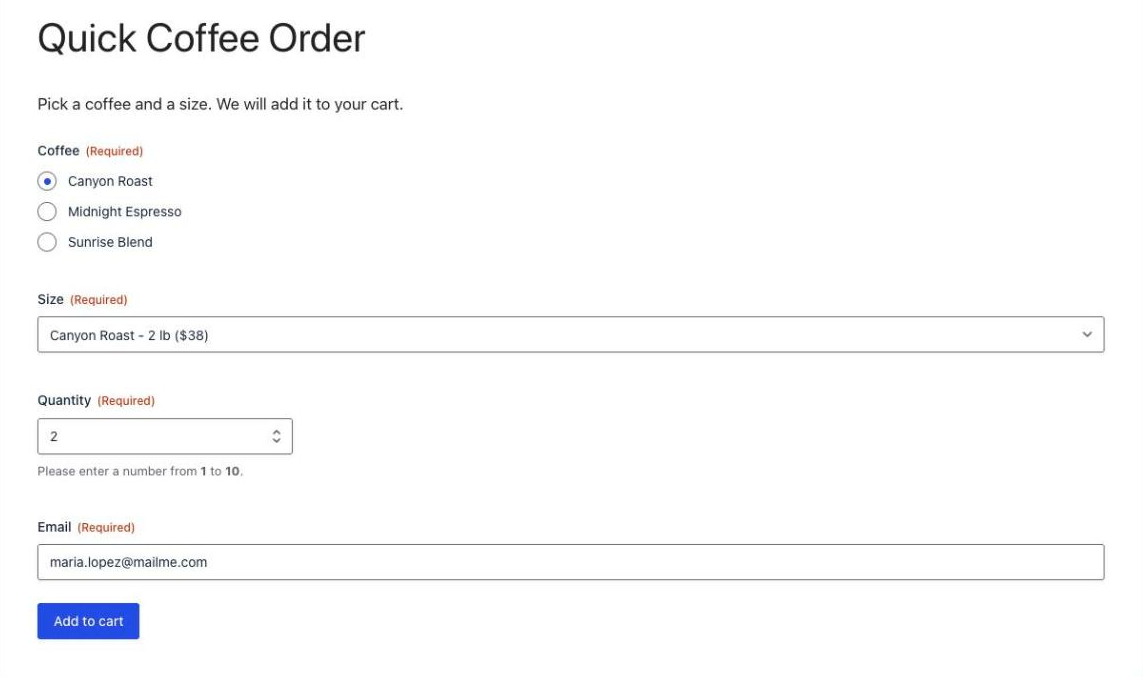
- Quick Coffee Order: Coffee and Size choices filled in from WooCommerce with Populate Anything, one confirmation built from merge tags.
- Order tracking: a small plugin that links each WooCommerce order to the entry that started it.
This part is for Free account members.
Things to Know
- One product per link. The add-to-cart URL adds a single product (or variation). Adding several different products from one submission needs code.
- Variable products need the variation ID. The parent ID with attribute parameters didn’t work in WooCommerce 11.2.
- The form doesn’t hold the price. WooCommerce charges its own price, so a price shown in a choice label is just for display.
- IDs differ between sites. If you build on staging, check the product and variation IDs (and Populate Anything category filters) after moving to live.
- Test in a private window. Your cart is tied to your session, so leftover test items can make results confusing.
Frequently Asked Questions
Can Gravity Forms add products to the WooCommerce cart?
Yes. Set the form confirmation to your WooCommerce Cart page and pass add-to-cart with the product ID, and optionally quantity, in the confirmation query string. WooCommerce adds the product when the cart page loads. Merge tags can fill in the ID and quantity from the form.
How do I add a variable product to the cart with a URL?
Use the variation ID, for example add-to-cart=174&quantity=2. You can find it on the product's Variations tab. In my test with WooCommerce 11.2, the parent product ID with attribute parameters returned "Please choose product options" instead of adding the product.
Why does my add-to-cart link add nothing?
Check that the merge tag sends the ID, not the label. Drop Down and Radio Buttons merge tags output the choice label by default, so use the :value modifier, such as {Size:2:value}. Also check that the ID belongs to a published, in-stock product or variation.
Why does refreshing the cart add the product again?
The add-to-cart parameter is still in the address, so each refresh adds the product again. Turn on Redirect to the cart page after successful addition in WooCommerce > Settings > Products, and WooCommerce sends the customer to the plain cart URL after adding it.
Can I add several products from one form?
Not with the add-to-cart URL, which adds one product or variation at a time. You can send different answers to different products with conditional confirmations, but adding several different products from one submission needs custom code or a product add-on plugin.
How do I know which form entries became orders?
Add &gf_entry={entry_id} to the confirmation query string and use the small plugin in this tutorial. It links the WooCommerce order to the entry, adds notes when the order is placed, paid and completed, and adds an Order column to the Gravity Forms entries list.
Need More Help?
If you still need help, use the chat or leave a comment below and we’ll get back to you.
Thank you, this works like a charm and was the only tutorial I could find on this topic. I switched to gravity forms just for this feature. The only issue I’m having is that gravity forms doesn’t seem to be able to add multiple products to the cart at once. I’m using the checkbox field to allow selection of multiple products but when the form is submitted, only the first product listed in the confirmation redirect is added to the cart. Any insights on how to solve this problem?
Hi Terry, this sounds like a unique setup, are you able to share a link to your form and a screenshot of your confirmation configuration?