
The Problem
You want customers to tick the products they want, like adding items to a cart: a website audit and a speed fix, or three workshops and a workbook. Each one has its own price, and each one should show up as its own line in the order.
Gravity Forms‘ Product field doesn’t have a checkbox type. It comes as a single product, a drop down or radio buttons, so customers can pick one thing per field.
There is one field with checkboxes and prices: the Option field. But options belong to a product. They’re extras, like gift wrap on a sweater, so the order shows one product with everything tucked underneath it:
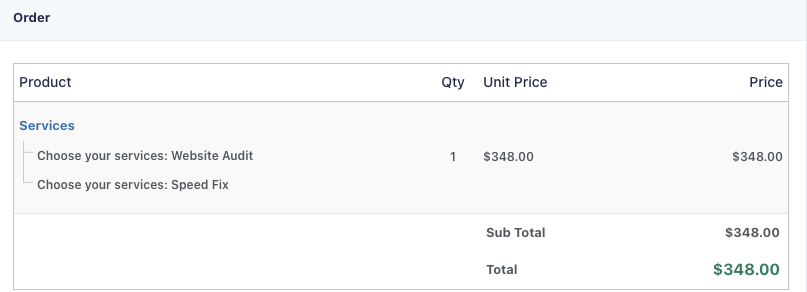
The total is right, but that’s not a cart. Here are two ways to get real checkbox products, each tested with the same four services.
Method 1: A Checkbox Field That Controls Products
This is the approach Gravity Wiz popularized, and it works with no PHP. A normal Checkbox field is what customers see. Behind it, there’s one Single Product field per choice, and each product only counts when its box is ticked.
- Add a Checkbox field with one choice per product. Put the price in the label, like “Website Audit ($149)”, since nothing else will show it.
- Add a Product field (Single Product) for each choice, with the same name and price. Turn on Disable quantity field.
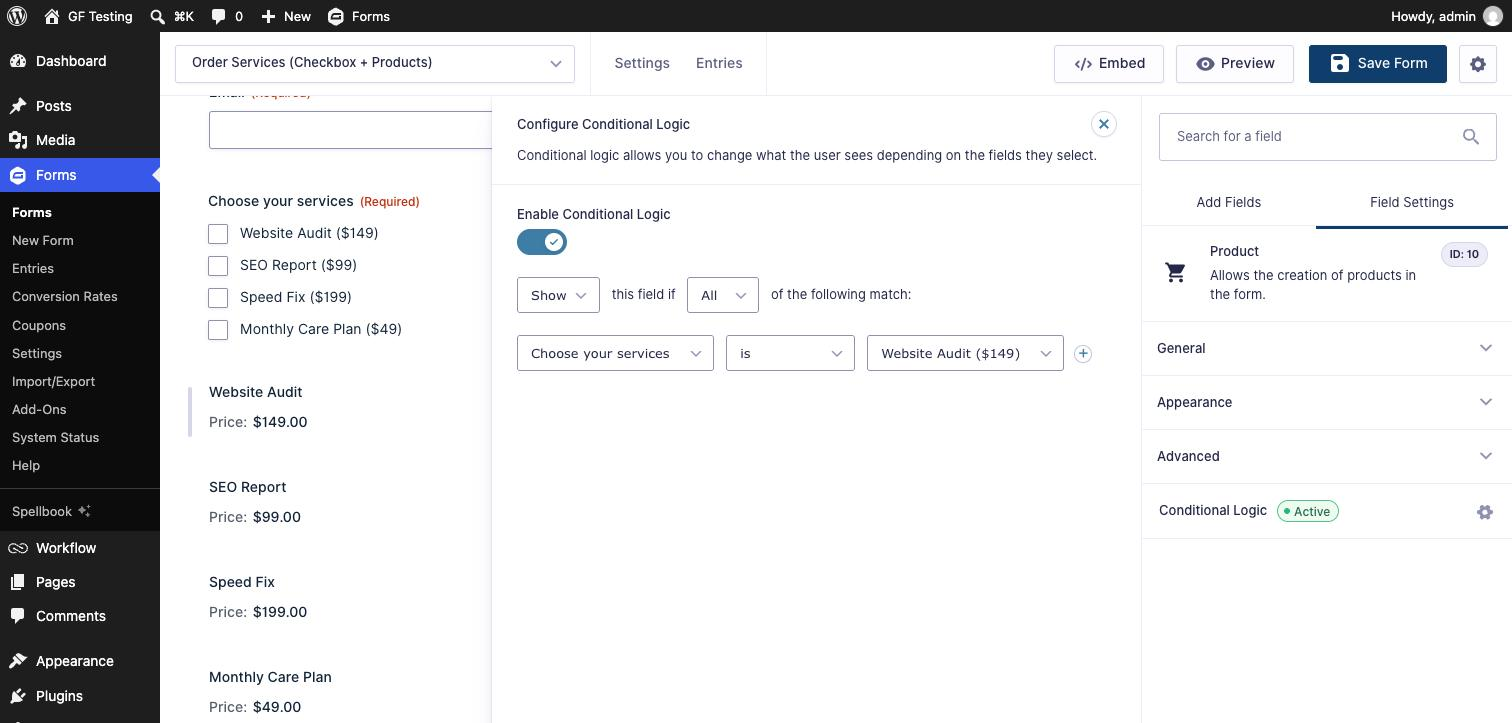
- Give each product field conditional logic: show if the checkbox field is that product.
- Give each product field the CSS class
gr-invisible, and add the CSS below under Appearance → Customize → Additional CSS. - Add a Total field.
.gform_wrapper .gfield.gr-invisible {
	position: absolute !important;
	width: 1px !important;
	height: 1px !important;
	padding: 0 !important;
	margin: -1px !important;
	overflow: hidden !important;
	clip: rect(0, 0, 0, 0) !important;
	white-space: nowrap !important;
	border: 0 !important;
}
The CSS hides the product fields without using display: none. That matters: Gravity Forms treats a field with display: none as hidden and leaves it out of the total. Product fields don’t offer the editor’s Visibility: Hidden setting, so the CSS class is the way to do it.
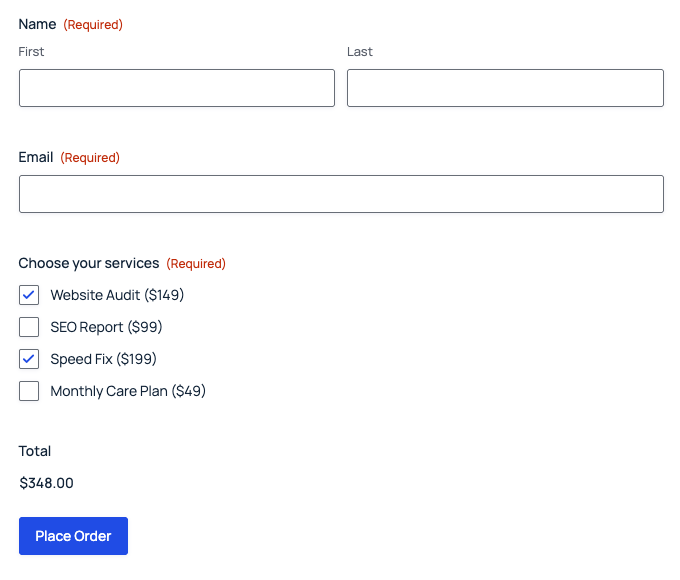
Each ticked product is its own line in the order, so this does give you real checkbox products. The catch is upkeep: every product exists twice (a checkbox choice and a product field), and its price is typed twice. Add a product or change a price and you’re editing two fields and a conditional logic rule.
Method 2: Option Checkboxes and a Short Snippet
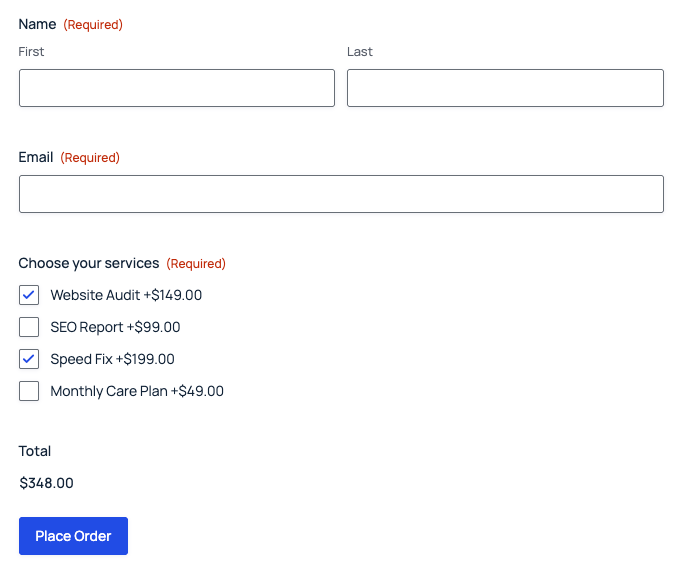
This one keeps each product in one place. You use the Option field’s checkboxes, where every choice already has its own price and Gravity Forms shows it next to the label. A short snippet then turns each ticked choice into its own product in the order.
Step 1: Add a Hidden Product
Add a Product field, set its Field Type to Hidden and its price to $0.00. Call it something like “Services”. Customers never see it: it just gives the Option field something to attach to.
Step 2: Add the Option Field
Add an Option field and set:
- Field Type: Checkboxes
- Product Field Mapping: your hidden product
- Choices: one per product, each with its price
- Custom CSS Class (Appearance):
gr-checkbox-products
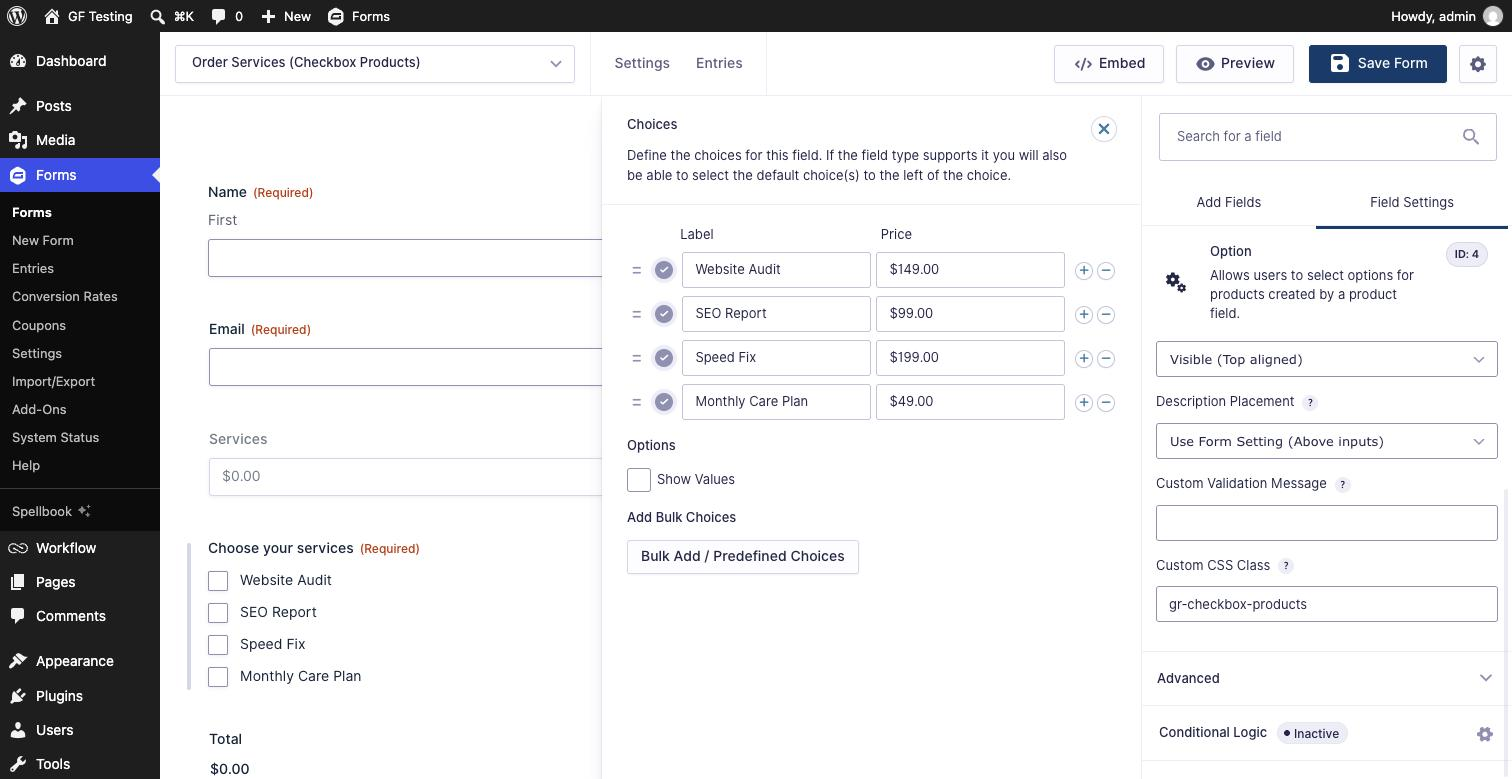
Add a Total field, and the form already works: the labels show each price and the total updates as boxes are ticked.
Step 3: Add the Snippet
Add this with a code snippets plugin (such as Code Snippets or WPCode), or in your theme’s functions.php:
/**
 * Gravity Forms builds the order (the order summary, {pricing_fields}, and what payment add-ons charge)
 * from this filter. Each checked choice becomes a product with its own name and price.
 */
add_filter( 'gform_product_info', function ( $product_info, $form, $entry ) {
	foreach ( $form['fields'] as $field ) {
		if ( 'option' !== $field->type || 'checkbox' !== $field->get_input_type() ) {
			continue;
		}
		if ( ! in_array( 'gr-checkbox-products', preg_split( '/\s+/', (string) $field->cssClass ), true ) ) {
			continue;
		}

		$product_id = (string) $field->productField;
		if ( empty( $product_info['products'][ $product_id ] ) ) {
			continue; // Nothing checked.
		}

		$parent   = $product_info['products'][ $product_id ];
		$quantity = max( 1, (float) $parent['quantity'] );
		$items    = array();

		foreach ( (array) rgar( $parent, 'options' ) as $index => $option ) {
			if ( $option['field_label'] !== $field->label ) {
				continue; // An option from a different Option field.
			}
			$items[ $product_id . '_' . ( $index + 1 ) ] = array(
				'name'     => $option['option_name'],
				'price'    => GFCommon::to_money( $option['price'] ),
				'quantity' => $quantity,
				'options'  => array(),
			);
			unset( $parent['options'][ $index ] );
		}

		if ( ! $items ) {
			continue;
		}

		// Keep the parent product only if it has a price of its own (or other options still on it).
		$keep_parent = GFCommon::to_number( $parent['price'] ) > 0 || ! empty( $parent['options'] );
		$products    = array();
		foreach ( $product_info['products'] as $id => $product ) {
			if ( (string) $id === $product_id ) {
				if ( $keep_parent ) {
					$parent['options'] = array_values( $parent['options'] );
					$products[ $id ]   = $parent;
				}
				$products += $items; // Keep the items where the parent product was.
				continue;
			}
			$products[ $id ] = $product;
		}
		$product_info['products'] = $products;
	}

	return $product_info;
}, 10, 3 );
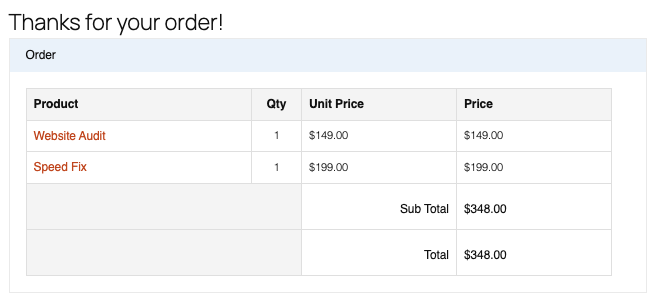
Gravity Forms builds every order through the gform_product_info filter: the order summary, the {pricing_fields} merge tag in notifications and confirmations, and the amount a payment add-on charges. The snippet finds Option fields with the gr-checkbox-products class, turns each ticked choice into a product with its own name and price, and drops the $0 product they were attached to.
What I Tested
| Test | Result |
|---|---|
| Two services ticked | Website Audit $149 and Speed Fix $199 as separate lines, $348 total, in the confirmation and the entry |
| Payment add-on order data (Stripe) | Two line items, $149 and $199, charging $348 |
| Changing a choice’s price in the browser | Rejected by Gravity Forms: “Invalid selection. Please select from the available choices.” |
| Changing the hidden product’s price in the browser | Rejected by Gravity Forms, which resets the hidden value |
The last two are Gravity Forms’ own checks, so customers can’t change a price in the browser with this method.
Things to Know
- Keep the hidden product at $0. If you give it a price, the snippet keeps it as its own line next to the checkbox products.
- Quantity: each ticked product counts once. If you add a Quantity field for the hidden product, that quantity applies to every ticked choice.
- Older orders: Gravity Forms saves the order with each entry, so entries submitted before you add the snippet keep the old “one product with options” layout.
- Other Option fields are left alone. The snippet only changes Option fields with the
gr-checkbox-productsclass.
Add-Ons Worth Knowing About
If your checkbox products need more than this, Gravity Wiz has a few perks that pair well with either method: GP Limit Choices to cap how many people can pick a product, GP Inventory for products with limited stock, and GP eCommerce Fields for tax, discounts and subtotals. They’re paid, so only reach for them if you need those features.
Download the Form Template
It’s free. Get both forms and the snippet from this tutorial, ready to import.
Need More Help?
If you still need help, use the chat or leave a comment below and we’ll get back to you.
Comments