The Problem
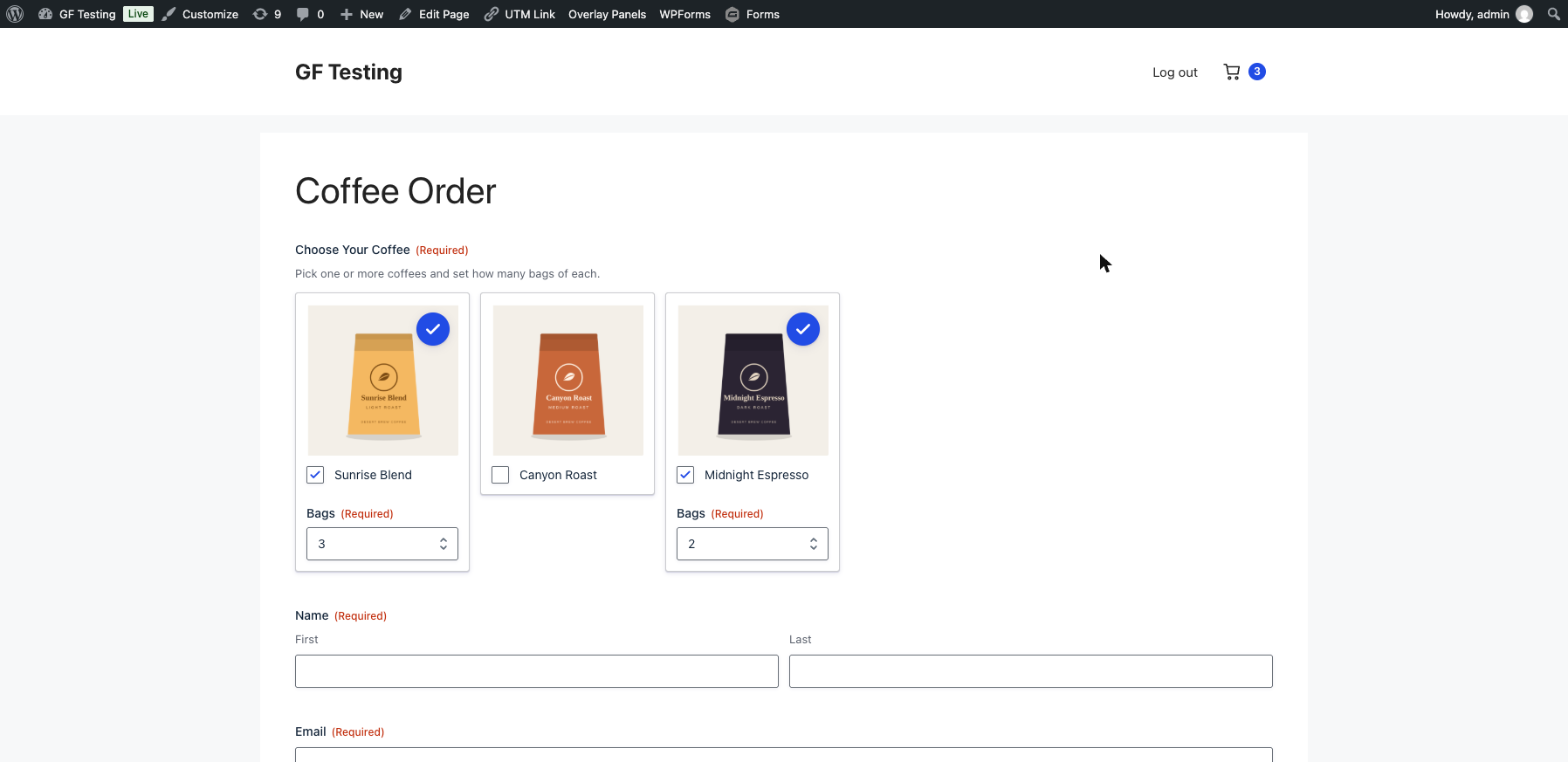
A customer asked me this one: they were using the Image Choice field so people could pick products by photo, and wanted a quantity box on each card. Pick the Sunrise Blend, say how many bags, pick the Midnight Espresso, say how many of those.
Gravity Forms doesn’t do that out of the box. The Image Choice field only records which cards were picked. You can add Number fields for the quantities, but they sit underneath the whole field, away from the pictures, and people have to match “Quantity 2” to the second card in their head.
The Solution
Gravity Forms has a snippet for this on Gravity Labs, Image Choice Quantities. You still add a normal Number field for each card, and the snippet moves each one inside its card when the form loads. It’s done on the server, so there’s no flash of the fields jumping into place, and because they are still real Gravity Forms fields, validation, conditional logic, entries and merge tags all work as usual.
Step 1: Build the Form
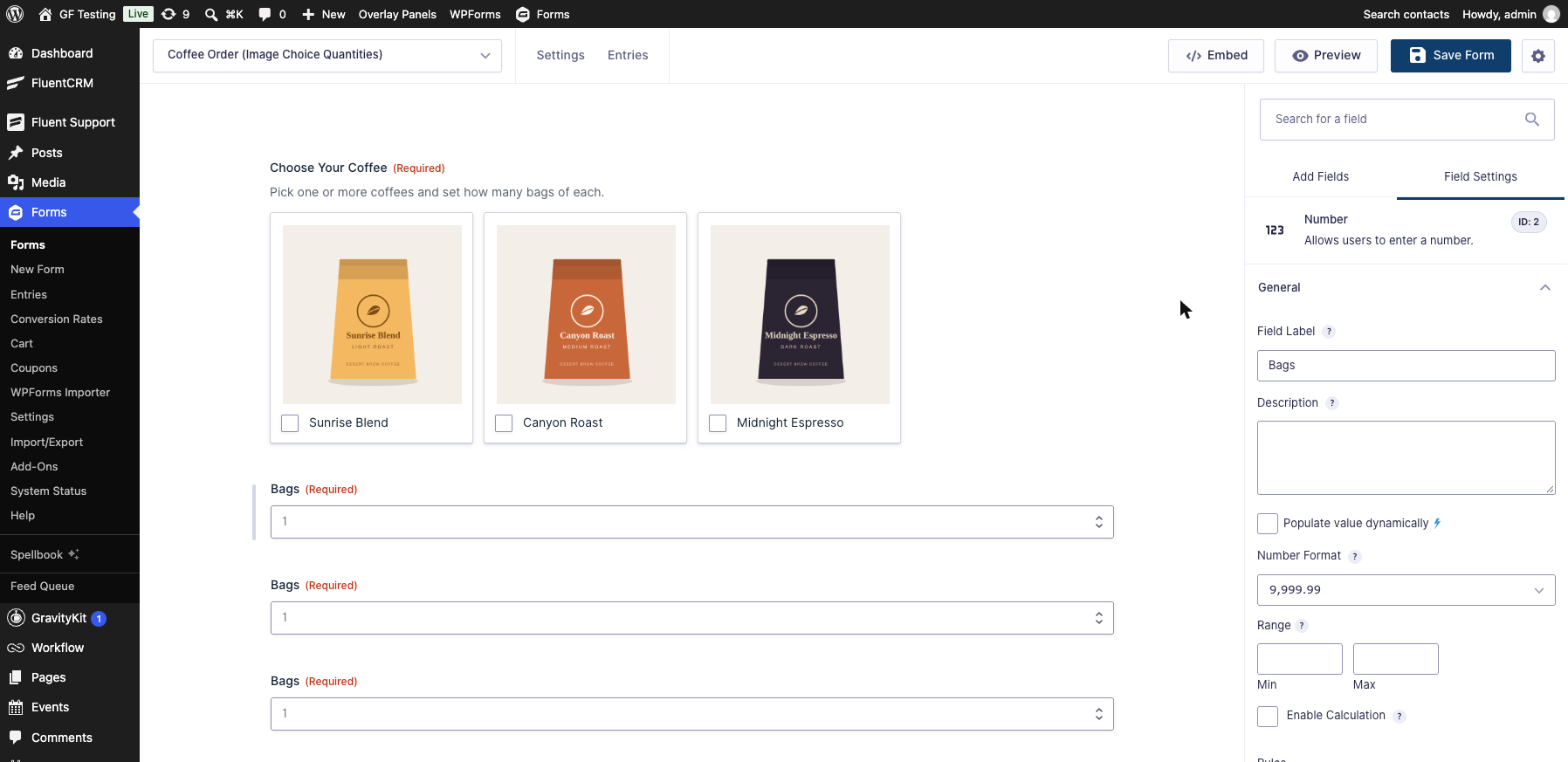
- Add an Image Choice field and add your choices (I used three coffees with Select Multiple, so people can order more than one).
- Add one Number field for each card, in the same order as the cards. The Field Label shows inside the card, so keep it short: “Quantity” or “Bags”.
- Give each Number field an Admin Field Label with the product name (Advanced tab), like “Sunrise Blend bags”. Otherwise every quantity in your entries and notifications is called “Bags”.
- Optional but nice: add conditional logic to each Number field, Show this field if Choose Your Coffee is Sunrise Blend, so the box only appears once its card is selected. Set a Default Value of 1 if you want it to start there.
- Note the IDs: the form ID, the Image Choice field ID, and each Number field’s ID. Click a field and the ID is in the top right of Field Settings.
Step 2: Work Out the Choice Numbers
The snippet matches each Number field to a card by its choice number, and the numbering depends on the Image Choice field’s selection mode:
| Selection | 1st card | 2nd card | 3rd card | Notes |
|---|---|---|---|---|
| Select Multiple | choice_1 | choice_2 | choice_3 | Skips numbers ending in 0: the 10th card is choice_11 |
| Select One | choice_0 | choice_1 | choice_2 | Starts at 0 |
If you’re not sure, preview the form, right-click a card and choose Inspect. The card’s class ends in its number: gchoice_108_1_2 is form 108, field 1, choice 2.
Step 3: Add the Snippet
Get the code from the Image Choice Quantities page on Gravity Labs. Log in with your Gravity Forms account to see it, then click Copy code.
Add it to your site with a code snippets plugin like WPCode Box (as a PHP snippet that runs everywhere), or paste it into your child theme’s functions.php.
The settings are in the $gf_image_choice_quantities array at the top of the snippet. For the coffee form they are:
| Setting | What it is | Coffee form |
|---|---|---|
form_id | Your form’s ID | 108 |
image_choice_field_id | The Image Choice field’s ID | 1 |
quantities | One line per card: the choice number and the Number field that goes in it | choice_1 → 2, choice_2 → 3, choice_3 → 4 |
Replace the example values with yours. You can map more than one Image Choice field on the same form (add another entry under field_mappings) or more than one form (add another entry to the top list). A card with no line in quantities simply gets no box.
Step 4: Test It
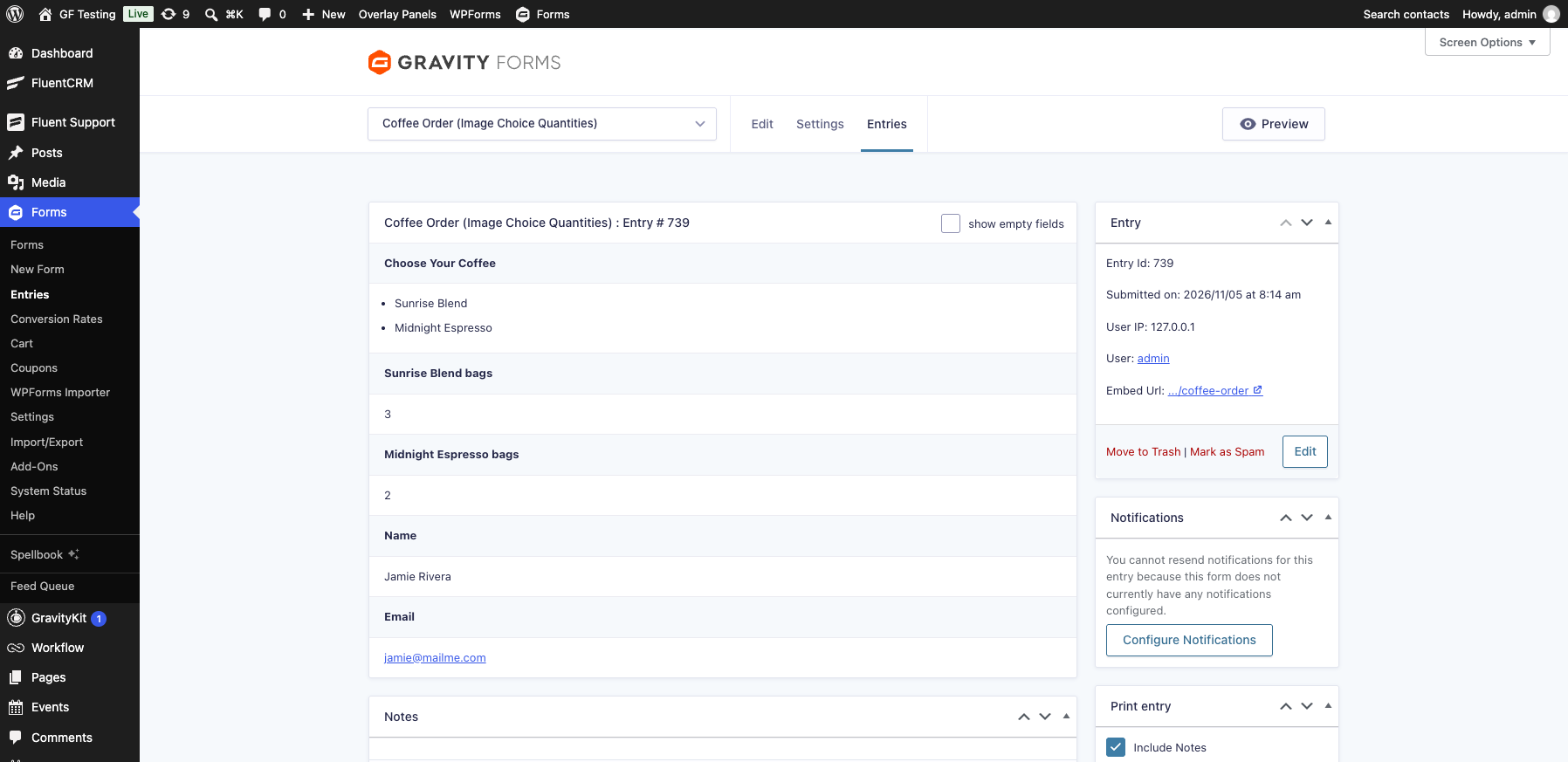
Preview the form, select a couple of cards, change the quantities and submit. Clicking in a quantity box doesn’t select or deselect the card around it, and the entry stores each quantity in its own Number field:
Things to Know
- Only on the front end. In the form editor and on the entry screen, the Number fields show in their normal place, so you can still edit them.
- Card order matters. Choice numbers follow the order of the cards. If you drag a choice to a new position, update the mapping.
- Required quantities and conditional logic play well together. A required Number field hidden by conditional logic isn’t checked, so people only have to fill in the boxes for the cards they picked.
- These are quantities, not prices. The Number fields don’t add anything to a total. If each card is a product with a price, see Gravity Forms Checkbox Products for ways to sell several products from one field.
- Not in a mu-plugin as is. The snippet runs as soon as it’s loaded and needs Gravity Forms to be loaded first. That’s the case in
functions.phpand in WPCode Box; if you use a mu-plugin, load the snippet insideadd_action( 'gform_loaded', ... ).
Download the Form Template
It’s free. Get the Coffee Order form from this help doc, with the setup notes, ready to import.
Need More Help?
If you still need help, use the chat or leave a comment below and we’ll get back to you.
Comments