
Gravity Forms gives a Date field seven numeric formats and nothing else. If you want “Wednesday, November 11, 2026” in a confirmation email, “August 2027” for an expiry date, or a specific format for a CRM, you end up writing merge tag filters. Date Formats from Orbital Forge adds a custom format box to every Date field and applies it to merge tags, entries and exports.
Tested November 2026 with Date Formats 1.3 on a test site running Gravity Forms 3.2.2. Short version: the formatting side works well. The date picker side has not caught up with the new date picker in Gravity Forms 3, and one combination makes a field unusable. Details and the safe setup are below.
Why Gravity Forms Dates Look the Way They Do
A Date field saves its value as 2026-11-11 and shows it back in whichever preset you picked: mm/dd/yyyy, dd/mm/yyyy and five variations with dashes, dots or year first. There is no setting for month names, weekdays or two-digit years. Date Formats does not change what is stored. It changes what is displayed, and it does that per field.
What You Need
- Gravity Forms (the plugin asks for 2.5 or newer)
- Date Formats: $39 a year for one site, $89 for four, $149 unlimited, or as part of the Orbital Forge Toolkit from $99 a year (prices checked November 2026)
- PHP 8.0 or newer
Step 1: Turn On a Custom Format
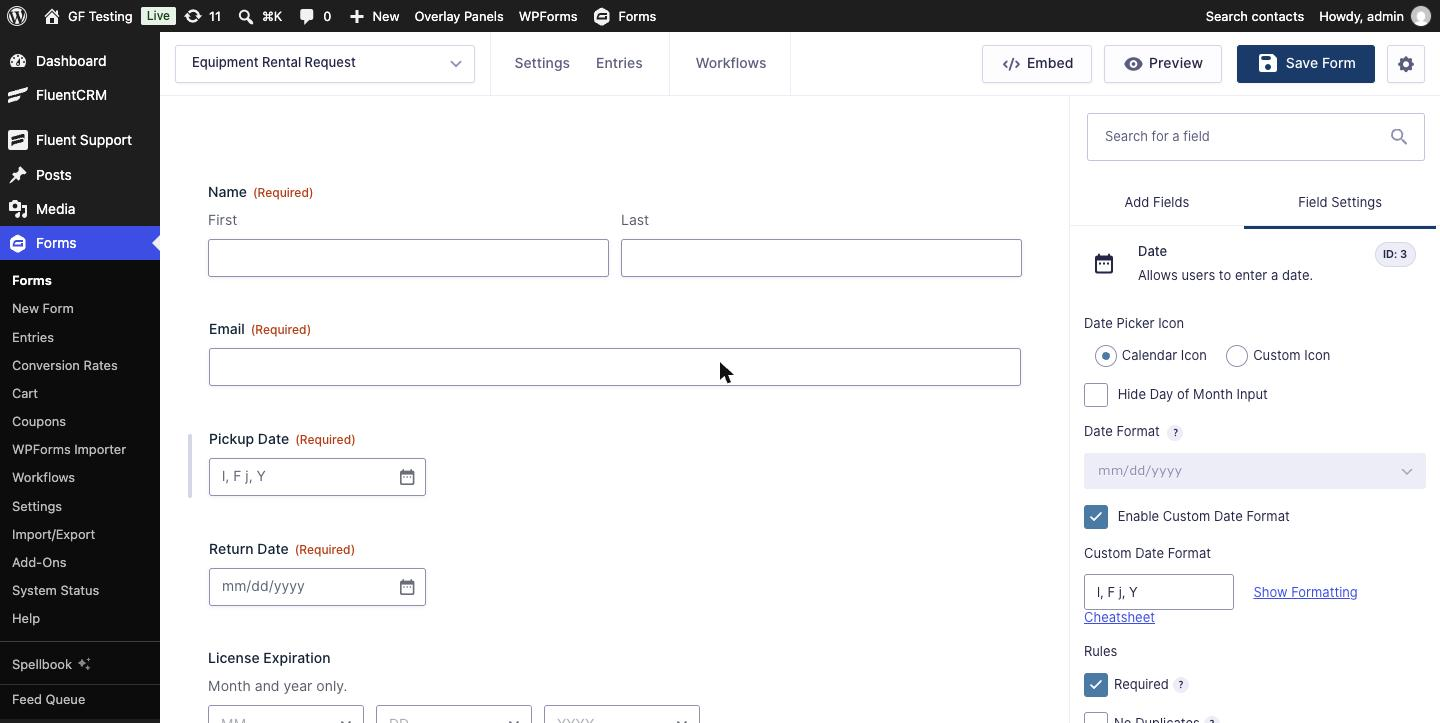
There is no settings page. Open a form, select a Date field and look at Field Settings → General. Tick Enable Custom Date Format and type a format. The standard Date Format dropdown greys out while the custom one is on.
Formats use PHP date characters. Click Show Formatting Cheatsheet for the supported ones: d j z D l m n M F y Y U. Anything else you type (commas, spaces, dashes) is kept as is.
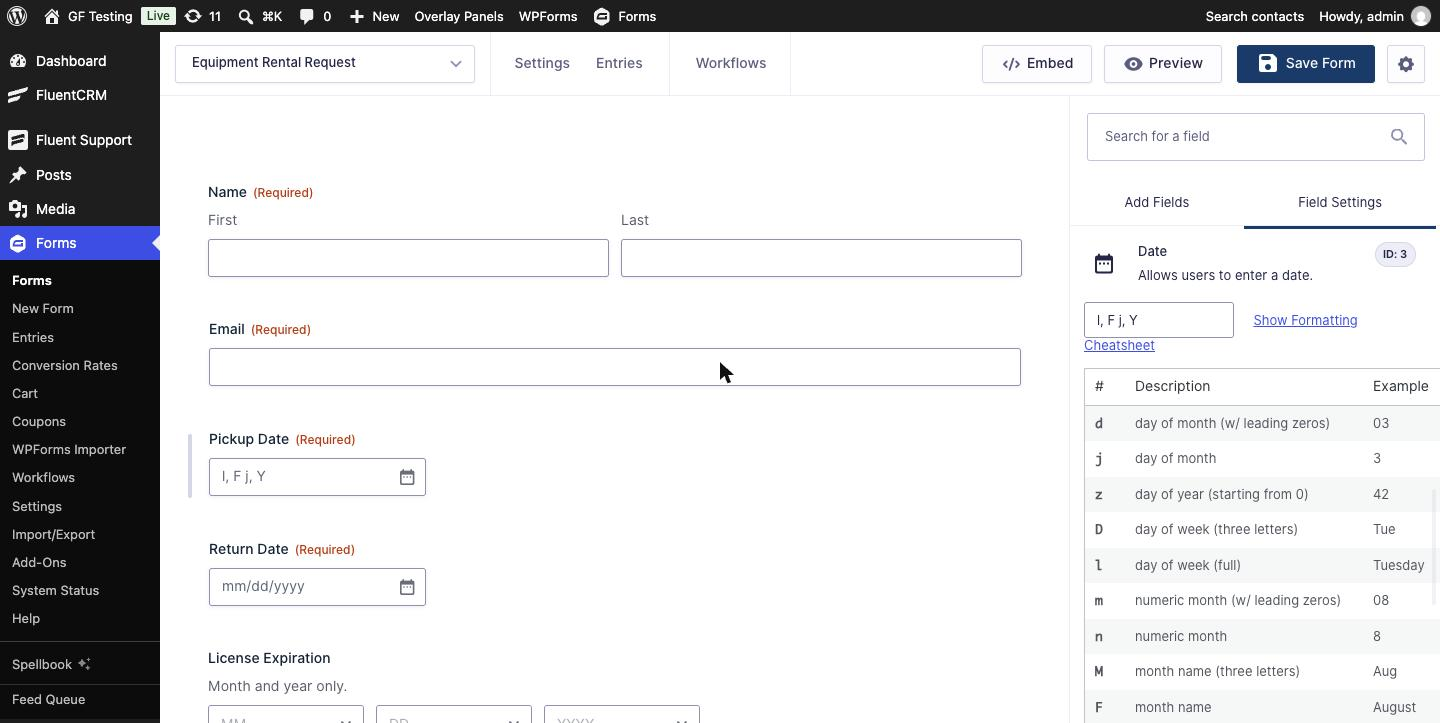
| Format | Result |
|---|---|
l, F j, Y | Wednesday, November 11, 2026 |
F Y | November 2026 |
D j M y | Wed 11 Nov 26 |
Y-m-d | 2026-11-11 |
U | Unix timestamp for the start of that day |
Step 2: See Where the Format Shows Up
I built an equipment rental form with a Pickup Date using l, F j, Y, a plain Return Date for comparison, and a License Expiration using F Y. After submitting, the confirmation’s merge tags came back formatted:
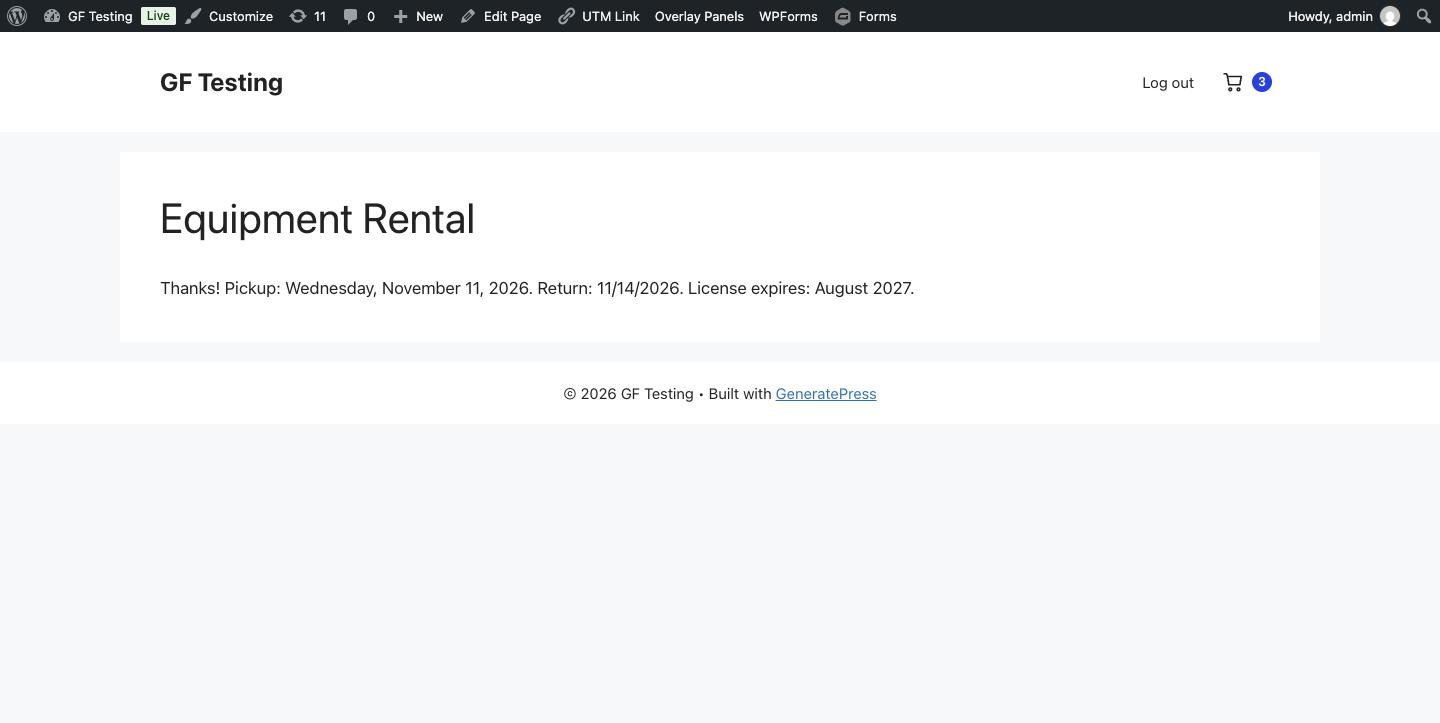
The entry list and entry detail show the same format, and so does {all_fields} in notifications.
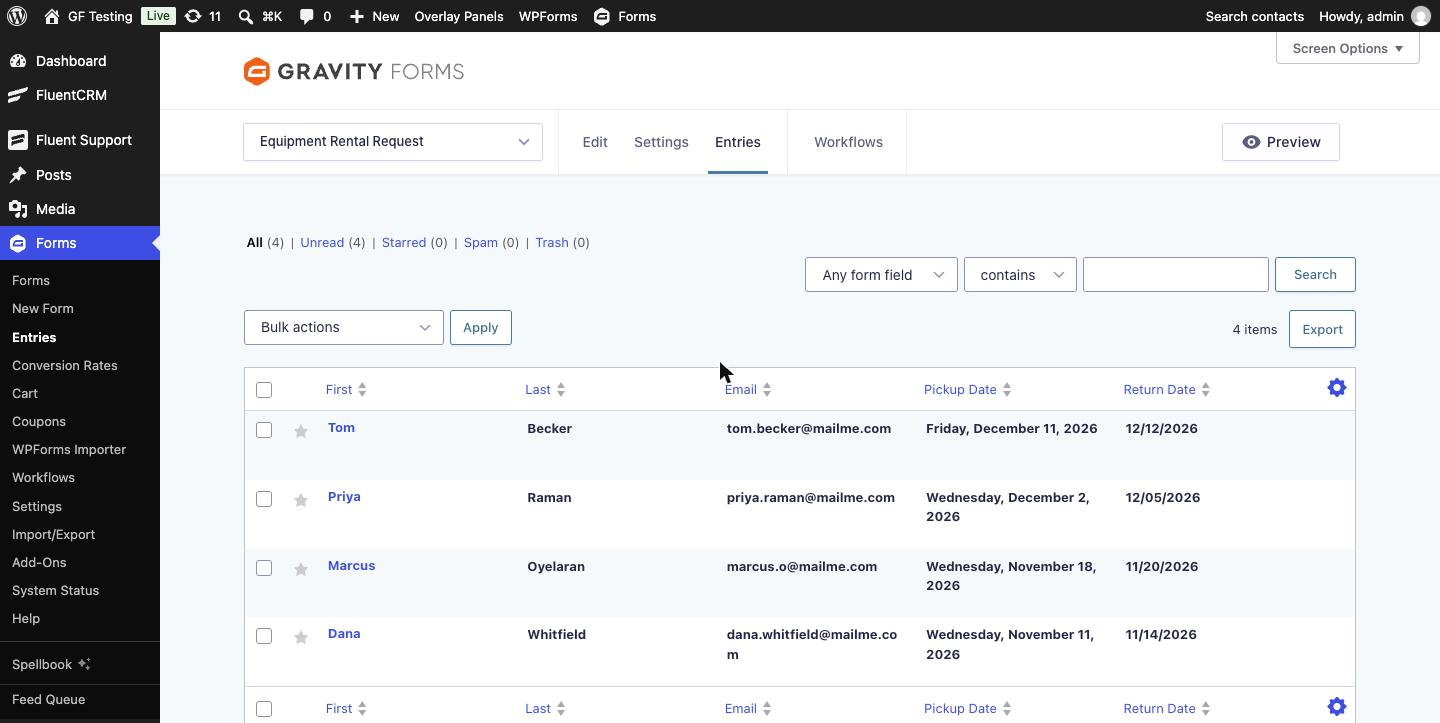
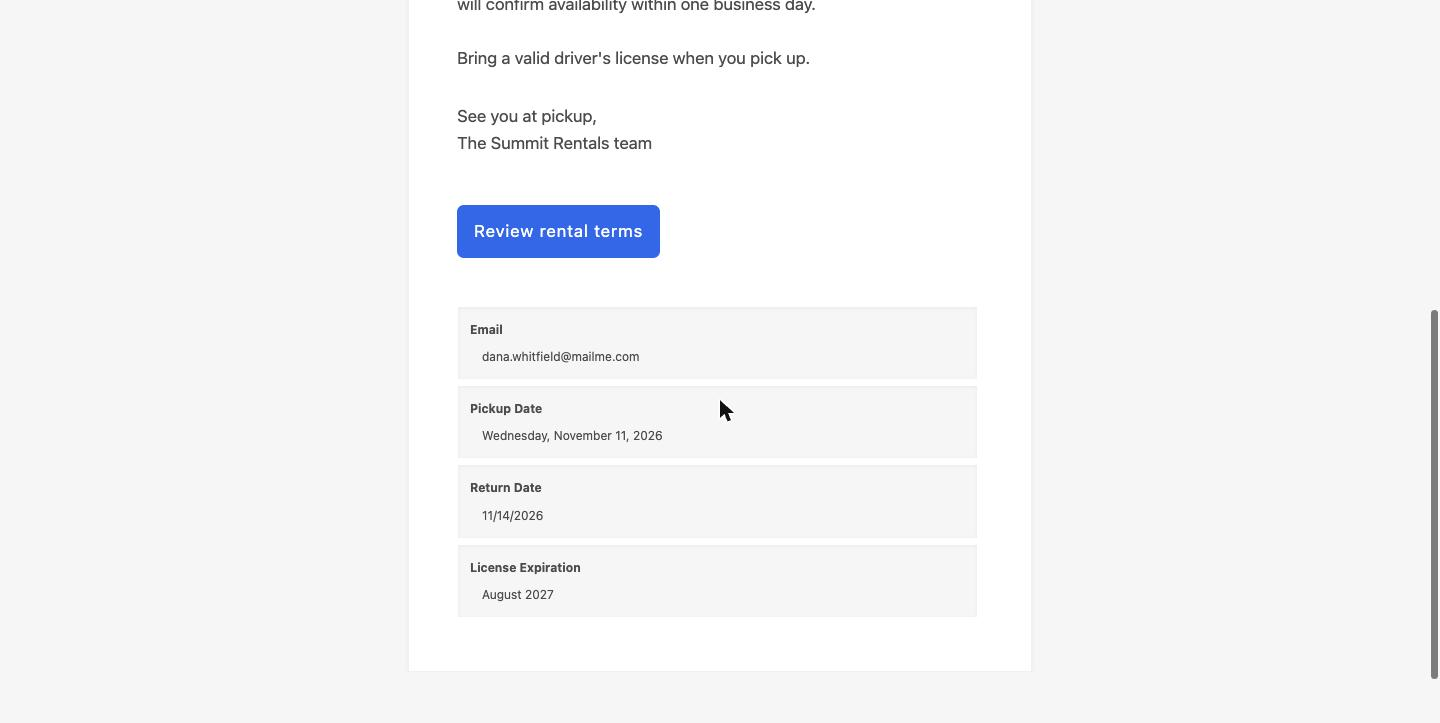
The export value went through the same formatting when I checked it. The plugin also formats values sent through add-on feeds, which is the “send my CRM the format it expects” use case. I did not run a feed in this test.
Step 3: Month and Year Only
Hide Day of Month Input is for card expiries, license dates and “month you started”. With the Date Drop Down input type it removes the Day dropdown and saves the day as 1, so August 2027 is stored as 2027-08-01. Pair it with F Y and nobody sees the day anywhere. Developers can change the default day with the orbitalforge-df/default_day_value filter.
Step 4: Date Picker Options
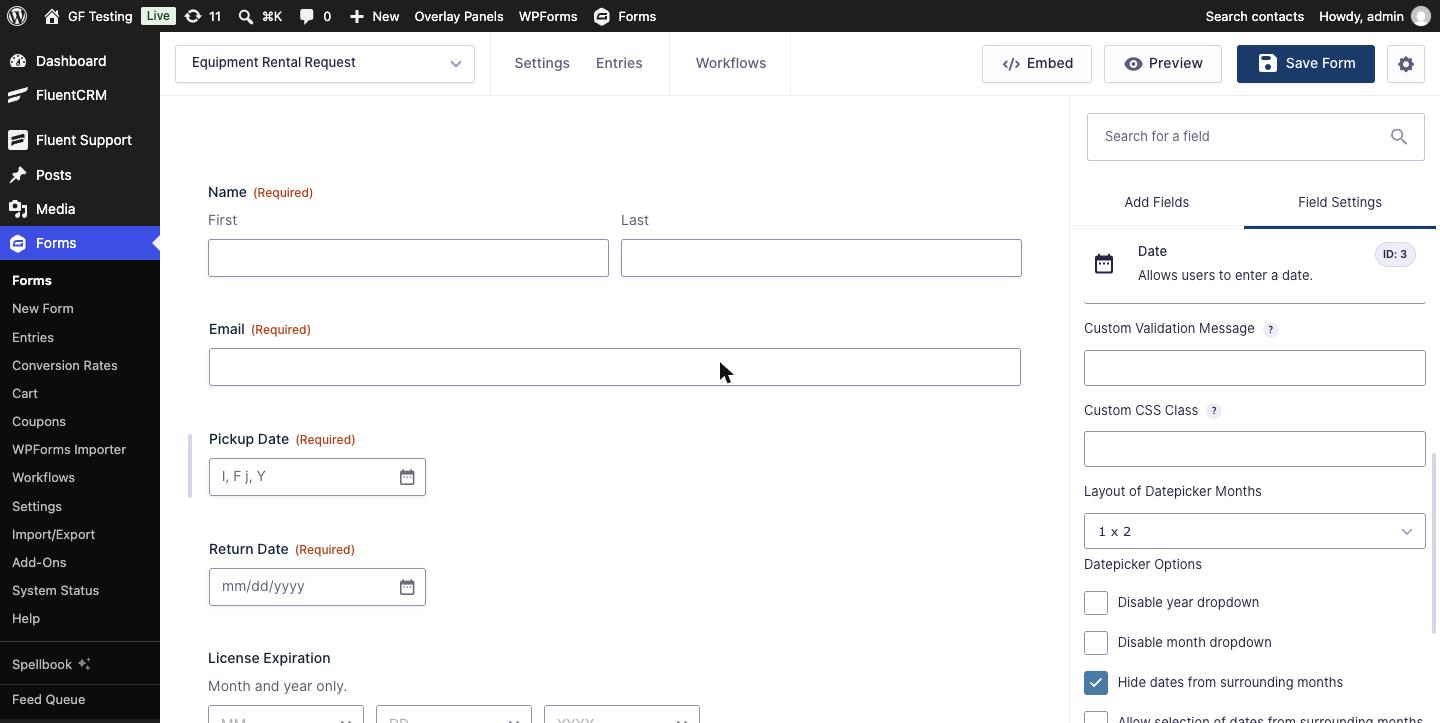
For Date Picker fields, the Appearance tab gets a Layout of Datepicker Months dropdown (single month, 1×2, 1×3, 2×2, 2×3, 3×4) and five checkboxes: disable the year dropdown, disable the month dropdown, hide dates from surrounding months, allow selecting them, and show the month after the year.
Things to Know: Gravity Forms 3 and the Date Picker
Gravity Forms 3.0 (July 2026) replaced the old jQuery date picker with a new, more accessible one. Date Formats 1.3 was released in April 2025 and its date picker features were written for the old one. On Gravity Forms 3.2.2 this is what I saw:
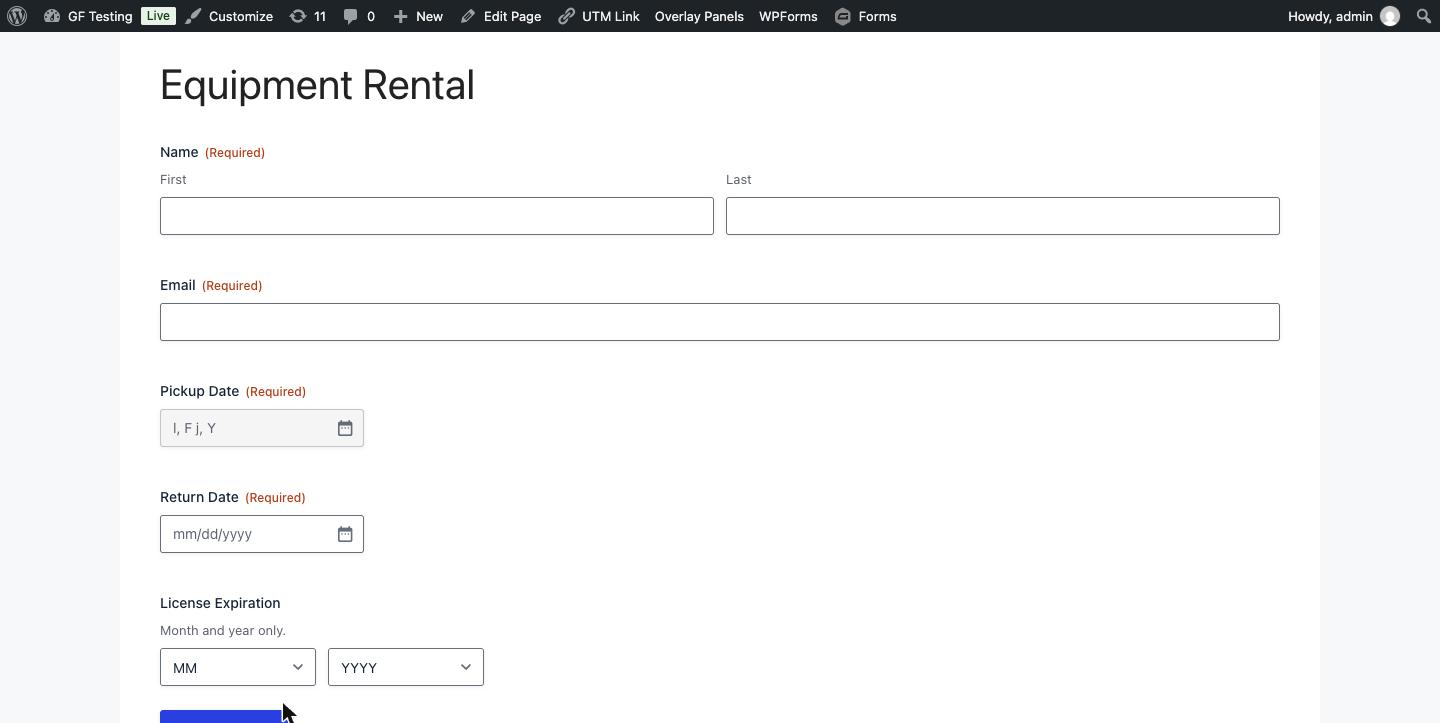
- Custom format on a Date Picker field: do not use it yet. The box showed the raw format (
l, F j, Y) as its placeholder and looked disabled. Clicking the calendar icon with the mouse did nothing. When I opened the calendar another way and picked a date, the value was saved but the box still looked empty. - Multi-month layouts and “Show month after year” had no effect. The calendar stayed a single month.
- “Disable year dropdown” worked. Gravity Forms 3 still reads the month and year dropdown options.
- Everything in Steps 1 to 3 worked: formatting in merge tags, entries and exports, and Hide Day with dropdowns.
The safe setup on Gravity Forms 3: use the custom format on fields set to Date Drop Down (tested) or Date Field, or keep the Date Picker and leave the picker’s own format alone until the plugin is updated. If you are still on Gravity Forms 2.x, the picker features target that version.
Alternatives
- Gravity Forms on its own covers the seven numeric presets. For anything else you need a merge tag filter in code.
- GP Limit Dates from Gravity Wiz solves a different date problem: which dates can be picked (minimum, maximum, blocked days). Date Formats’ changelog mentions compatibility with its inline calendar.
- Need several dates in one field? See Gravity Forms Multi-Date Picker.
Who Should Use It
Use it if your emails, PDFs or exports need readable dates, or you collect month-and-year values, and you would rather tick a box than maintain a snippet. Hold off if the main thing you wanted was the multi-month calendar and you are on Gravity Forms 3.
Get Date Formats from Orbital Forge
Frequently Asked Questions
How do I change the date format in Gravity Forms?
Select the Date field and choose one of the seven presets under Date Format. For formats with month names or weekdays, install Date Formats from Orbital Forge, tick Enable Custom Date Format on the field and enter a format such as l, F j, Y.
Does Date Formats change how the date is saved?
No. Gravity Forms still saves the date as YYYY-MM-DD. The custom format is applied when the value is displayed in merge tags, the entry list, entry detail and exports.
Can I collect only a month and year in Gravity Forms?
Yes. Set the Date field to Date Drop Down, tick Hide Day of Month Input and use a custom format such as F Y. The day is saved as 1 and never shown.
Does Date Formats work with Gravity Forms 3?
Partly, as of version 1.3. Formatting in merge tags, entries and exports worked in testing on Gravity Forms 3.2.2. The custom display format on Date Picker fields and the multi-month layouts did not work with the new Gravity Forms 3 date picker.
Which format characters can I use?
d, j, z, D, l, m, n, M, F, y, Y and U, which follow PHP date formatting. Other characters such as commas, spaces and dashes are kept as typed.
Need More Help?
If you still need help, use the chat or leave a comment below and we’ll get back to you.
Comments