
Gravity Forms notifications arrive as plain text in a grey table. That is fine for an admin alert and underwhelming for a receipt or a booking confirmation your customer keeps. Email Templates from Orbital Forge wraps notifications in a designed HTML template with your logo, colour, a button and a tidy field table, and you never touch HTML.
Tested November 2026 with Email Templates 1.2 on a test site running Gravity Forms 3.2.2. I set a global template, customised one notification, sent it and switched templates. Emails were captured on the test site and opened in a browser, so the screenshots show the real HTML that was sent, not an inbox.
Why Notifications Look Plain
Gravity Forms sends whatever is in the notification’s Message box inside a minimal wrapper. You can paste your own HTML in there, but then every notification on every form carries its own copy, and a logo change means editing all of them. Email Templates separates the design from the message: one set of brand settings, one template choice, and each notification only supplies its content.
What You Need
- Gravity Forms (2.5 or newer)
- Email Templates: $39 a year for one site, $89 for four, $149 unlimited, or in the Orbital Forge Toolkit from $99 a year (prices checked November 2026)
- A logo image, ideally a transparent PNG, and your brand colour as a hex code
- A reliable way to send email. Templates change how mail looks, not whether it arrives; see our Gravity SMTP review for that.
Step 1: Set Your Brand Once
Go to Forms → Settings → Email Templates. Tick Apply global template, pick a template, then fill in Default Base Color, the Logo image URL and link URL, and Footer Text. The preview underneath updates to show your logo in the chosen template.
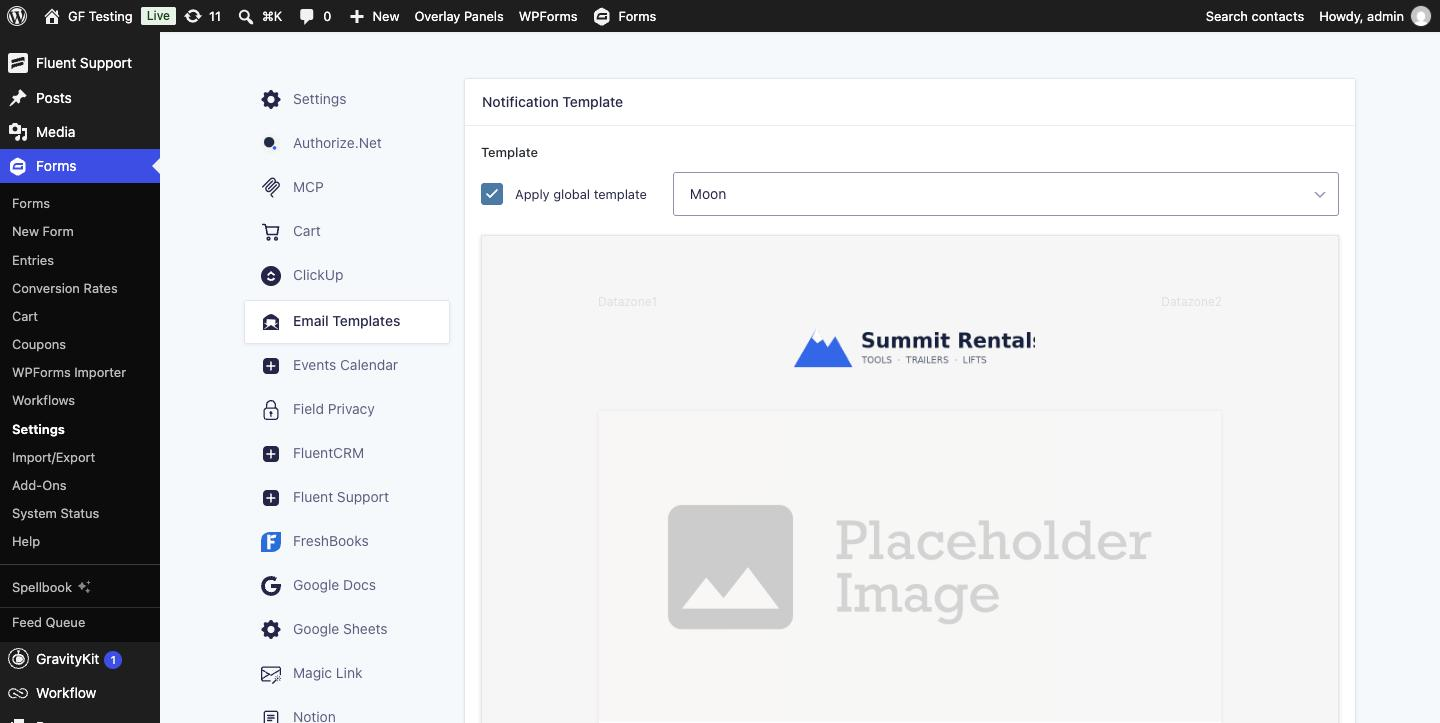
Version 1.2 ships nine templates named after moons: Callisto, Enceladus, Europa, Io, Miranda, Moon, Nereid, Prometheus and Titan. With the global box ticked, every Gravity Forms notification on the site uses the template unless a notification says otherwise.
Step 2: Fill In a Notification
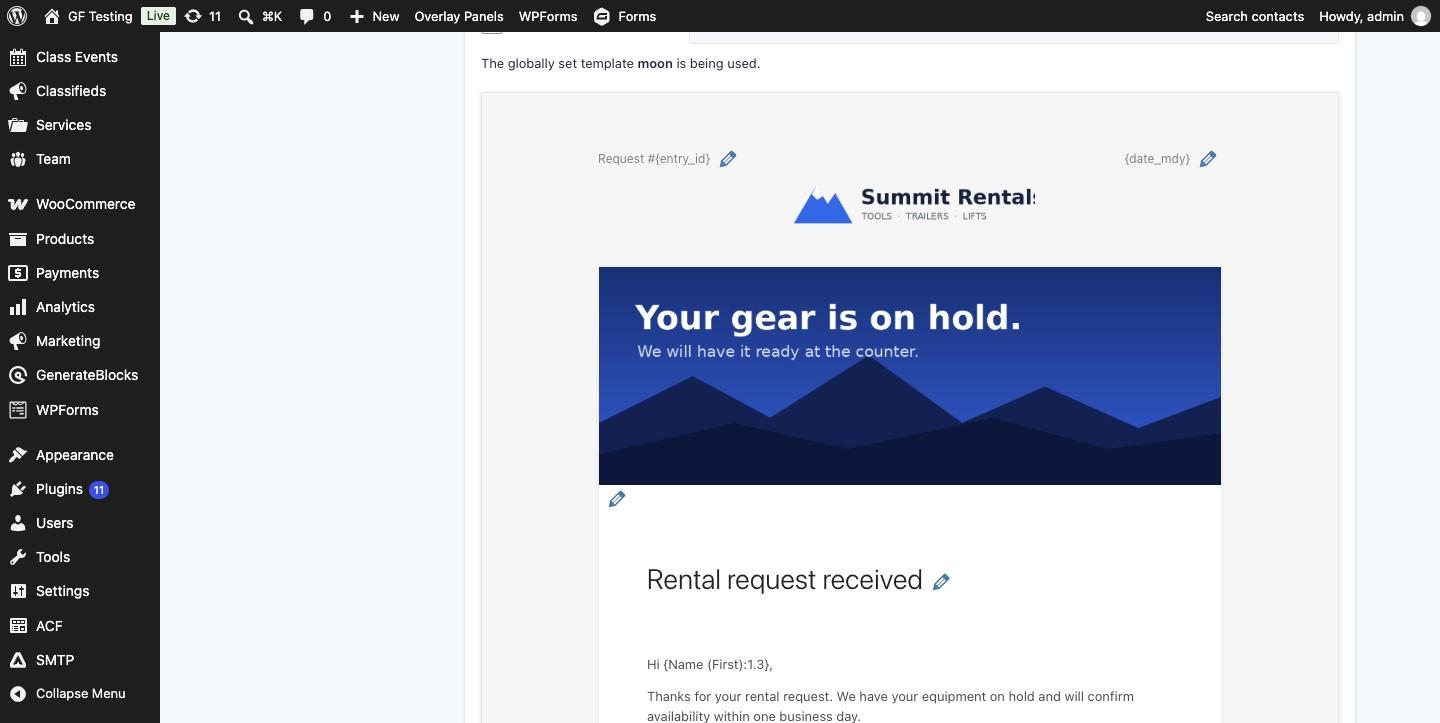
Open any notification. Below the usual settings there is a new Notification Template section showing the template with your content in it. The body comes from the notification’s normal Message box. Everything else is a “zone” with a pencil icon.
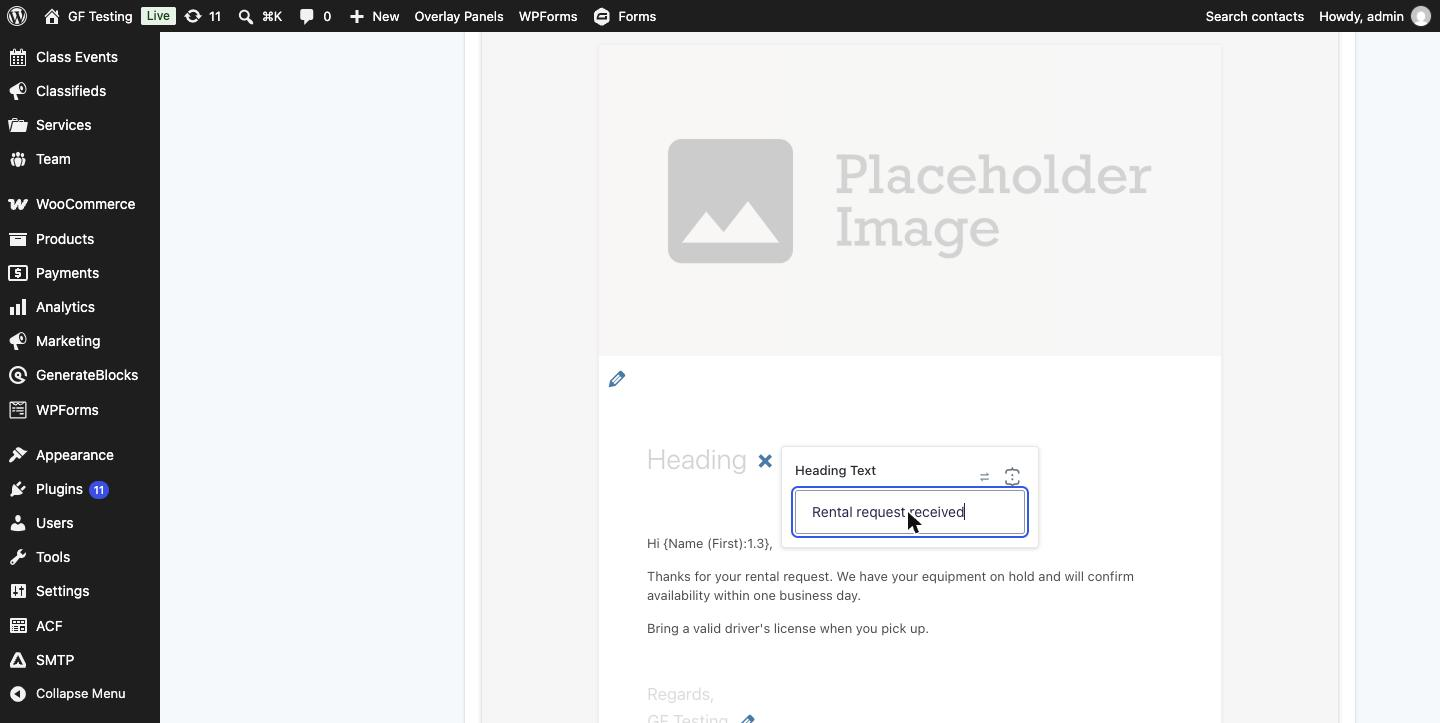
Zones differ by template. Across the nine there are:
- Heading Text: the headline above your message
- Data Zones (up to four): short values such as an order number or date
- Text Zones (up to two): extra multi-line blocks
- Image Zones and a Graphic Zone: a banner image URL or a built-in graphic
- Button Text & Link: written as
[Review rental terms](https://example.com/terms) - Valediction: your sign-off
- Included Fields: tick the fields you want in a compact table
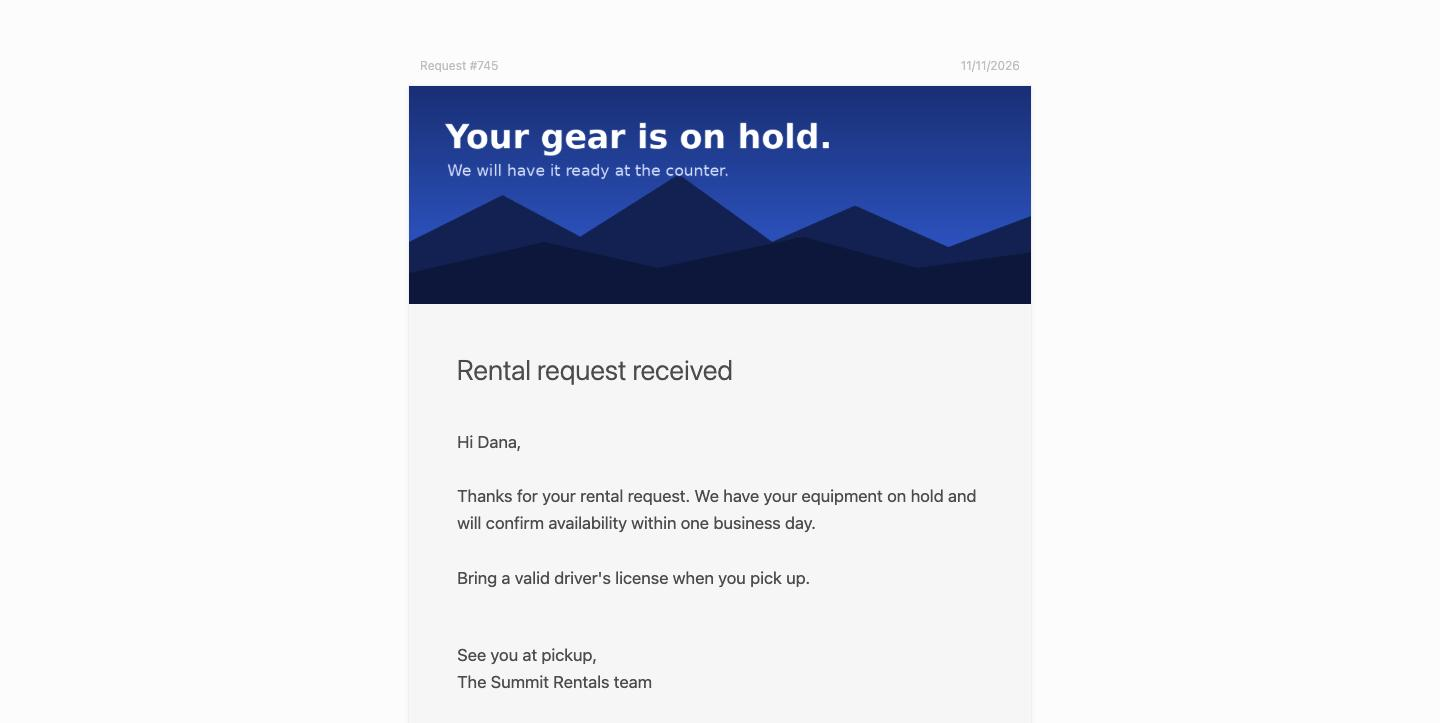
Leave a zone empty and it is left out of the email. For my rental confirmation I used Request #{entry_id} and {date_mdy} in the two data zones, a banner image, a heading, a button and four fields.
Step 3: Send It
Submit the form, or resend the notification from an entry. This is the email that went out:
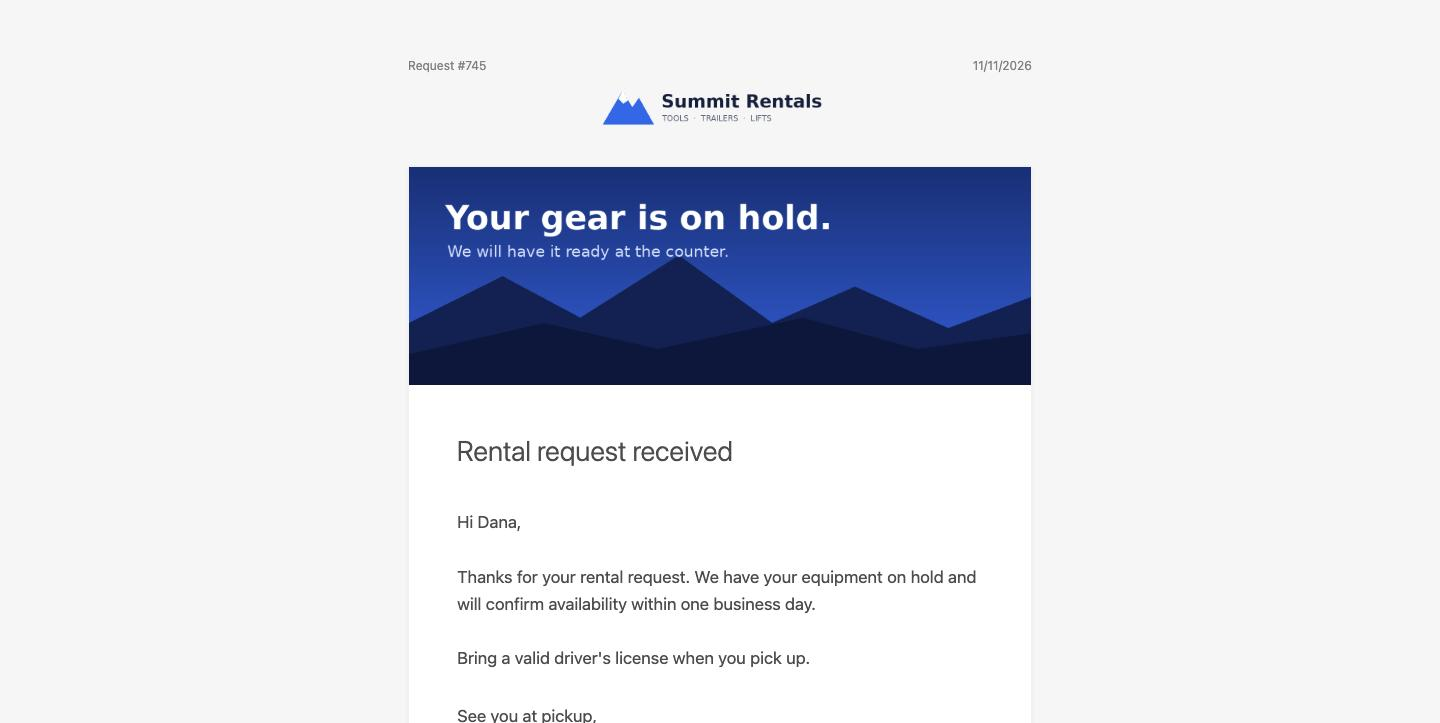
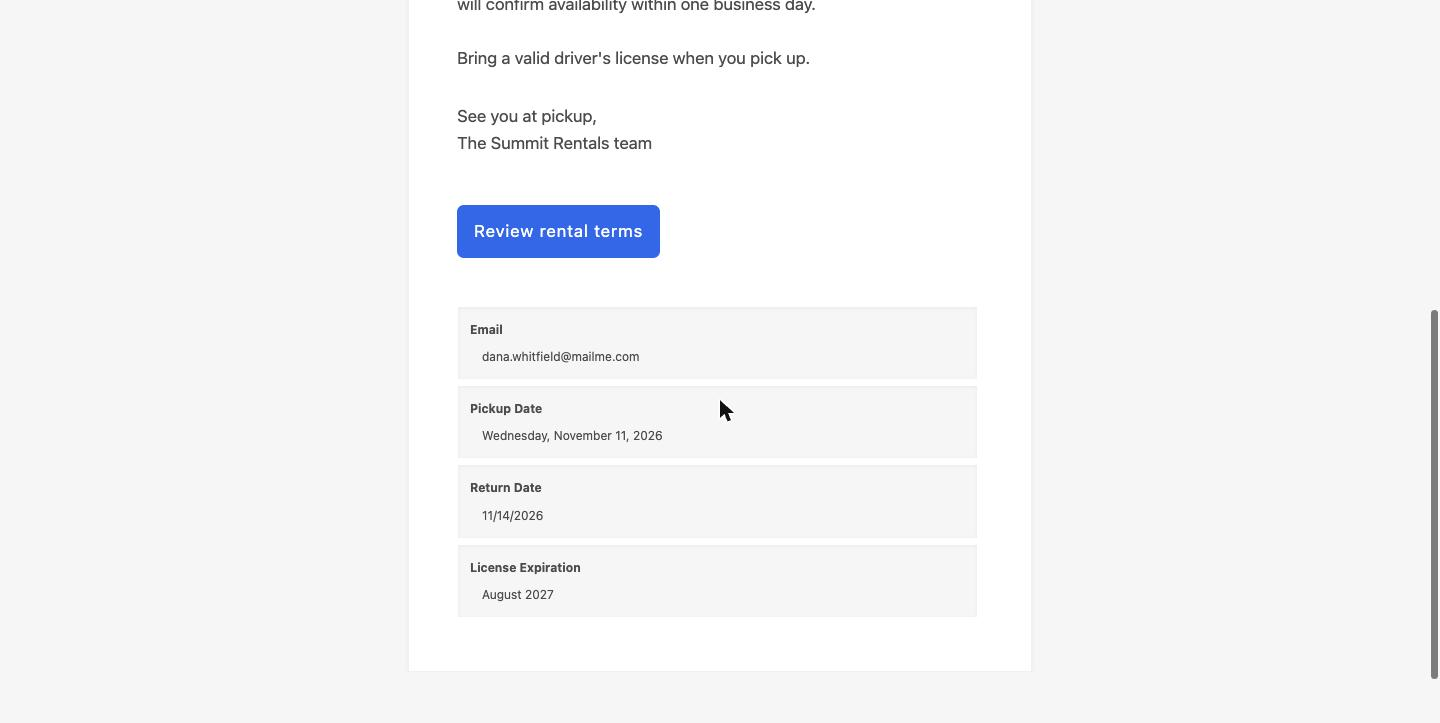
Merge tags were replaced in every zone, the button linked to the URL from the markdown, and the field table picked up each field’s display value.
Step 4: Use a Different Template for One Notification
In the notification, tick Set notification template and choose another template. Zones the two templates share keep their content, so switching is quick. Here is the same notification in Europa:
You can also skip the global template and only turn templates on for the notifications that face customers.
Things to Know
- Zone edits show in the preview after you save. Typing in a zone did not update the preview live in my test.
- The image zones take a URL. Upload the image to the Media Library first and paste its address.
- It adds a
GF-Sourceheader to Gravity Forms emails containing the notification ID, entry ID and the page URL. Handy for tracing where an email came from; worth knowing if you care about what your mail headers reveal. - Custom templates are file based. Orbital Forge documents a folder under
/wp-content/uploads/gravity_hopper/templatesfor your own designs. That is a developer job, and their docs say more guidance is still to come. I did not test it. - I did not test inbox rendering in Gmail, Outlook or Apple Mail. Send yourself a test in the mail apps your customers use before going live.
Alternatives
- Your own HTML in the Message box. Free, and fine for one form. It does not scale past a few notifications.
- Gravity SMTP is not a template tool. It fixes delivery and logs what was sent. The two do different jobs and can run together; our Gravity SMTP review covers it.
- Gravity Hopper, the same developer’s toolkit, started out with this feature as a module before it became its own plugin.
Who Should Use It
Anyone whose forms send customer-facing email: receipts, registrations, quotes, booking confirmations. Agencies get the most from it, because brand settings live in one place per site. If your notifications only go to you, you do not need it.
Get Email Templates from Orbital Forge
Frequently Asked Questions
How do I send HTML email templates from Gravity Forms?
Either paste your own HTML into the notification Message box, or install Email Templates from Orbital Forge, choose a template under Forms, Settings, Email Templates, and add your logo, colour and footer. Each notification then fills in a heading, button and other zones without any HTML.
Can I add my logo to Gravity Forms notification emails?
Yes. With Email Templates you enter the logo image URL once in the global settings and it appears in every templated notification. A transparent PNG works best.
Can different notifications use different templates?
Yes. Set a global template for the site, then tick Set notification template on any notification to override it. Content in zones that both templates share is kept.
Does Email Templates work with Gravity SMTP?
Orbital Forge lists Gravity SMTP as supported. Email Templates changes the HTML of the message and Gravity SMTP handles sending. In this test emails were captured before sending, so delivery through Gravity SMTP was not verified here.
How many templates are included?
Version 1.2 includes nine: Callisto, Enceladus, Europa, Io, Miranda, Moon, Nereid, Prometheus and Titan.
Need More Help?
If you still need help, use the chat or leave a comment below and we’ll get back to you.
Comments