
Most chat widgets answer questions and stop there. The moment a visitor wants a real person, the conversation is lost and they start over in a contact form.
This tutorial adds a floating AI chat assistant to a WordPress site with Gravity Forms and our add-on, AI Assistant for Gravity Forms. The assistant answers from the business details you give it. When the visitor asks for a person, the chat turns into your form, and the whole conversation is saved with the entry. Your notification, your CRM feed or your help desk gets the question, the answers the visitor already saw and their contact details in one place.
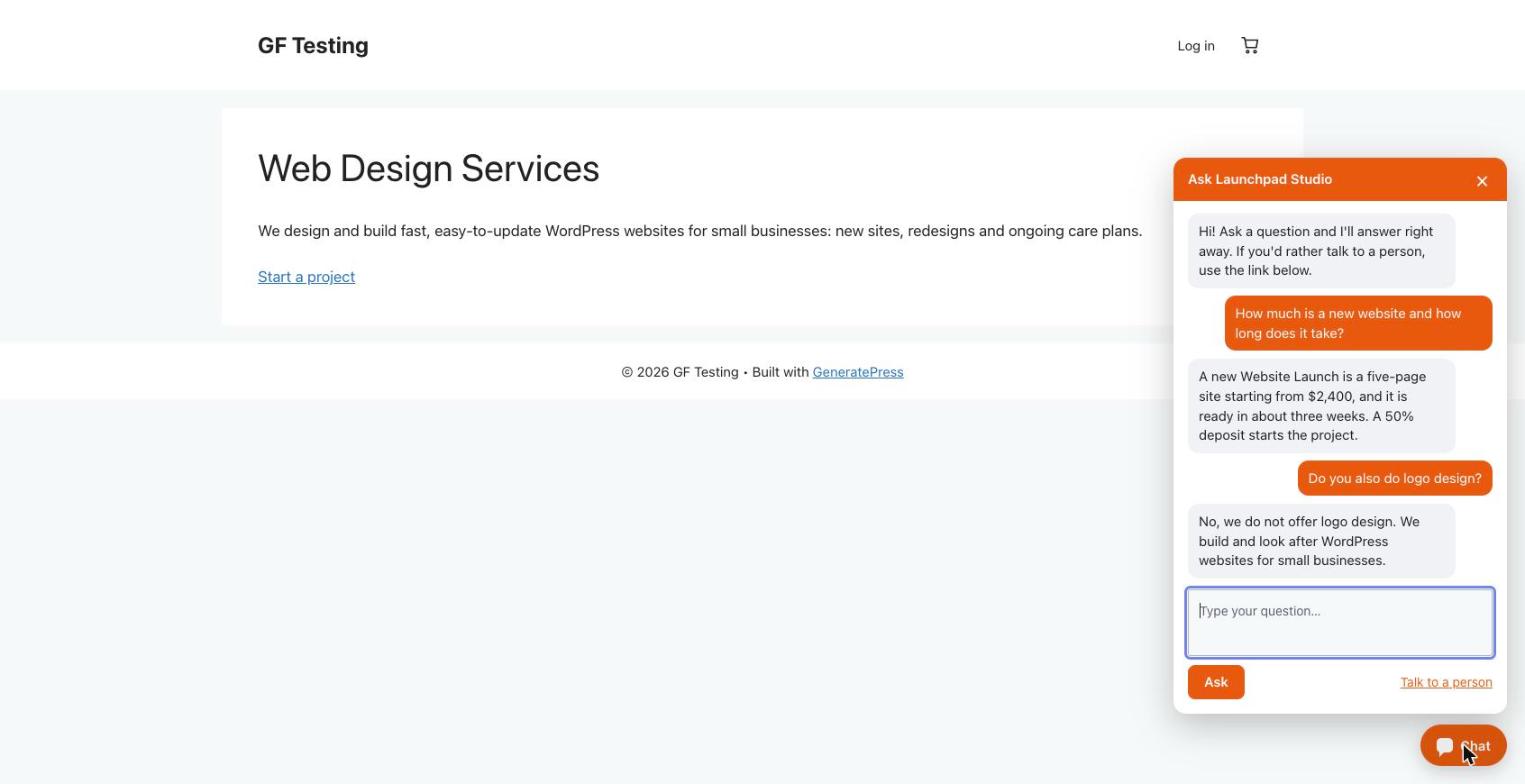
Tested in November 2026 with AI Assistant for Gravity Forms 0.1.0-beta.1 and Gravity Forms 3.2, using Grok as the AI service.
What You’ll Build
- A Chat button in the corner of the page that opens a small chat panel.
- AI answers based on what you tell it about your business: services, prices, hours, policies. When the answer isn’t there, it says so and points to a person.
- A Talk to a person link that shows the rest of your form and its normal submit button.
- An entry with the full chat transcript, so notifications and other add-on feeds carry the conversation.
- Two cost limits: questions per conversation and questions per visitor per hour.
Which AI Service Can You Use?
You choose a default service in the add-on’s settings, and any assistant can use a different one. All of them are pay-as-you-go: you create an API key, add a little credit, and pay for what your visitors use.
| Service | What you need |
|---|---|
| OpenAI | An OpenAI API key (this is separate from a ChatGPT subscription) |
| Claude (Anthropic) | An Anthropic API key |
| Grok (xAI) | An API key from console.x.ai with credits loaded |
| Ollama Cloud | An API key from your Ollama account |
| Custom | Any service that accepts OpenAI-style chat requests, like OpenRouter or your own Ollama server |
We tested with Grok. The OpenAI, Claude and Ollama Cloud options use the request format each provider publishes.
What You Need
- Gravity Forms 2.9.24 or newer, with any license.
- AI Assistant for Gravity Forms, from its lab page (Insider Plus and Elite members).
- An API key from one of the services above.
Step 1: Install the Add-On
Download the latest build from the lab page, then go to Plugins → Add New → Upload Plugin, upload the zip and activate it. It adds an AI Assistant page under Forms → Settings and an AI Assistant tab in each form’s settings.
Step 2: Set Up the Default AI Service
Go to Forms → Settings → AI Assistant.
- AI Service: choose your service.
- Model: type the exact model name from your service’s model list. We used
grok-4.7. The page shows an example for each service. - Endpoint URL: only appears for Custom. Enter the full chat completions URL.
- API Key: paste the key from your service’s developer console.
- Click Save Settings, then Send a test question.
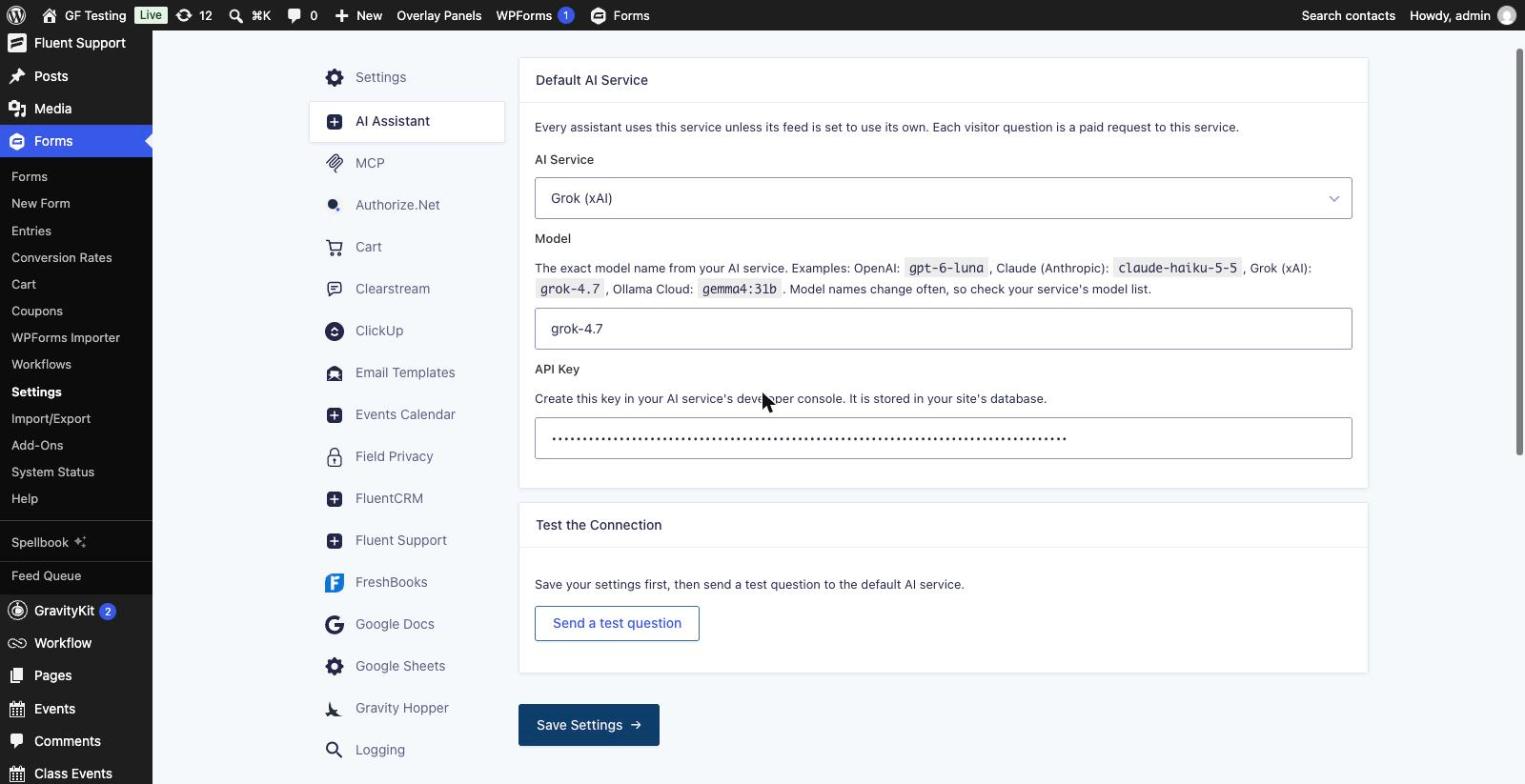
A working test shows “It works. The service answered: Hello.” A failed test shows the service’s own message. The two we ran into: an account with no credits loaded, and a model name the service didn’t recognize. Model names change often, so copy the name instead of typing it from memory.
The key is stored in your site’s database with the add-on’s settings, the same way other Gravity Forms add-ons store theirs. It is never sent to the visitor’s browser.
Step 3: Build the Hand-Off Form
The assistant needs a form to hand the conversation to. Any form works if it has these two fields:
| Field | Type | What it’s for |
|---|---|---|
| Your question | Paragraph Text (or Single Line Text) | The chat box. While chatting it’s the only field the visitor sees. When they ask for a person, it holds their message for your team. |
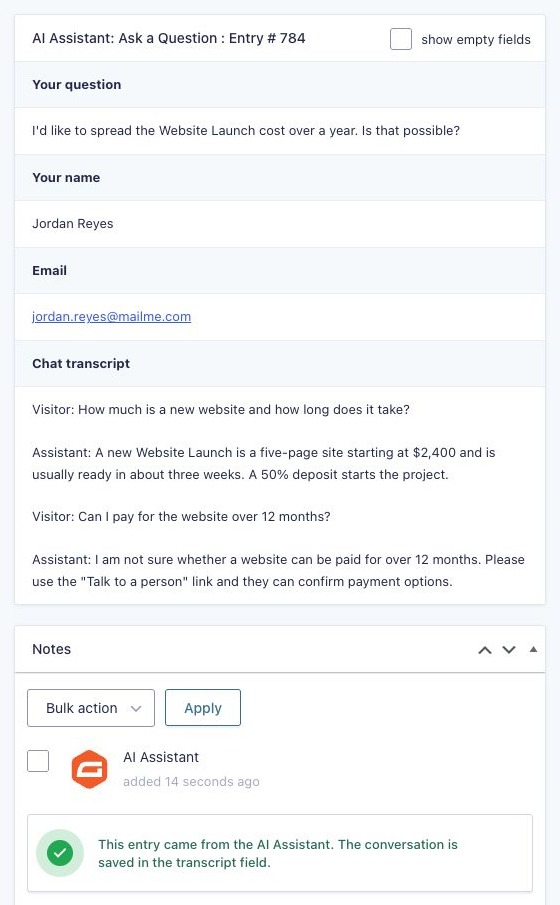
| Chat transcript | Paragraph Text, with Visibility set to Hidden on the Advanced tab | Receives the conversation when the form is submitted. Visitors never see it. |
Add whatever else you need to follow up, like Your name and Email, and make them required. That’s fine: the form is only submitted after the visitor chooses to talk to a person. Our form’s submit button says “Send to our team”.
Use a Paragraph Text field for the transcript, not a Hidden field. In our test a Hidden field showed the line breaks as <br /> text on the entry. A Paragraph Text field with Visibility set to Hidden shows each question and answer on its own line.
Keep the form to one page. Multi-page forms aren’t supported in the assistant.
Step 4: Add an AI Assistant Feed
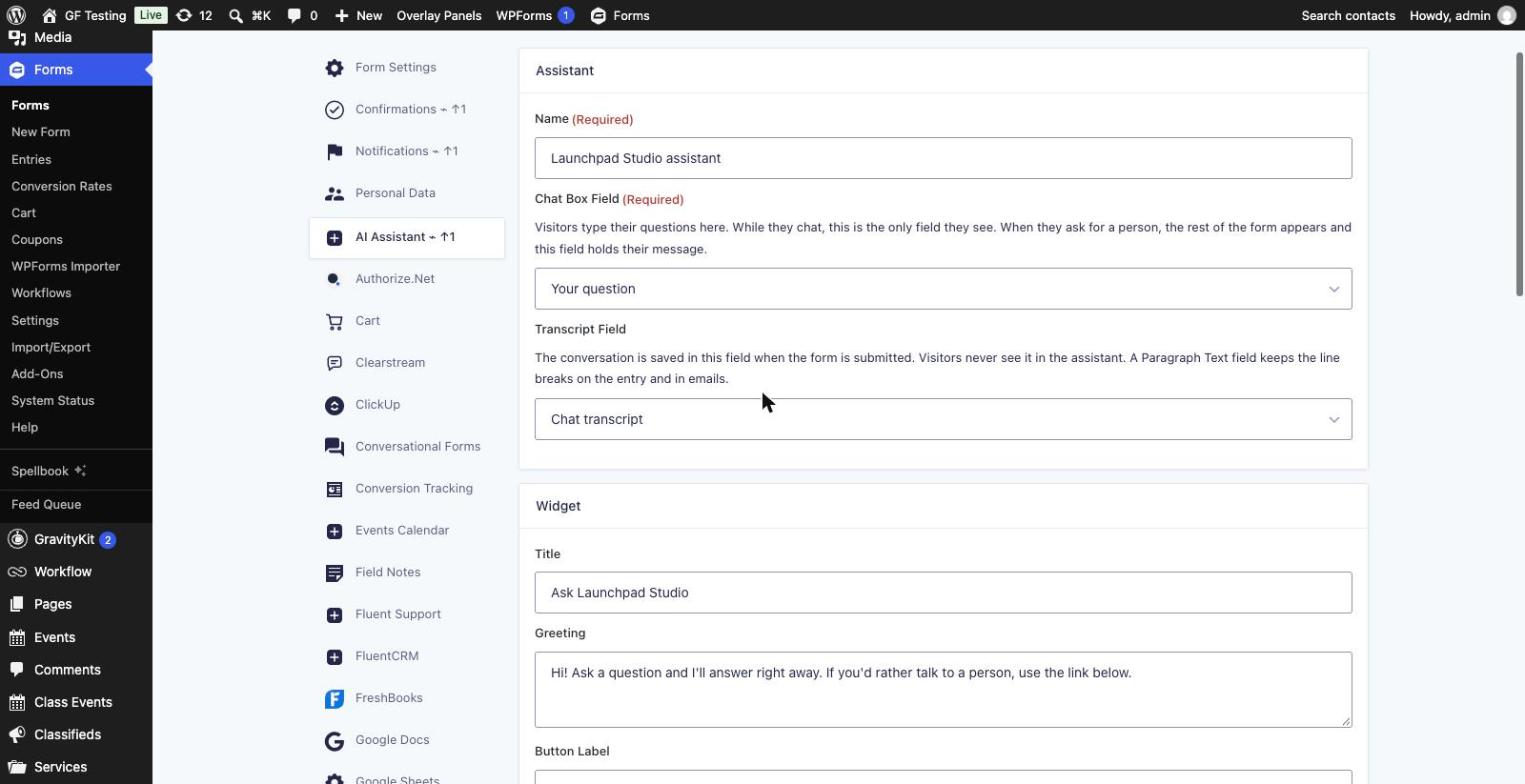
Open the form and go to Settings → AI Assistant → Add New. One feed is one assistant. Start with the Assistant section:
- Name: for your own reference.
- Chat Box Field: select your question field.
- Transcript Field: select your hidden transcript field.
Step 5: Set Up the Widget
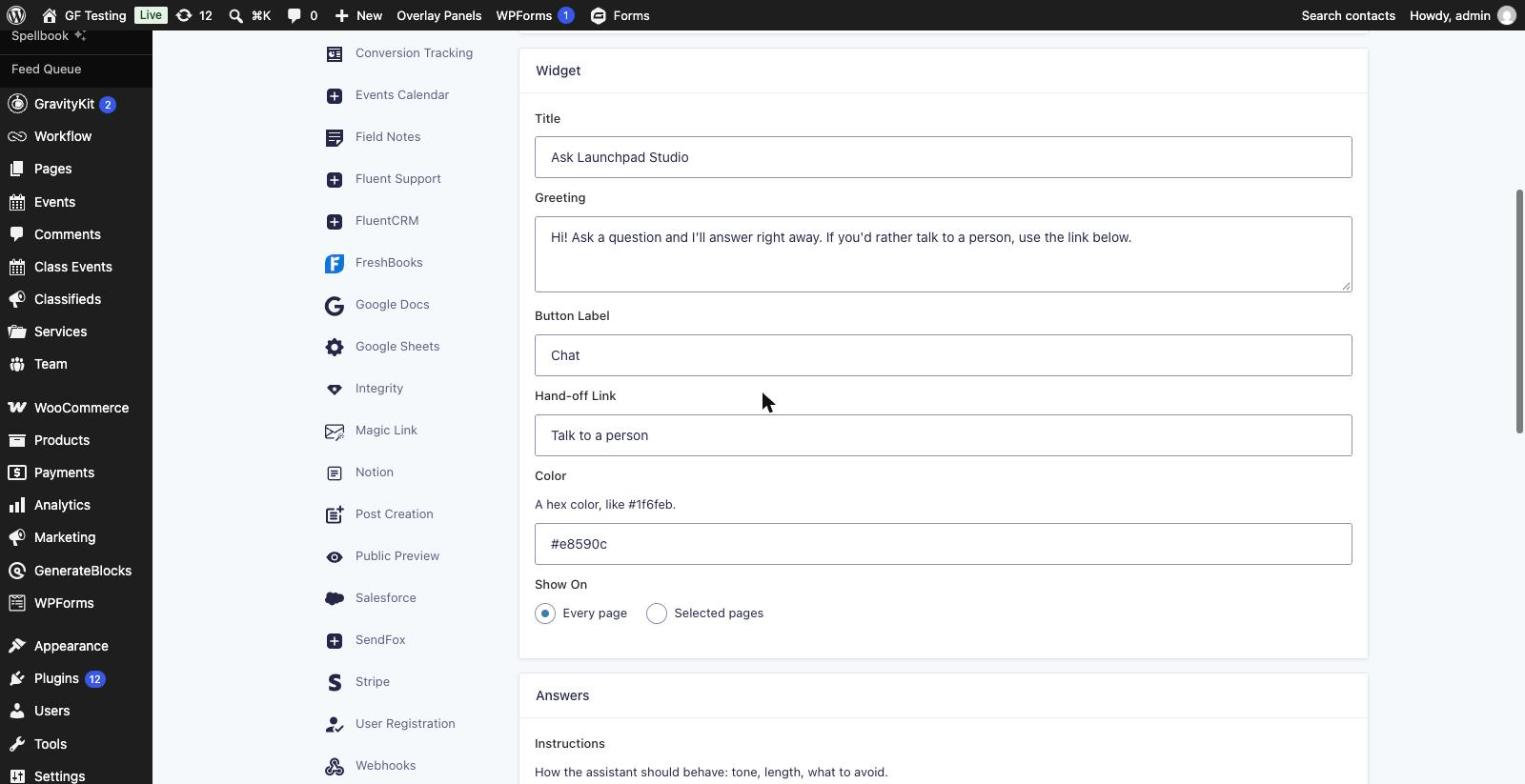
The Widget section controls what visitors see: the Title at the top of the panel, the Greeting, the Button Label, the Hand-off Link text and the Color as a hex code.
Show On decides where the assistant appears. Choose Every page, or Selected pages and enter page or post IDs or slugs separated by commas, like 42, pricing, contact.
Step 6: Tell It About Your Business
Two boxes in the Answers section decide how good the assistant is.
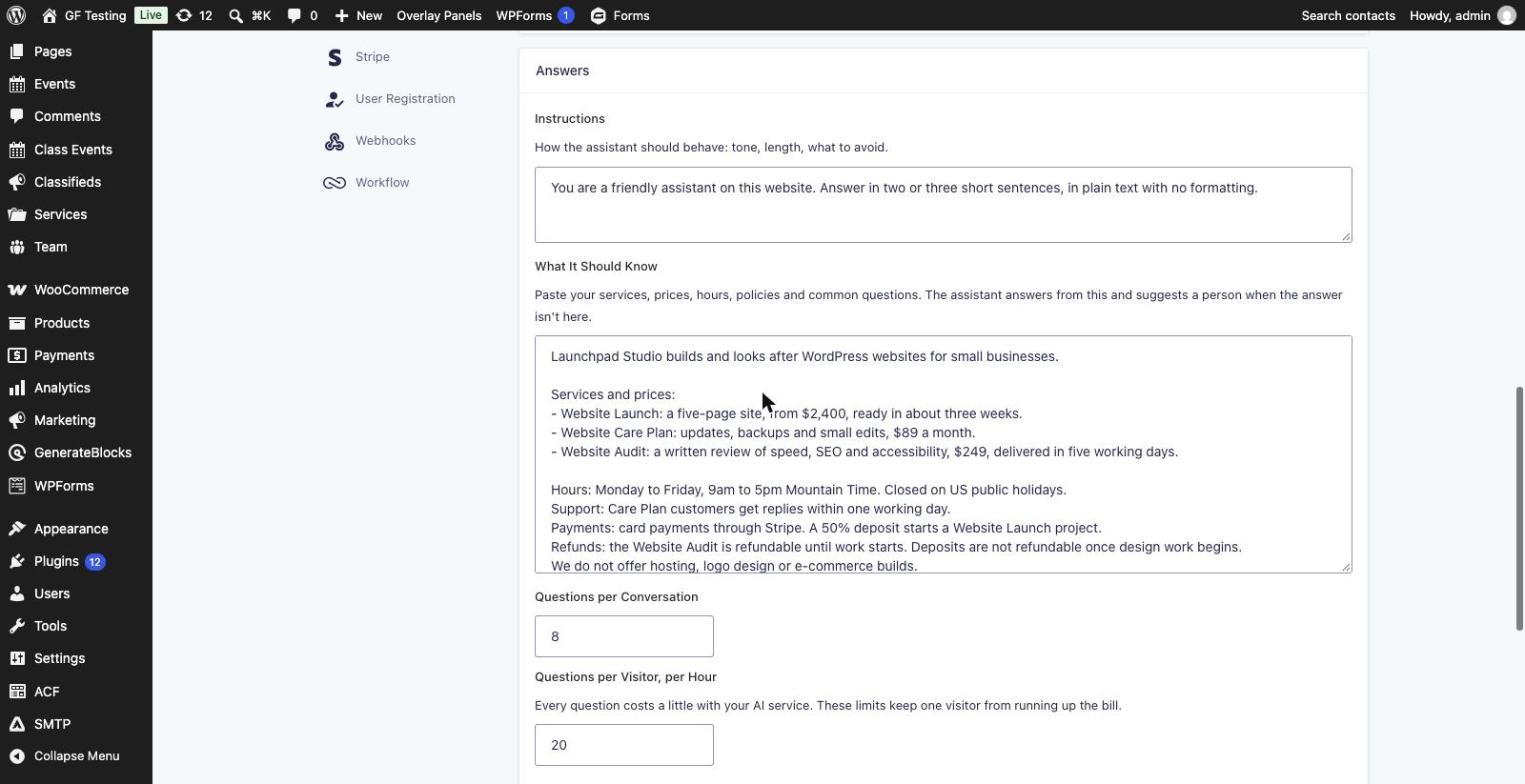
Instructions set the behavior. The default asks for two or three short sentences in plain text. Add your tone here (“friendly, no jargon”) and anything to avoid (“never quote a price that isn’t listed”).
What It Should Know is where the answers come from. Paste plain facts: services, prices, hours, policies, and what you don’t do. Here is what we used for our demo business:
Launchpad Studio builds and looks after WordPress websites for small businesses.

Services and prices:
- Website Launch: a five-page site, from $2,400, ready in about three weeks.
- Website Care Plan: updates, backups and small edits, $89 a month.
- Website Audit: a written review of speed, SEO and accessibility, $249.

Hours: Monday to Friday, 9am to 5pm Mountain Time.
Payments: card payments. A 50% deposit starts a Website Launch project.
We do not offer hosting, logo design or e-commerce builds.
The assistant is told to answer only from this text and to suggest the hand-off link when the answer isn’t there. It does not answer from general knowledge. In testing, with only these business details, a question about Gravity Forms got an “I’m not sure” answer that pointed to the Talk to a person link. That is the intended behavior: it only talks about what you give it. The “what we don’t offer” line matters too. Without it, the assistant has nothing to go on when someone asks about hosting or logos.
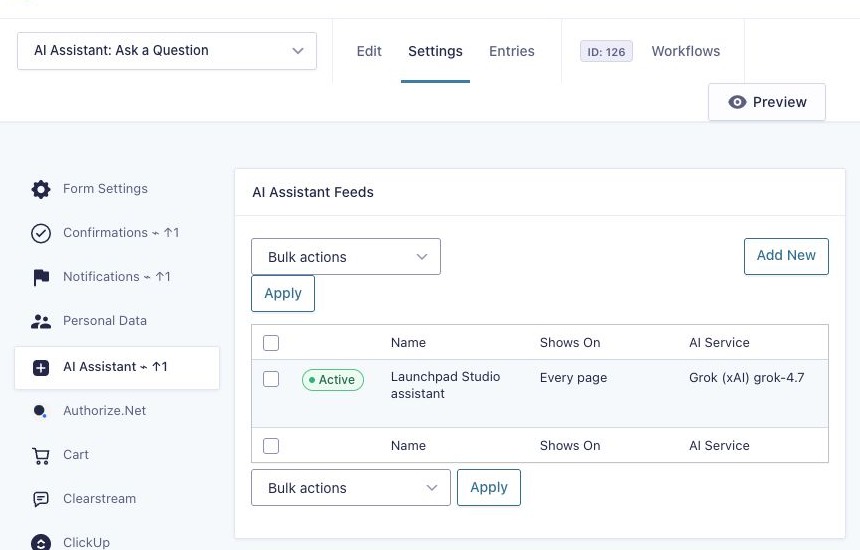
Leave AI Service on The default AI service and click Save Settings. The feed list shows where each assistant appears and which service it uses.
Step 7: Try It as a Visitor
Open your site in a private window, so you see what a logged-out visitor sees.
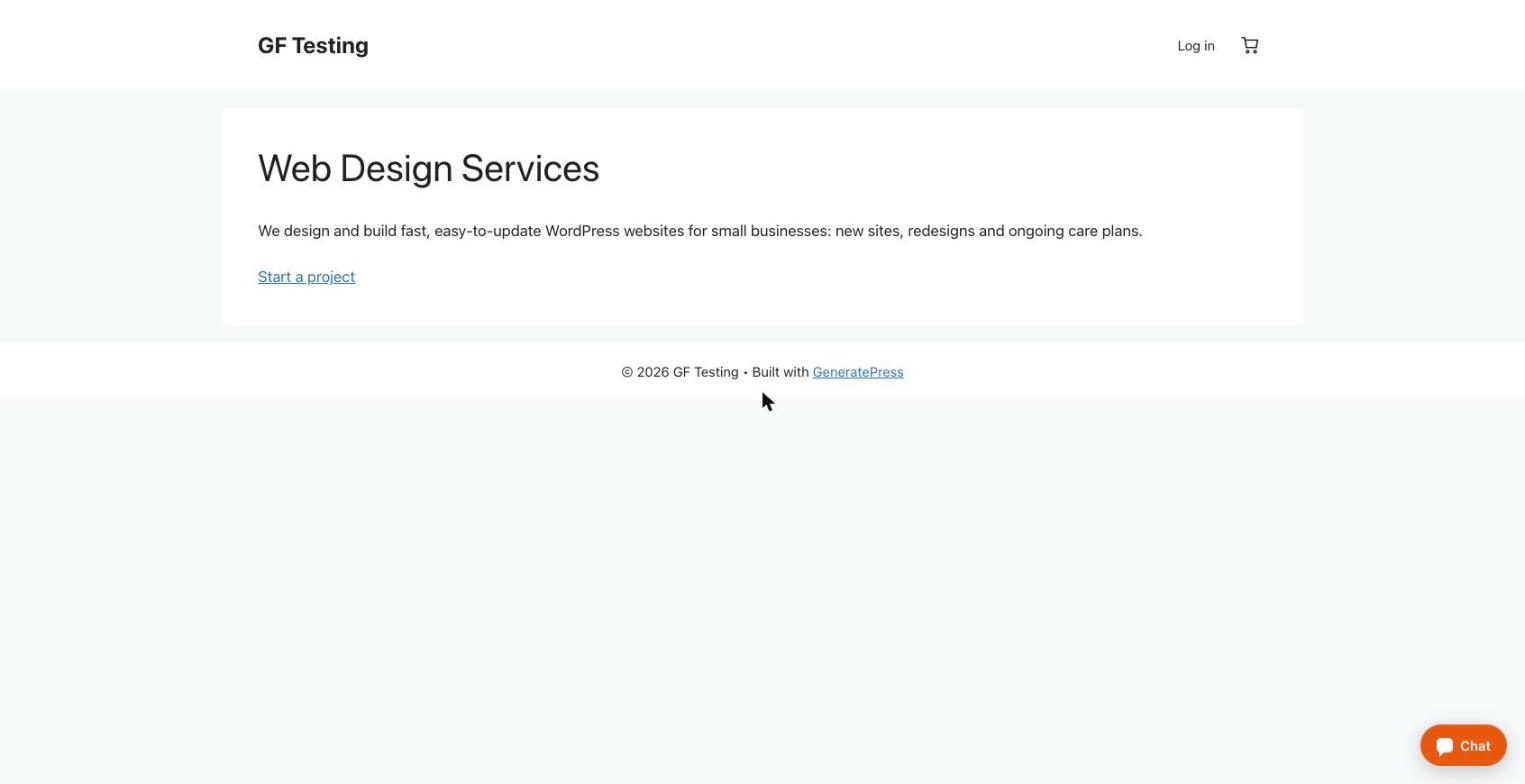
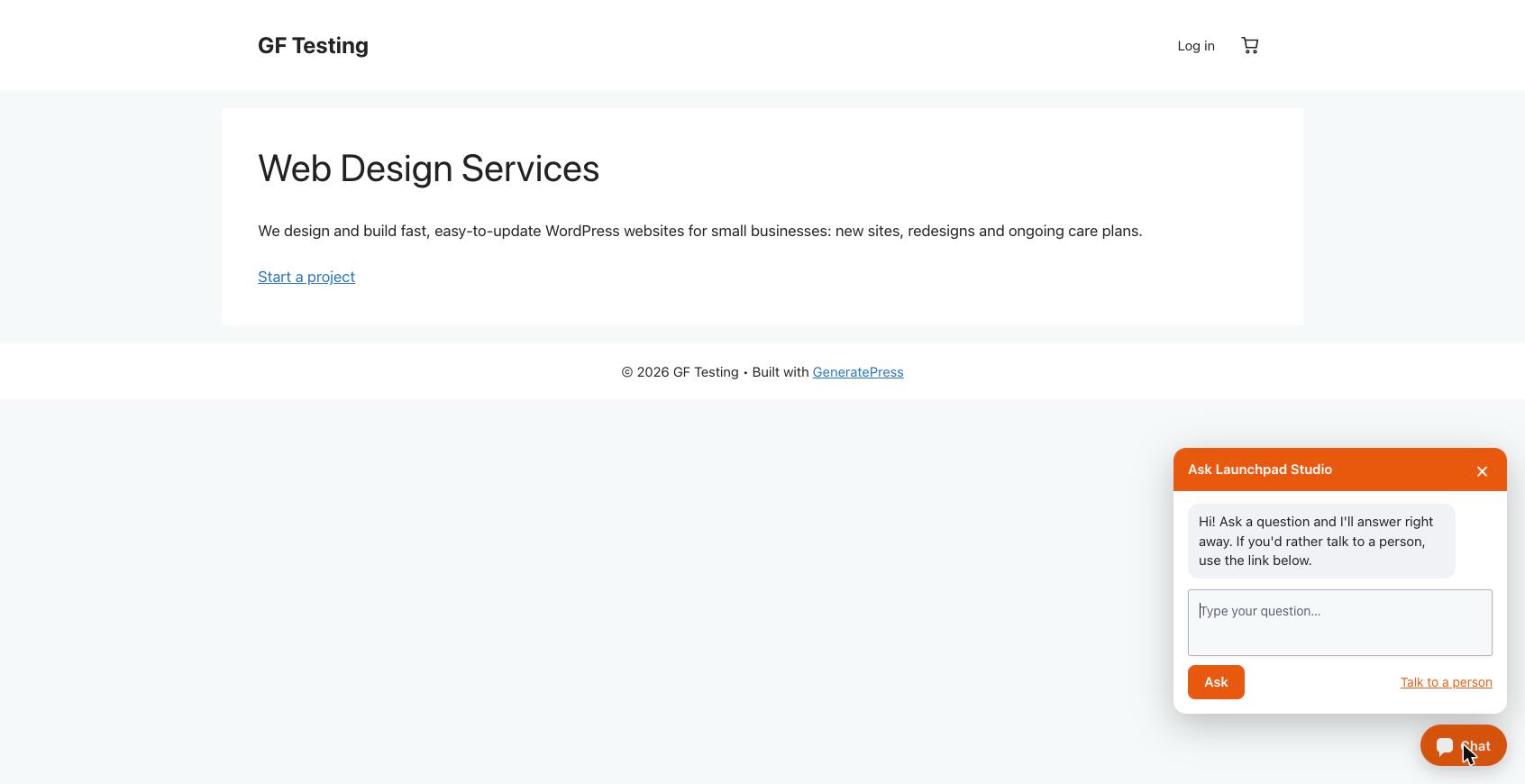
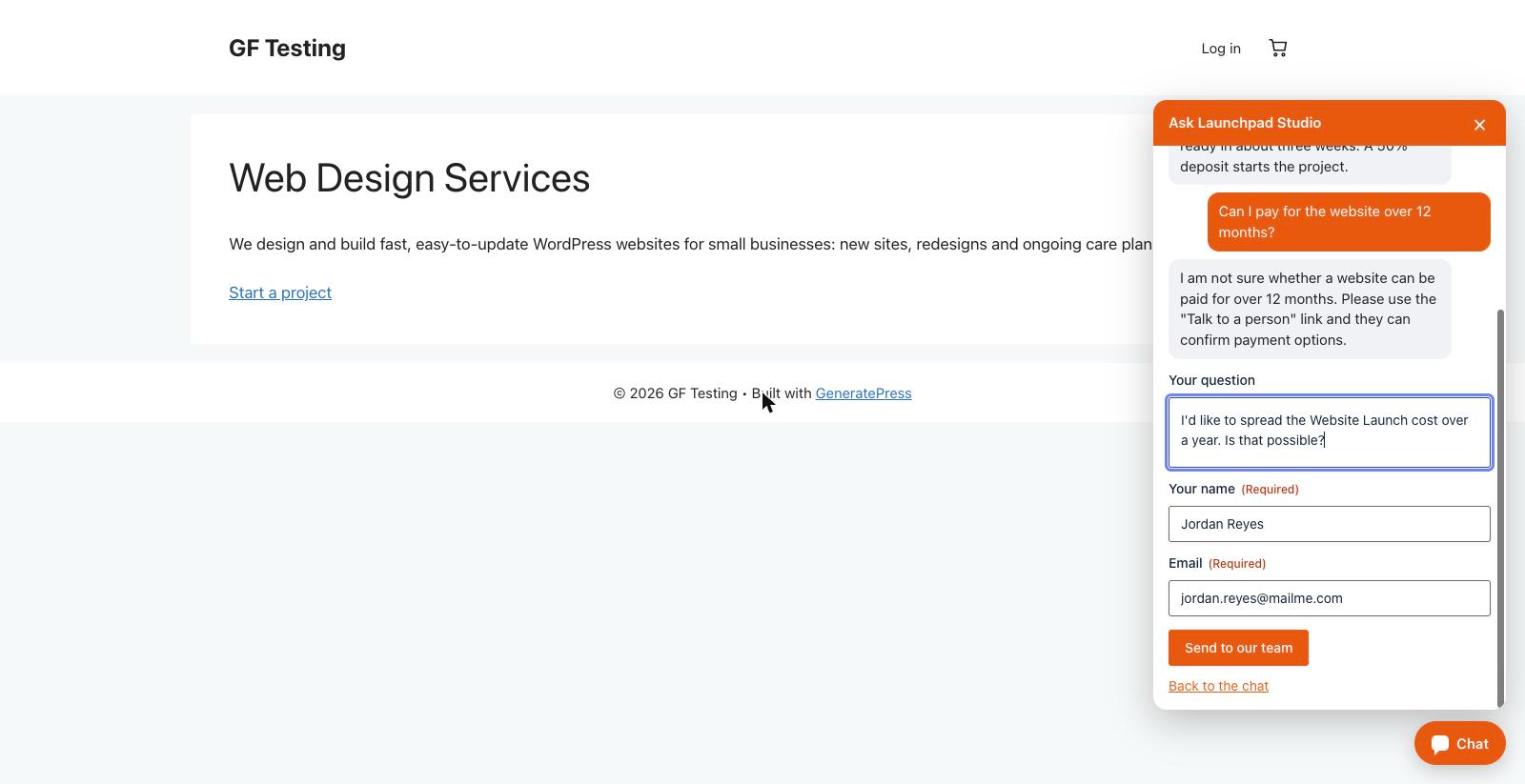
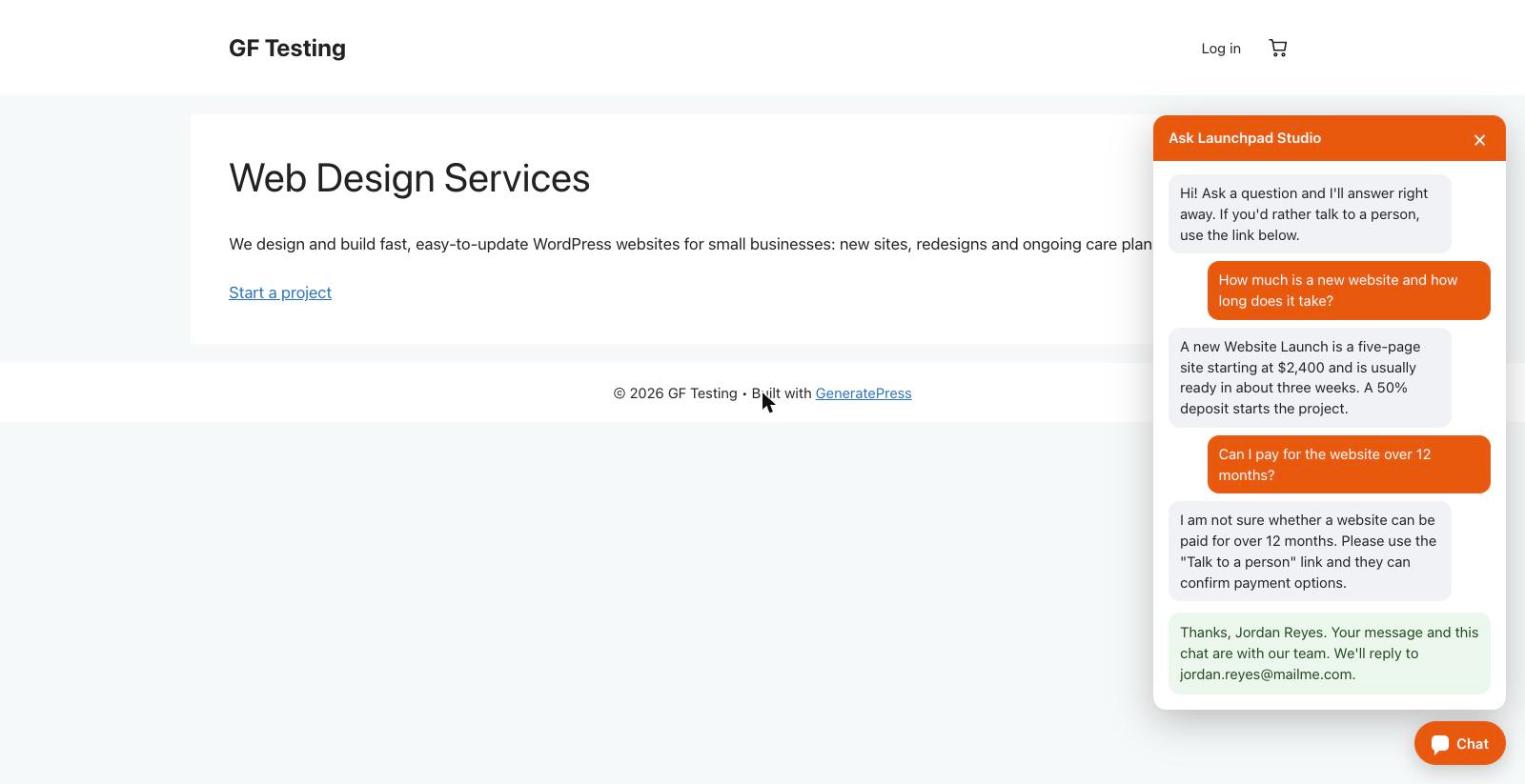
Ask something your business details cover, then something they don’t. Press Enter or click Ask. Then click Talk to a person. The rest of the form appears with its own submit button, and whatever is in the chat box goes to your team as the visitor’s message.
Now open the entry under Forms → Entries. The transcript field holds every question and answer, and the add-on leaves a note on the entry.
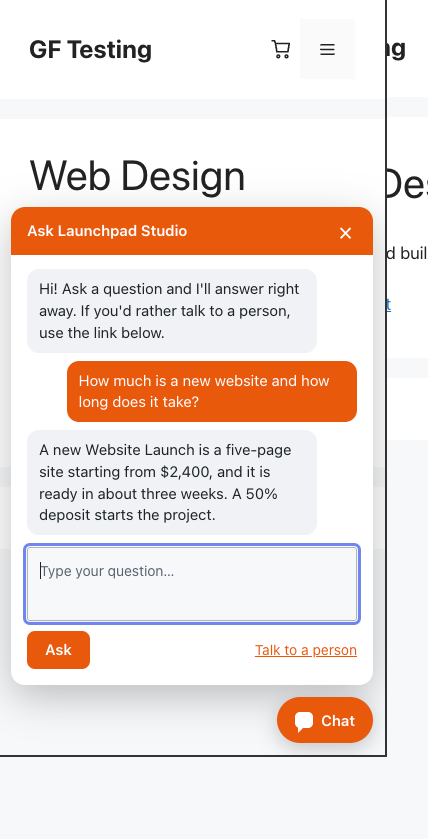
The chat also follows the visitor from page to page during their visit, and the panel fits a phone screen.
Use a Different AI Service for One Assistant
In a feed’s AI Service section, choose A different service for this assistant. The feed then gets its own service, model and API key. Use this to try another provider on one form, or to put a busy assistant on a cheaper model.
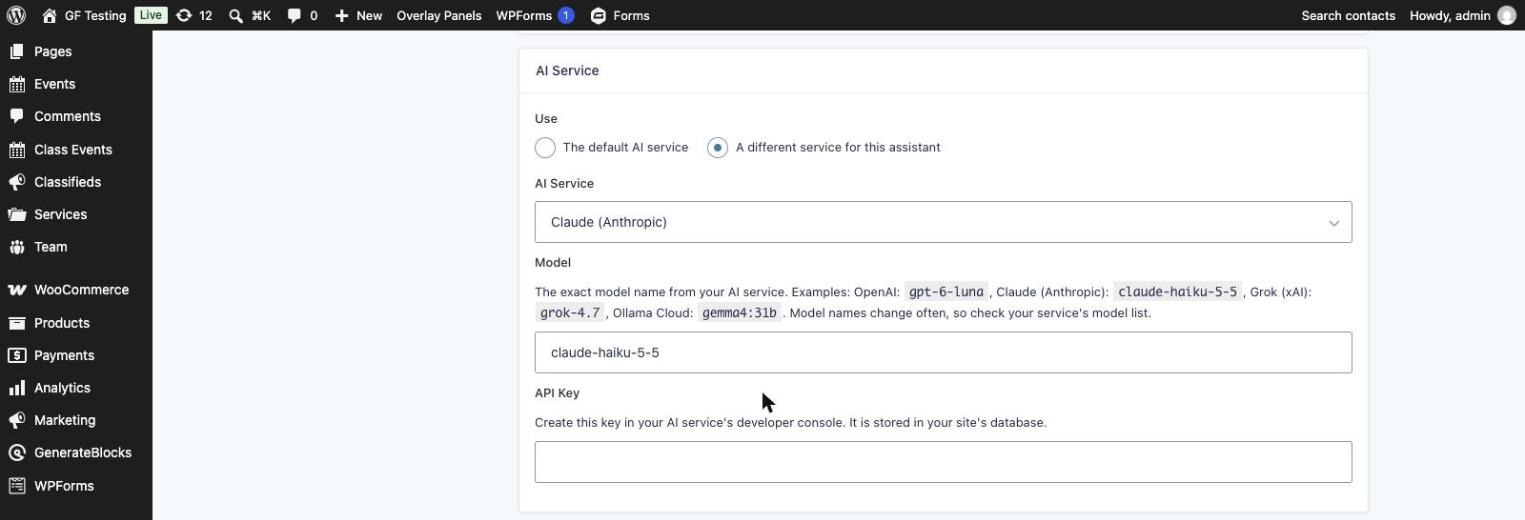
If a feed’s own service fails, for example because of a wrong key, visitors see “Sorry, I can’t answer right now” with the hand-off link, and the settings page shows the service’s error under the test button.
More Than One Assistant
Each feed has its own Show On rule, so you can run a sales assistant on your pricing page and a support assistant on your help pages, each with its own form and business details. One assistant shows per page. If more than one feed matches a page, the first active one is used, so give page-specific assistants Selected pages and avoid two feeds set to Every page.
Send the Conversation Where You Need It
Because the hand-off is a normal form submission, everything Gravity Forms can do with an entry works here:
- Notifications: add the transcript field’s merge tag to any notification.
- Other add-on feeds: map the transcript field to a notes or description field in your CRM or help desk feed.
- Confirmations: change the confirmation message in the form settings, like on any form.
- More fields: add a phone number or a drop-down. Every field except the chat box stays hidden while chatting.
Keep the Costs Under Control
Every question is a paid request to your AI service. Each feed has two limits:
- Questions per Conversation (default 8). After that the assistant says “That’s as far as I can help here” and shows the form.
- Questions per Visitor, per Hour (default 20). After that the visitor is told they’ve reached the limit and is pointed to a person.
Questions are also cut off at 1,000 characters, and requests sent from another website’s pages are refused. Set a monthly spending limit with your AI service as well. It’s the only limit that can’t be worked around.
For Developers
The add-on has filters for the cases the settings don’t cover. Add snippets with a tool like WPCode Box.
// Hide an assistant on the checkout page.
add_filter( 'gr_ai_assistant_show', function ( $show, $feed ) {
	return is_page( 'checkout' ) ? false : $show;
}, 10, 2 );
// Tell the assistant which site it is on and today's date.
add_filter( 'gr_ai_assistant_system_prompt', function ( $prompt, $feed, $turns ) {
return $prompt . "\n\nThis website is " . get_bloginfo( 'name' ) . '. Today is ' . wp_date( 'l, F j, Y' ) . '.';
}, 10, 3 );Download the Form Template
It’s free. Get the hand-off form from this tutorial, ready to import.
Get AI Assistant for Gravity Forms
AI Assistant for Gravity Forms (0.1.0-beta.1) is a Gravity Ranger Labs project for Insider Plus and Elite members. Download the latest build, follow updates and tell me what to add next.
Things to Know
- It’s a beta. This is a Gravity Ranger Labs project. It isn’t made or supported by Gravity Forms.
- Visitors’ questions go to your AI service. Say so in your privacy policy, and don’t invite people to type sensitive details into the chat.
- It only knows what you paste in. It doesn’t read your pages or your entries. Update the business details when prices or hours change.
- AI answers can be wrong. Keep the details factual and specific.
- The conversation is saved only when the form is sent. Chats that end without a hand-off are not stored as entries.
- A failed answer doesn’t lose the visitor. If the AI service is down or out of credit, the assistant apologizes and shows the form.
- Pages are chosen by ID or slug. There’s no page picker yet.
Alternatives
- Gravity Bot turns a Gravity Form into a scripted chatbot, with no AI. See our Gravity Bot review.
- The Conversational Forms Add-On shows a form one question at a time on its own page. It’s a different thing from a chat widget, but it suits surveys and lead forms.
- Gravity Wiz has an OpenAI connection for using AI inside a form: writing text, sorting submissions or filling fields.
FAQ
Can Gravity Forms work as an AI chatbot?
Not by itself. Gravity Forms has no chat interface or AI connection built in. With an add-on like AI Assistant for Gravity Forms, a form can sit inside a chat widget: the AI answers questions, and the form takes over when the visitor wants a person.
Which AI services does AI Assistant for Gravity Forms support?
OpenAI, Claude from Anthropic, Grok from xAI, Ollama Cloud, and any service that accepts OpenAI-style chat requests, such as OpenRouter or a self-hosted Ollama server.
Can each form use a different AI service?
Yes. The plugin settings hold a default AI service, and each feed can use the default or its own service, model and API key.
How much does an AI chat assistant cost to run?
You pay your AI service for each question and answer. The price depends on the model, and small, fast models cost the least, so check your provider’s pricing page. Limit the questions per visitor and set a monthly spending cap with your provider.
Is a ChatGPT subscription the same as an API key?
No. A ChatGPT subscription is for using ChatGPT yourself. A website needs an API key from the provider’s developer platform, which is billed separately by usage.
Where is the chat conversation saved?
In the Gravity Forms entry, when the visitor sends the form. The field you choose as the Transcript Field receives the full conversation, so it shows on the entry, in notifications and in other add-on feeds.
Need More Help?
If you still need help, use the chat or leave a comment below and we’ll get back to you.
Comments