
To connect Gravity Forms to Fluent Support, install Fluent Support for Gravity Forms, add a Fluent Support feed to your form, map the email and name fields, and set the ticket title, message, business box, product, priority and agent. Every submission then opens a ticket for that customer, with file uploads attached. It works with the free version of Fluent Support and needs no API key.
Fluent Support only connects to Fluent Forms out of the box, and the other ways to get Gravity Forms submissions in are limited or take code. So I built an add-on, Fluent Support for Gravity Forms, and tested it with real tickets, attachments and routing. It’s available to Insider Plus and Elite members in Gravity Ranger Labs.
Why Gravity Forms and Fluent Support Don’t Connect Out of the Box
Fluent Support is a self-hosted help desk for WordPress. Its built-in form integration is Fluent Forms. Gravity Forms isn’t supported, in either the free or the Pro version.
Here are the ways to connect them today:
| Method | What you need | Catch |
|---|---|---|
| Incoming webhook | Fluent Support Pro and Gravity Forms Elite (for the Webhooks Add-On) | Sends a title, message, name and email. The business box is fixed per webhook. Submissions are handled like incoming email, so one with the same title as a recent ticket from that customer can be added to that ticket instead of opening a new one. |
| Uncanny Automator | Automator Pro for the “Create a ticket” action | A separate automation tool to set up and pay for. |
| Custom code | Fluent Support’s PHP API | You write and maintain code for each form. |
| Fluent Support for Gravity Forms | Gravity Forms + Fluent Support (free or Pro), and a Gravity Ranger Insider Plus or Elite membership | Beta (0.1.0-beta.1). Fluent Support must be on the same site. |
What the Add-On Does
- Opens a ticket for every submission, with the title and message built from merge tags.
- Finds or creates the customer by email, with first name, last name and address fields for new customers.
- Sets the business box, product, priority, agent and tags per feed, and can take the priority from a form field.
- Attaches files from a File Upload field.
- Fills ticket custom fields (Fluent Support Pro), including checkbox fields with several values.
- Supports conditional logic and multiple feeds per form, so you can route tickets to different products, boxes or agents.
- Leaves an entry note with a link to the ticket, plus notes when the ticket is closed or reopened.
- Marks tickets with the Gravity Forms source, so you can filter them and use them in workflows.
Step 1: Install the Add-On
Download the latest build from the Fluent Support for Gravity Forms lab (Insider Plus and Elite members), then go to Plugins → Add New → Upload Plugin and activate it. Fluent Support (2.4 or later, free is fine) and Gravity Forms (2.9.24 or later) must be active on the same site. There’s nothing to connect: Forms → Settings → Fluent Support just confirms that Fluent Support (and Pro, if you have it) was found.
Step 2: Build the Support Form
I used a support request form for a web agency: name, email, website URL, what they need help with (website or hosting), how urgent it is, where the problem is, a subject, a message and an optional screenshot.
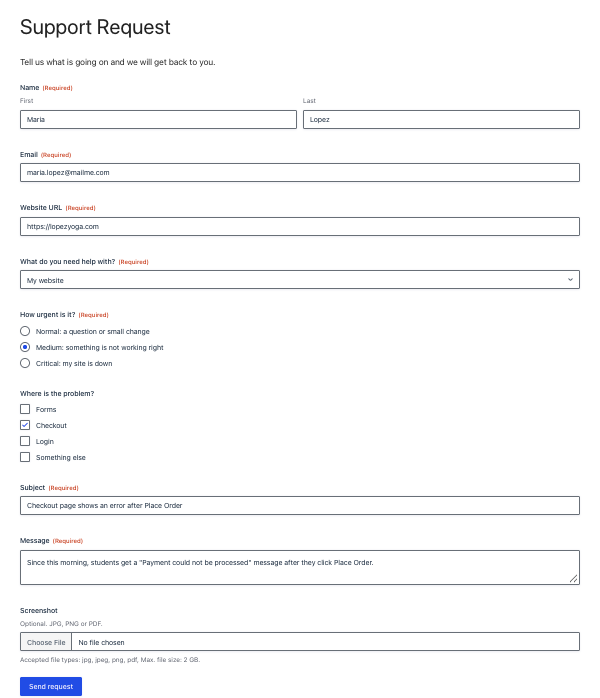
For the urgency field, the choice values must be Normal, Medium and Critical, which are Fluent Support’s priorities. The labels can be friendlier: mine say “Critical: my site is down”. Turn on show values in the field’s choices to set them.
Step 3: Add a Fluent Support Feed
Open the form, go to Settings → Fluent Support → Add New and give the feed a name. In the Ticket section, set the title and message. Both take merge tags: I used the Subject field for the title and the Message field for the content. The default content is {all_fields}, which puts every answer in the ticket.
Then pick the business box, product and default priority. Set Priority from Field to the urgency field so the person chooses it. Leave Assign to Agent on Unassigned, or pick an agent.
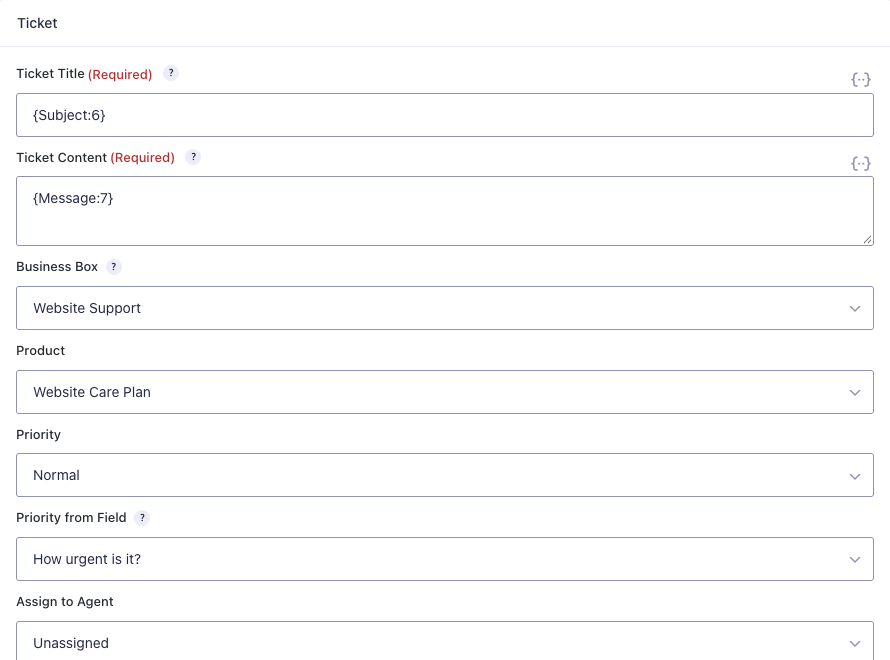
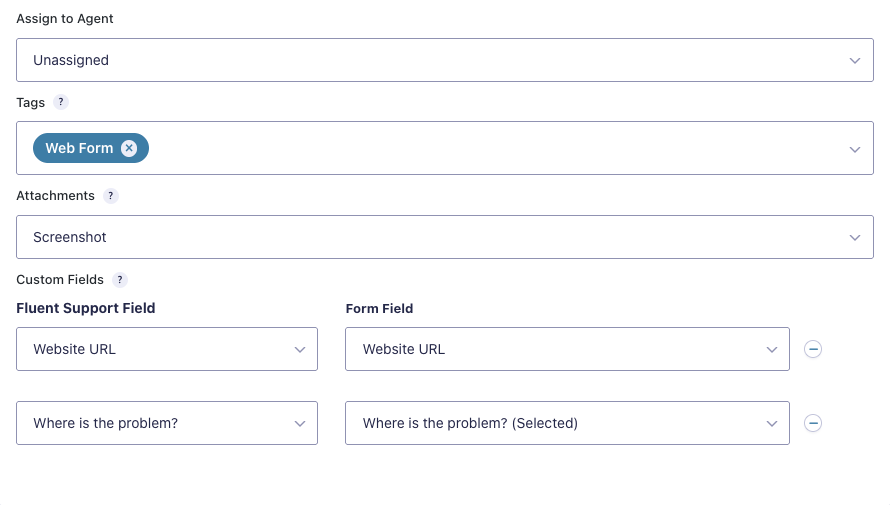
Add tags for every ticket from this feed and choose the File Upload field for attachments. With Fluent Support Pro, map your ticket custom fields too. I mapped Website URL and a “Where is the problem?” checkbox field.
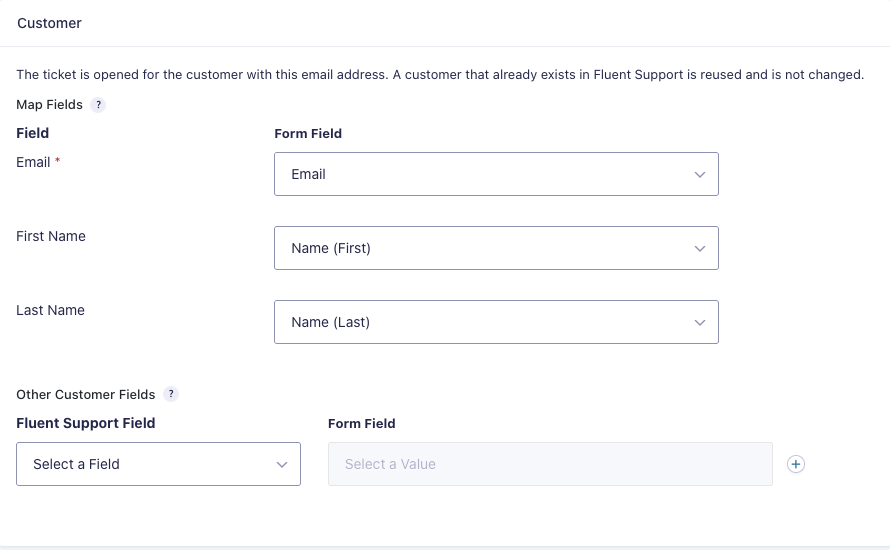
In the Customer section, map the email (required) and the first and last name. You can also map address fields, which are saved when a new customer is created.
Step 4: Route Tickets With Conditional Logic
Each feed has its own product, business box, agent and tags, so you can route tickets with several feeds. I made one feed for website requests (product: Website Care Plan) and one for hosting requests (product: Hosting, assigned to the agent who handles hosting). Each feed has a condition on the “What do you need help with?” field.
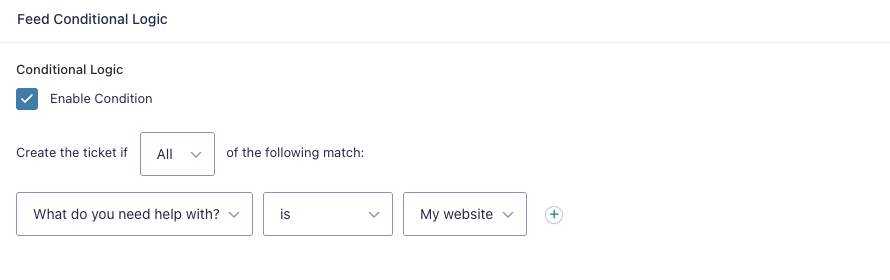
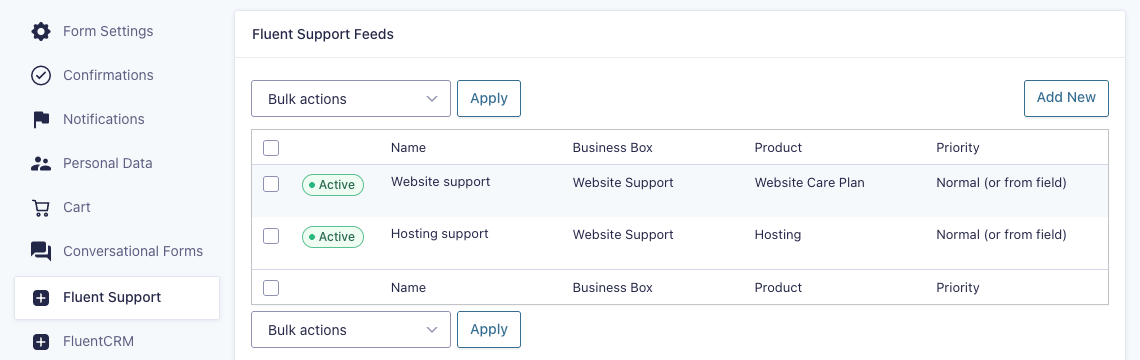
Make sure exactly one feed matches each submission, or the person gets two tickets.
Step 5: Test It
I submitted the form as Maria with a Medium priority, Checkout checked and a screenshot attached. The entry note confirmed the ticket and the attachment, with a link to the ticket:
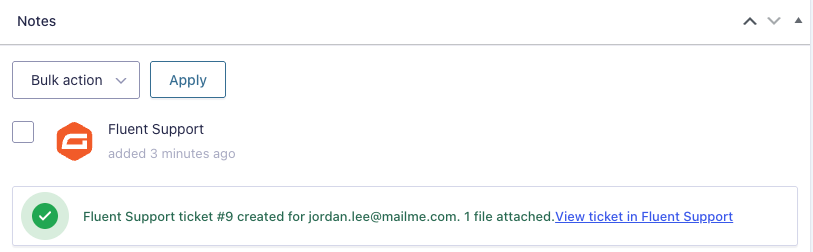
In Fluent Support, the ticket had the subject as its title, the message, the screenshot, Medium priority, the Web Form tag and both custom fields. The source shows as Gravity Forms.
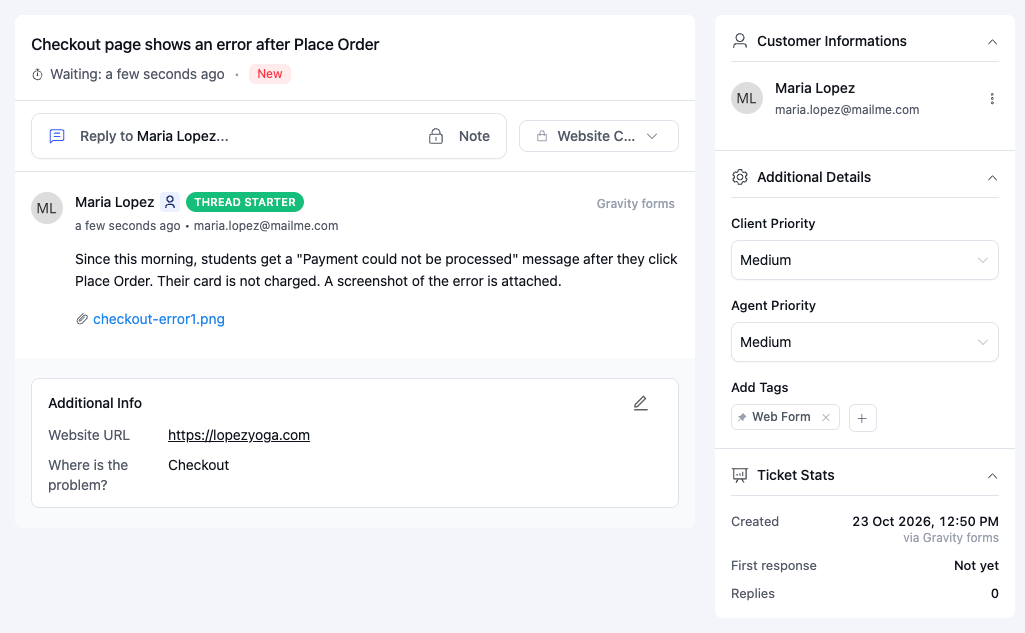
A hosting request marked Critical went to the Hosting product and was assigned to Alex. When Jordan, an existing customer, sent a second request, it was added to the same customer profile instead of creating a new customer.
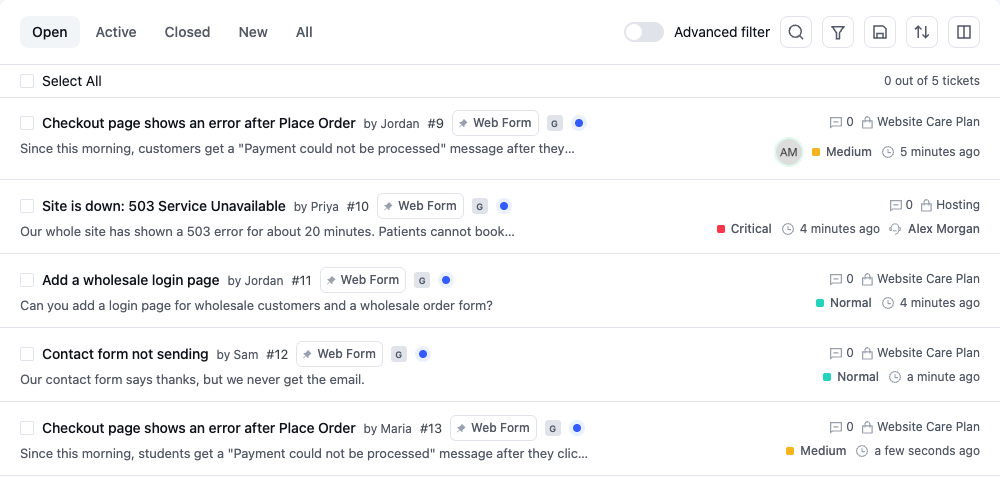
Tip: test the form logged out or in a private window. If you submit it while logged in as a Fluent Support agent, the ticket shows “Created By” with your name.
Notifications and Workflows
Tickets are created through Fluent Support’s own ticket service, so its email notifications go out as they do for tickets from the customer portal, based on your business box’s email settings. In my test, the new ticket email went to the business box address.
With Fluent Support Pro, you can also start a workflow: use the On Ticket Creation trigger with a Ticket Source condition set to Gravity Forms. In the ticket list, Advanced filter → Tickets → Source shows only tickets from your forms.
For a paid form, such as a paid priority support request, add a feed condition of Payment Status is Paid so tickets are only created for paid submissions.
Things to Know
- Fluent Support must be installed on the same WordPress site.
- The add-on creates tickets only. It doesn’t reply to tickets, change their status, or update a ticket when the entry is edited.
- An existing customer’s name and address aren’t updated from the form.
- Ticket custom fields need Fluent Support Pro.
- Attachments are stored in Fluent Support’s local upload folder, even if you use remote storage (S3, R2, Dropbox, Google Drive) in Fluent Support Pro.
- Blocked customers don’t get a ticket. The entry gets an error note instead.
- This is a beta (0.1.0-beta.1) in Gravity Ranger Labs. Test it on a staging site first, and tell me what you need in the lab.
Get Fluent Support for Gravity Forms
Fluent Support for Gravity Forms (0.1.0-beta.1) is a Gravity Ranger Labs project for Insider Plus and Elite members. Download the latest build, follow updates and tell me what to add next.
Frequently Asked Questions
Does Fluent Support integrate with Gravity Forms?
Not on its own. Fluent Support's built-in form integration is for Fluent Forms. To create tickets from Gravity Forms you need Fluent Support Pro's incoming webhook with the Gravity Forms Webhooks Add-On, a connector such as Uncanny Automator, custom code, or an add-on such as Fluent Support for Gravity Forms from Gravity Ranger Labs.
Do I need Fluent Support Pro?
Not for Fluent Support for Gravity Forms. It works with the free version of Fluent Support. Pro is only needed to map ticket custom fields and to use Fluent Support workflows.
Can the person choose the ticket priority?
Yes. Add a Drop Down or Radio Buttons field whose choice values are Normal, Medium and Critical (the labels can say anything), then pick it as Priority from Field in the feed. If the value doesn't match, the feed's default priority is used.
Are file uploads added to the ticket?
Yes. Pick a File Upload field under Attachments and every uploaded file is copied to the ticket. Gravity Forms keeps its own copy.
Will it create duplicate customers?
No. The customer is matched by email. A returning customer gets the new ticket on their existing profile, and their profile isn't changed.
Need More Help?
If you still need help, use the chat or leave a comment below and we’ll get back to you.
Comments