
The Problem
You have one form, but not everyone should see all of it. Your editors need a publish date and a category, your admins need a priority and a place for internal notes, and visitors who aren’t logged in should only see the basics.
Gravity Forms‘ conditional logic can show and hide fields and sections, but only based on other fields in the form. There’s no “user role” option in the rules, and no merge tag for the role either ({user:roles} comes back empty).
The fix is to get the role into the form. A hidden field holds the current user’s role, and your conditional logic checks that field. It takes a short snippet and a few minutes of setup.
Step 1: Add the Snippet
Add this with a code snippets plugin (such as Code Snippets or WPCode), or in your theme’s functions.php:
/**
 * The current user's roles as a comma-separated list, such as "editor" or "subscriber,customer".
 * Visitors who aren't logged in get "guest".
 */
function gr_current_user_roles() {
	$user = wp_get_current_user();

	if ( ! $user->exists() || empty( $user->roles ) ) {
		return 'guest';
	}

	return implode( ',', $user->roles );
}

// Fill the field when the form is shown.
add_filter( 'gform_field_value_user_role', 'gr_current_user_roles' );

// Set it again on the server when the form is submitted, so a visitor can't change it in the browser.
add_filter( 'gform_pre_validation', function ( $form ) {
	foreach ( $form['fields'] as $field ) {
		if ( $field->allowsPrepopulate && 'user_role' === $field->inputName ) {
			$_POST[ 'input_' . $field->id ] = gr_current_user_roles();
		}
	}
	return $form;
} );
It does two things:
- When the form is shown, it fills any field with the parameter name
user_rolewith the current user’s roles. A user with more than one role gets them all, separated by commas (for examplesubscriber,editor). Visitors who aren’t logged in getguest. - When the form is submitted, it sets the field again on the server. More on why that matters below.
Step 2: Add a Hidden Field for the Role
Add a Hidden field to your form and call it something like “User Role”. Then open its Advanced settings:
- Check Allow field to be populated dynamically.
- Set the Parameter Name to
user_role.
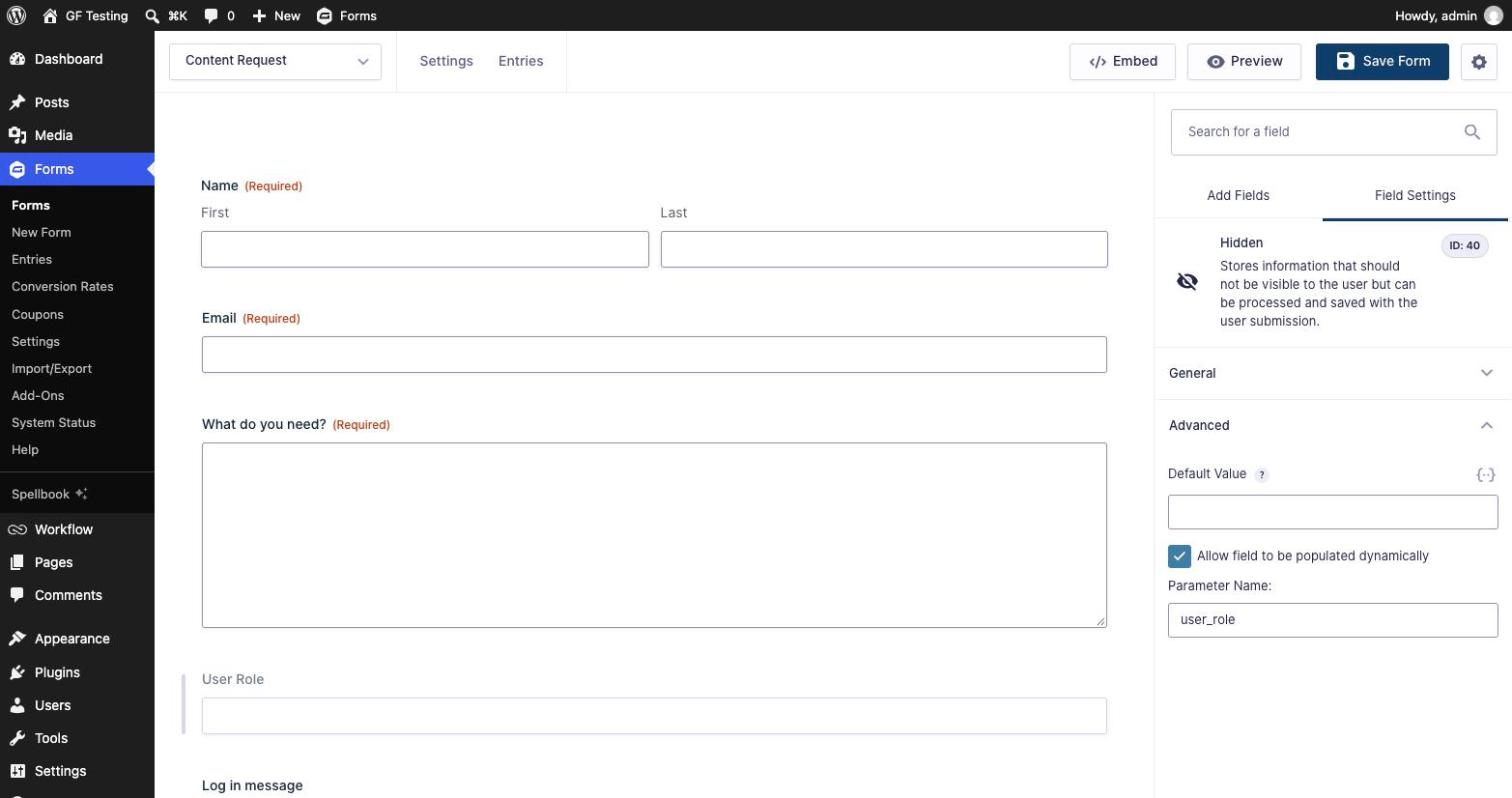
Put this field near the top of the form, above your first section. A field belongs to the section above it, so if the hidden field sits at the bottom of the form it ends up inside your last section. When that section is hidden, the role field is hidden too, and its value isn’t saved with the entry. In my test, the User Role came through blank for everyone except administrators until I moved the field to the top.
Step 3: Show Sections Based on the Role
Now use the hidden field in your conditional logic. Put the role-only fields in their own Section, and add the conditional logic to the section field. Everything in the section shows or hides with it.
In my example form, the Editor Options section should show for editors and administrators:
- Show this field if Any of the following match
- User Role contains
editor - User Role contains
administrator
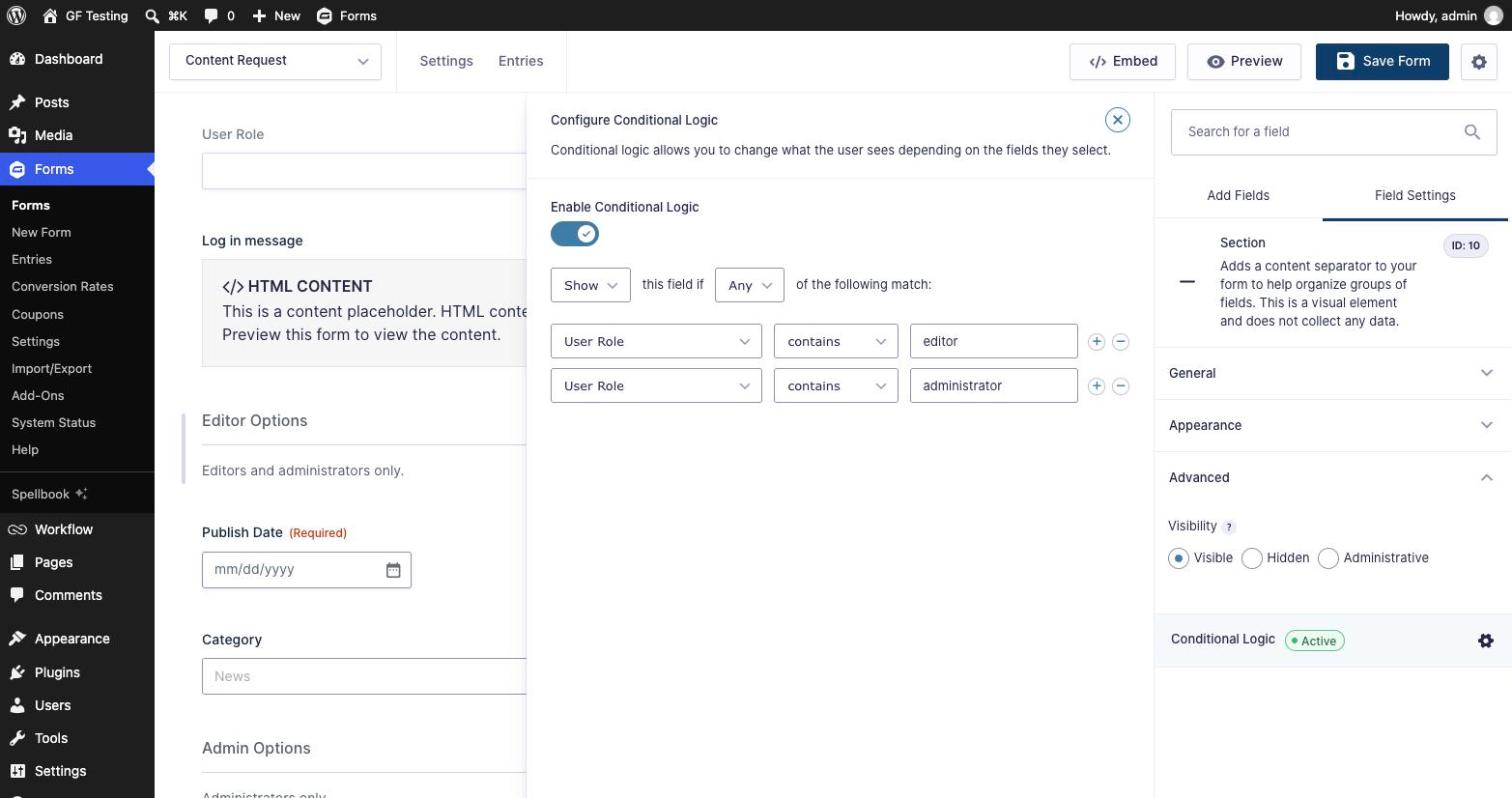
Use contains rather than is. If a user has two roles, the field holds both (subscriber,editor), so “is editor” wouldn’t match but “contains editor” will.
Here are all the rules in the example form:
| Field | Show if | Rule |
|---|---|---|
| Editor Options (section) | Any match | User Role contains editor, User Role contains administrator |
| Admin Options (section) | All match | User Role contains administrator |
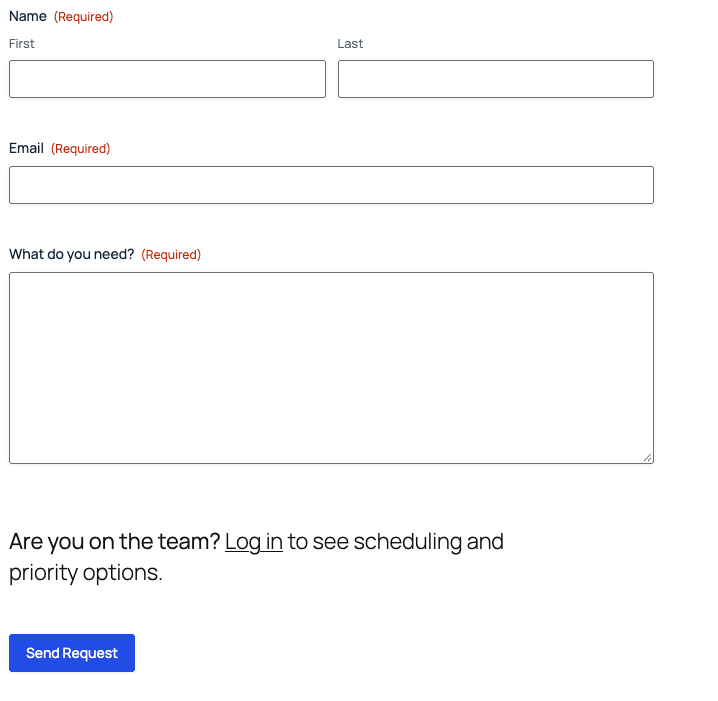
| Log in message (HTML) | All match | User Role is guest |
One thing to watch with contains: it matches any part of the text. If you have a custom role like seo_editor, “contains editor” matches that too. If that’s a problem, use the exact role names in your rules.
The Result
The same form, three different people:
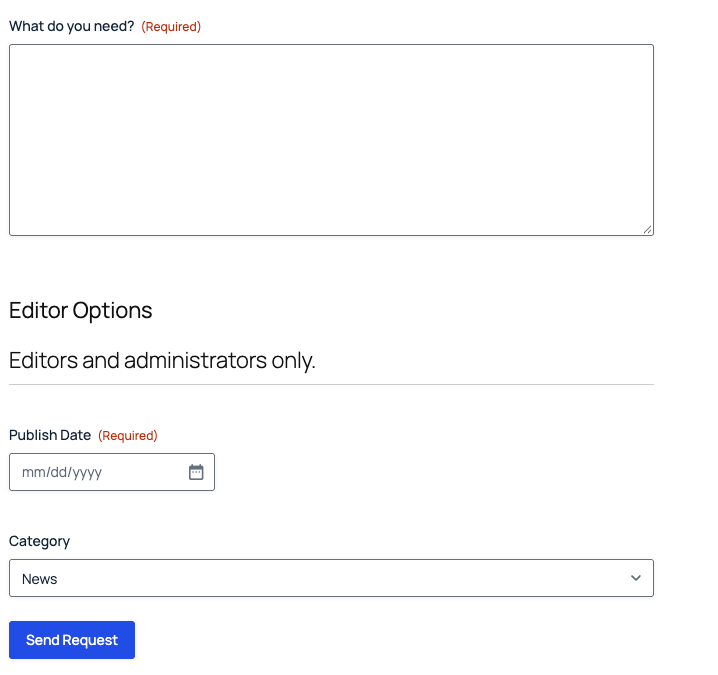
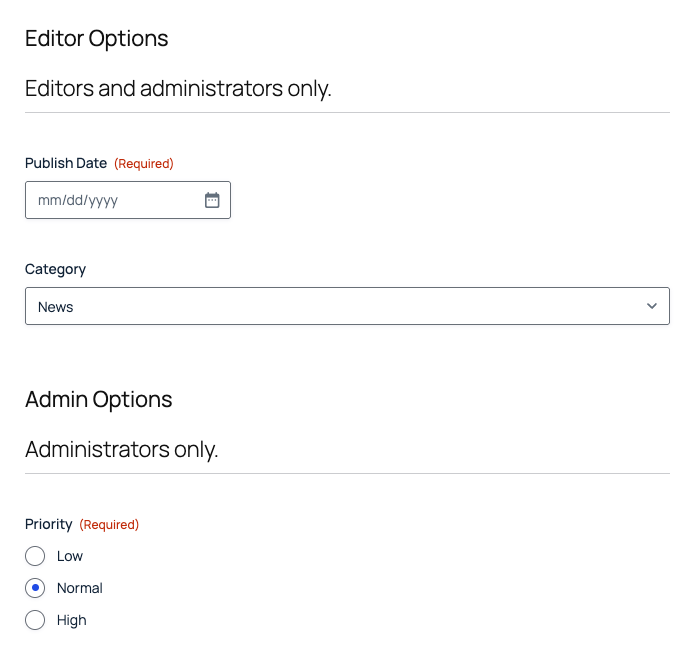
Required fields only count when they’re visible. The Publish Date is required, but a visitor who never sees the Editor Options section can still submit the form.
Why the Snippet Sets the Role Twice
A hidden field is only hidden on the screen. Anyone can open their browser’s developer tools, change its value and submit. So I tried it: logged out, I changed User Role from guest to administrator, filled in the admin fields and submitted.
| Test | What was saved |
|---|---|
| Logged out, User Role changed to administrator, without the second part of the snippet | User Role “administrator”, with the admin Priority and Internal Notes |
| The same, with the full snippet | User Role “guest”, editor and admin fields empty |
| Editor | Editor fields saved, admin fields empty |
| User with the subscriber and editor roles | User Role “subscriber,editor”, editor fields saved |
| Administrator | Everything saved |
The second part of the snippet runs on gform_pre_validation, before Gravity Forms checks the conditional logic on the server. It replaces whatever the browser sent with the real role, so fields for a role you don’t have are treated as hidden and their values are thrown away.
What Conditional Logic Doesn’t Hide
Conditional logic hides fields on the screen, but they’re still in the page. Fields in a hidden section, their labels, default values and the content of HTML fields are all in the page source for anyone who looks. In my test, the “Internal Notes” label was right there in the HTML a logged-out visitor received.
That’s fine for options and extra questions. It’s not fine for anything private, like prices only members should see, links to internal documents or staff email addresses. For those, use a separate form on a page that only those users can reach, or a membership plugin that keeps the content out of the page entirely.
Caching
If your site caches pages, the role is baked into the cached copy. Most caching plugins skip logged-in users, so visitors get the guest version and everyone else gets a fresh page. If your cache also serves cached pages to logged-in users, exclude the page with this form.
The Gravity Wiz Option
Gravity Wiz has a free Dynamically Populating User Role snippet that uses the same user_role parameter. It’s a good, shorter option if:
- Each of your users has exactly one role. It only returns the first role, so a user with two roles may not match your rules.
- Nothing important depends on the hidden value. It fills the field when the form is shown, but doesn’t set it again on submission, so the tampering test above would get through.
If either of those matters, use the snippet in this post. Both use the same parameter name, so you can switch without changing your form.
Download the Form Template
It’s free. Get the form and the snippet from this tutorial, ready to import.
Need More Help?
If you still need help, use the chat or leave a comment below and we’ll get back to you.
Comments