
GravityCharts
Turn Gravity Forms entries into live charts and visual reports without writing any code.
What it does
Raw form data is hard to read at a glance. GravityCharts converts your Gravity Forms entries into charts that update automatically as new submissions come in, so you can spot trends and share results without exporting anything manually.
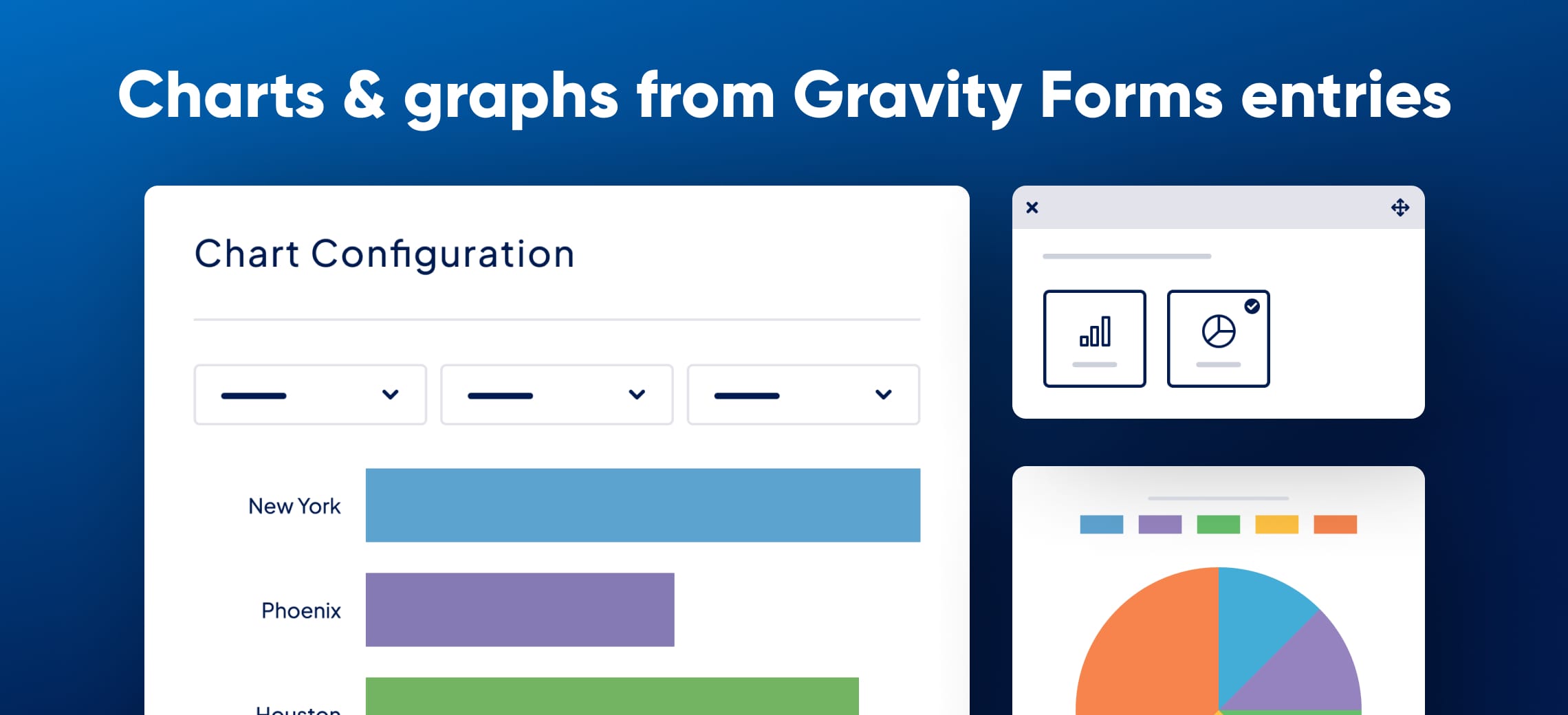
You pick a supported field—Checkboxes, Drop Down, Radio Buttons, Survey, Number, Poll, or Quiz—set any filters you want, choose a chart style, and embed it on a page using the WordPress block editor. You can also save charts as PNG images to drop into notification emails, Gravity Forms confirmations, or PDF reports via Gravity PDF.
It suits site owners who collect survey responses, run polls, or track form submissions over time and want to present that data in a readable format without hiring a developer.
Key features
- Real-time charts that update as new entries arrive
- Line, area, bar, column, pie, radar, and timeline chart types
- Timeline charts to plot entries by day, week, or month
- Advanced filtering and conditional logic to show subsets of entries
- Save charts as PNG images for emails, PDFs, or confirmations
- Embed charts in pages with the WordPress block editor
- Built on Chart.js with hooks and filters for developer customization
Good for
Written from GravityKit’s own listing. Version and dates come straight from the source and are checked weekly.
Which Gravity Forms field types can I chart?
GravityCharts supports Checkboxes, Drop Down, Radio Buttons, Survey, Number, Poll, and Quiz fields.
Can I chart data from multiple fields on one chart?
No, each chart displays data from a single form field. Multi-field charts are on the roadmap.
Can I chart data from just one entry?
No, GravityCharts charts data across all entries or a filtered subset—not a single entry.
Can I use charts in notification emails or PDF reports?
Yes, you can save any chart as a PNG image and embed it in Gravity Forms confirmations, notifications, or PDFs generated with Gravity PDF.