
To connect Gravity Forms to FluentCRM, install FluentCRM for Gravity Forms, add a FluentCRM feed to your form, map the email and name fields, and choose the lists, tags and status for new contacts. It works with the free version of FluentCRM, needs no API key, and also adds a Gravity Forms trigger to FluentCRM Automations.
FluentCRM doesn’t include a Gravity Forms integration, even in Pro, and the other ways to connect them either cost extra or take custom code. So I built an add-on, FluentCRM for Gravity Forms, and tested it with real submissions, payments and refunds. It’s available to Insider Plus and Elite members in Gravity Ranger Labs.
Why Gravity Forms and FluentCRM Don’t Connect Out of the Box
FluentCRM is a self-hosted email marketing CRM for WordPress, and its built-in form integrations are Fluent Forms, Elementor Pro forms, Divi Bloom and Thrive Architect. Gravity Forms isn’t on the list, in either the free or the Pro version. FluentCRM’s own guide for “any form” uses an incoming webhook, but its example is Fluent Forms, and Incoming Webhooks are a FluentCRM Pro feature.
Here are the ways to connect them today:
| Method | What you need | Catch |
|---|---|---|
| Webhook (FluentCRM’s guide) | Gravity Forms Elite (for the Webhooks Add-On) and FluentCRM Pro | Lists, tags and status are fixed per webhook URL. Fields are mapped by hand with key names. |
| Uncanny Automator | Free version: “form is submitted” → add or update contact, add tags | A separate automation tool. Field-value triggers and list actions are Pro. |
| WP Fusion | A paid license (from $297 a year) | Full featured, but a lot to pay just for this connection. |
| Custom code | FluentCRM’s PHP API (in the free version) | You write and maintain code for each form. |
| FluentCRM for Gravity Forms | Gravity Forms + FluentCRM (free or Pro), and a Gravity Ranger Insider Plus or Elite membership | Early version (0.1.0-beta.1). FluentCRM must be on the same site. |
What the Add-On Does
- Creates or updates contacts by email, mapping email, name, phone, address and other standard fields, plus FluentCRM custom fields when you have them.
- Adds lists and tags per feed, and can turn a form field’s answers into tags (for example, an “Interests” checkbox).
- Subscribed or Pending: Pending sends FluentCRM’s double opt-in email.
- Supports conditional logic (including the entry’s Payment Status, so paid forms only send paying customers) and multiple feeds per form.
- Removes tags when a payment is refunded.
- Adds a “New Form Submission (Gravity Forms)” trigger to FluentCRM Automations, which works in the free version.
- Leaves an entry note with a link to the contact in FluentCRM.
Step 1: Install the Add-On
Download the latest build from the FluentCRM for Gravity Forms lab (Insider Plus and Elite members), then go to Plugins → Add New → Upload Plugin and activate it. FluentCRM (2.8 or later, free is fine) and Gravity Forms (2.9.24 or later) must be active on the same site. There’s nothing to connect: Forms → Settings → FluentCRM just confirms that FluentCRM was found.
Step 2: Add a FluentCRM Feed to Your Form
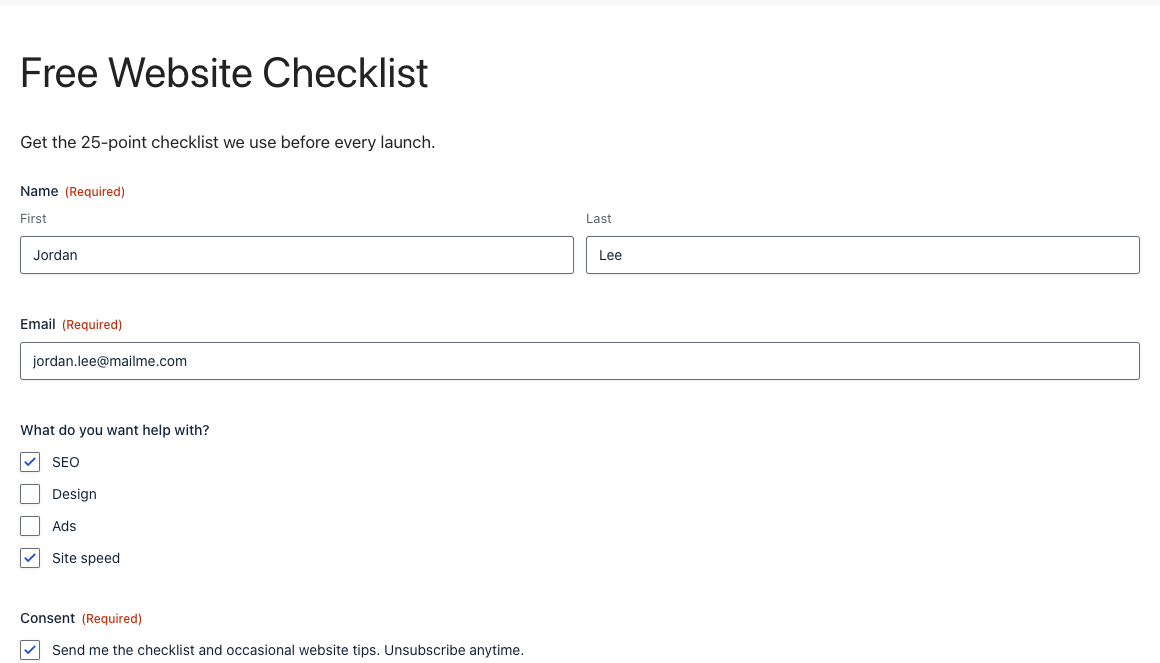
I used a simple lead magnet form: name, email, a “What do you want help with?” checkbox and a consent field.
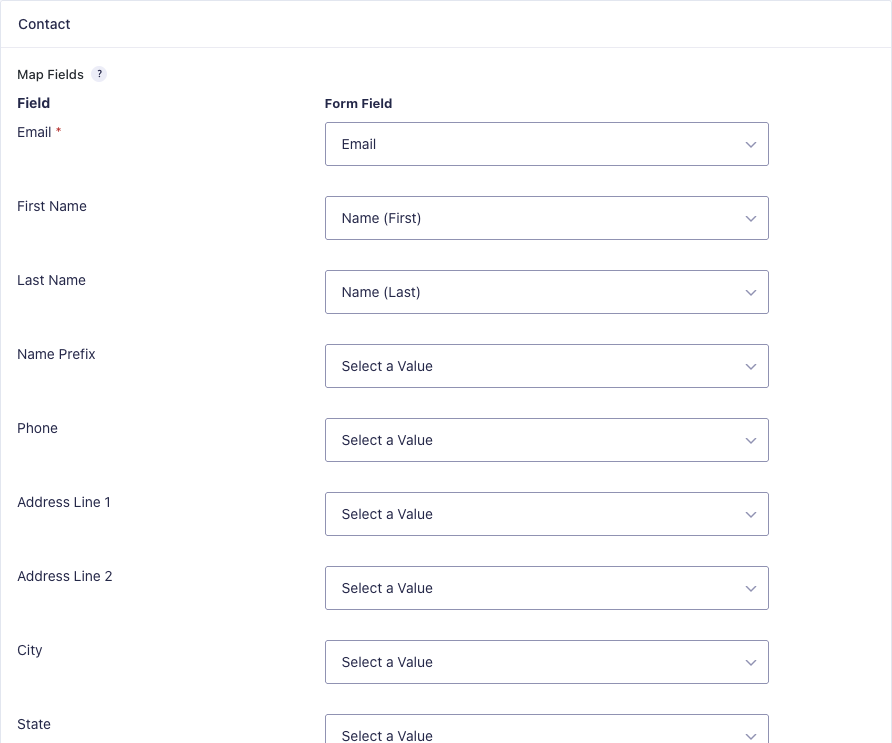
Open the form, go to Settings → FluentCRM → Add New, give the feed a name, and map the contact fields. Email is required; everything else is optional.
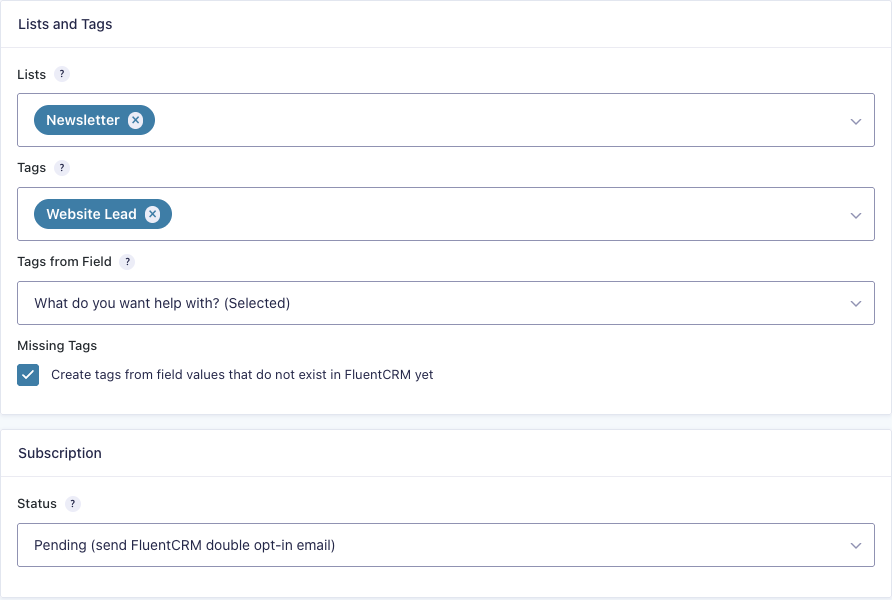
Under Lists and Tags, pick the lists and tags every contact from this feed should get. Set Tags from Field to the checkbox so each selected answer becomes a tag; leave “Create tags…” checked and FluentCRM creates tags that don’t exist yet. Then choose the Status. I used Pending to send the double opt-in email.
Step 3: Test It
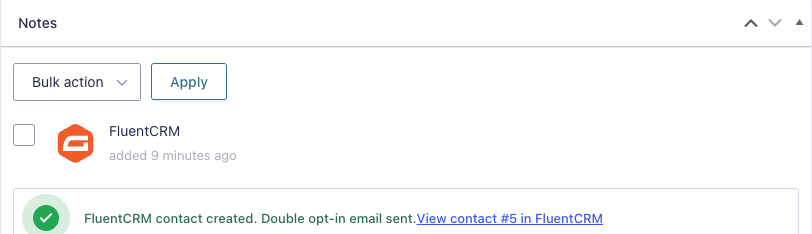
I submitted the form as Jordan, checking SEO and Site speed. The entry note confirmed the contact was created and the double opt-in email was sent:
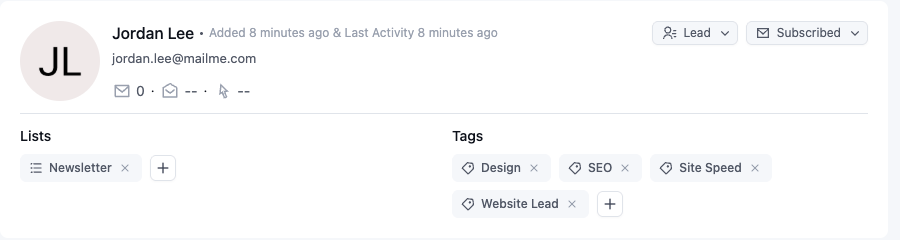
In FluentCRM, Jordan was Pending on the Newsletter list with the Website Lead, SEO and Site Speed tags (“Site Speed” didn’t exist yet, so it was created). After clicking the link in the confirmation email, the status changed to Subscribed. When Jordan filled out the form again and checked Design, the same contact was updated with the new tag. There was no duplicate, and Jordan stayed Subscribed.
Customers: Only After Payment, and Refunds
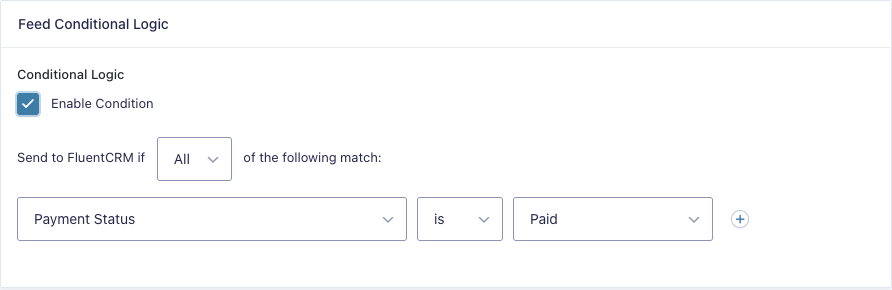
For paid forms, add the FluentCRM feed as usual, then turn on Feed Conditional Logic and add the rule Payment Status is Paid. The feed then waits until the payment add-on marks the entry as paid.
On my test order form (paid with the Stripe Add-On in test mode), one feed added buyers to a Customers list with a Customer tag, and a second feed added a Hosting tag when they picked hosting (two rules: the hosting answer is Yes and Payment Status is Paid). The order was submitted at 11:51:20 and the contact was created at 11:51:24, the moment Stripe confirmed the payment, with phone and address filled in.
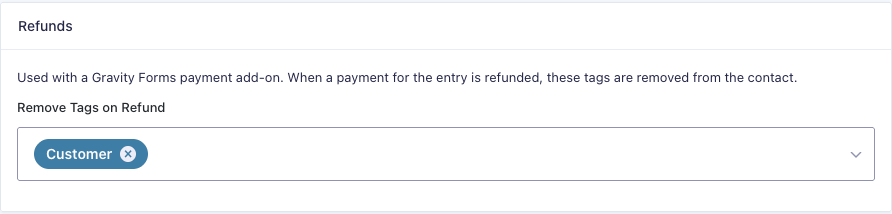
Under Refunds, you can choose tags to remove if the payment is refunded. I refunded the test order from the entry, and both tags came off the contact (the contact stays on the list).
Start a FluentCRM Automation From a Form
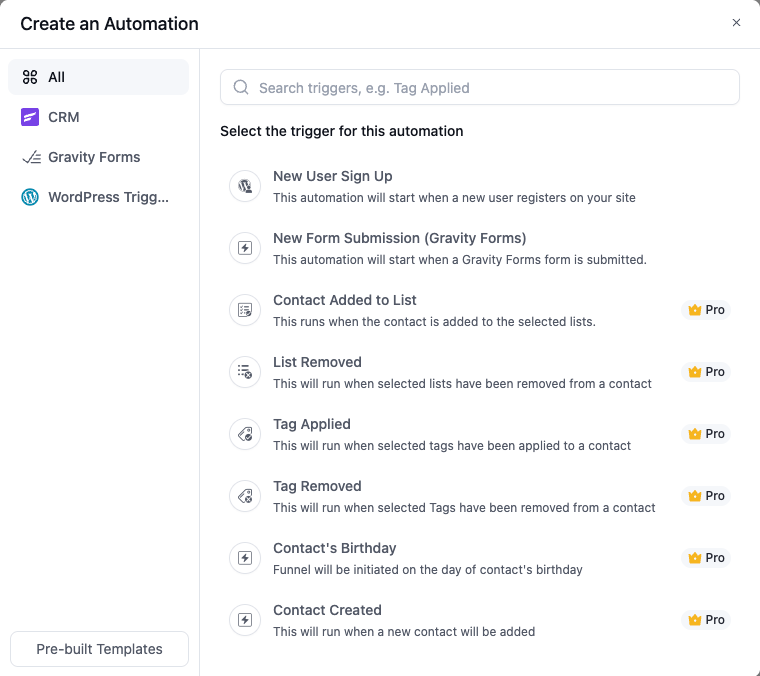
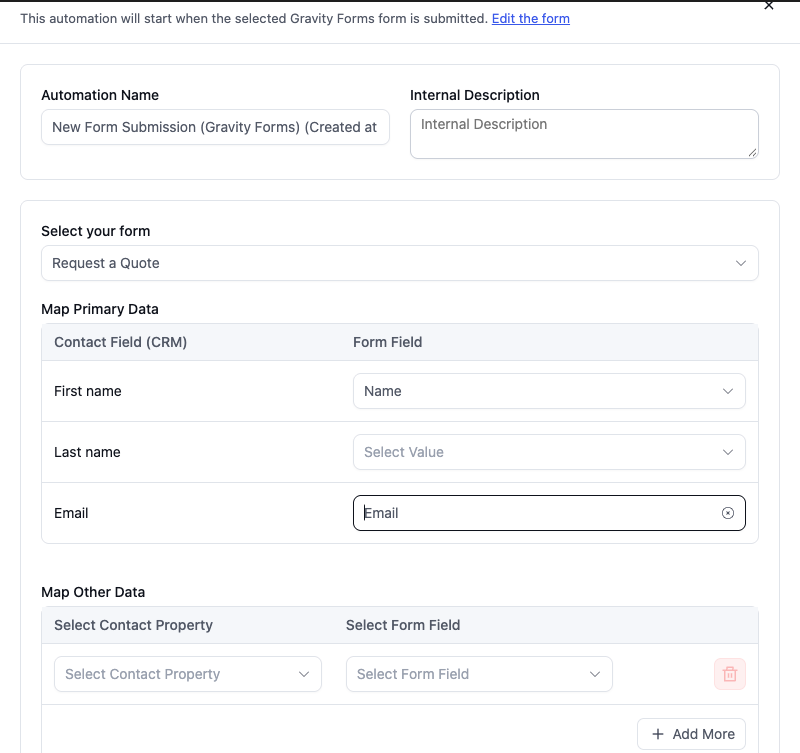
The add-on also adds a trigger to FluentCRM. In FluentCRM, go to Automations → New Automation and pick New Form Submission (Gravity Forms). It has no Pro badge, so it works in the free version.
Select the form, map first name, last name and email, choose the status, and decide what happens when the contact already exists. Then add your steps. I added an “Apply Tag” step for a Request a Quote form, and the next submission created the contact and tagged it Quote Request.
Use a feed when you just need contacts, lists and tags. Use the automation trigger when the submission should kick off a sequence, like a welcome email series. They run independently, so pick one per form to keep things simple.
Things to Know
- FluentCRM must be installed on the same WordPress site. There’s no connection to a FluentCRM on another site.
- Use Payment Status conditional logic for paid forms rather than the payment feed’s “only when payment is received” option, which may be phased out now that feeds can check the payment status directly.
- Feeds add lists and tags but don’t remove contacts from lists, unsubscribe or delete contacts.
- FluentCRM’s custom fields and company fields: the feed maps custom fields when you have them; company fields and Pro-only contact properties aren’t mapped.
- Feeds run in the background, so the entry note can take a few seconds to appear.
- If you publish an automation, use FluentCRM’s own Automations screen so its triggers are registered.
- This is a beta (0.1.0-beta.1) in Gravity Ranger Labs. Test it on a staging site first, and tell me what you need in the lab.
Get FluentCRM for Gravity Forms
FluentCRM for Gravity Forms (0.1.0-beta.1) is a Gravity Ranger Labs project for Insider Plus and Elite members. Download the latest build, follow updates and tell me what to add next.
Frequently Asked Questions
Does FluentCRM integrate with Gravity Forms?
Not on its own. FluentCRM's built-in form integrations cover Fluent Forms, Elementor Pro forms, Divi Bloom and Thrive Architect, even in FluentCRM Pro. To connect Gravity Forms you need a webhook, a connector plugin, custom code or an add-on such as FluentCRM for Gravity Forms from Gravity Ranger Labs.
Do I need FluentCRM Pro to connect Gravity Forms?
Not with FluentCRM for Gravity Forms: it works with the free version of FluentCRM. The webhook method in FluentCRM's own guide needs FluentCRM Pro for Incoming Webhooks, plus the Gravity Forms Webhooks Add-On, which comes with an Elite license.
Can Gravity Forms add tags in FluentCRM based on what someone picks?
Yes. In the add-on's feed, choose a Tags from Field field, such as a checkbox. Every selected value is applied as a tag, and missing tags can be created automatically. For different lists per answer, add several feeds with conditional logic.
Does it support FluentCRM double opt-in?
Yes. Set the feed's status to Pending and FluentCRM sends its double opt-in email. When the contact confirms, they become Subscribed. A contact who is already subscribed is never moved back to pending.
Will it create duplicate contacts?
No. The add-on looks up the contact by email and updates them if they already exist. Empty form values are skipped, so an update never erases information that is already in FluentCRM.
Need More Help?
If you still need help, use the chat or leave a comment below and we’ll get back to you.
Comments