
Kanban View for GravityView
Display Gravity Forms entries as draggable Kanban cards that update entry field values when moved between columns.
What it does
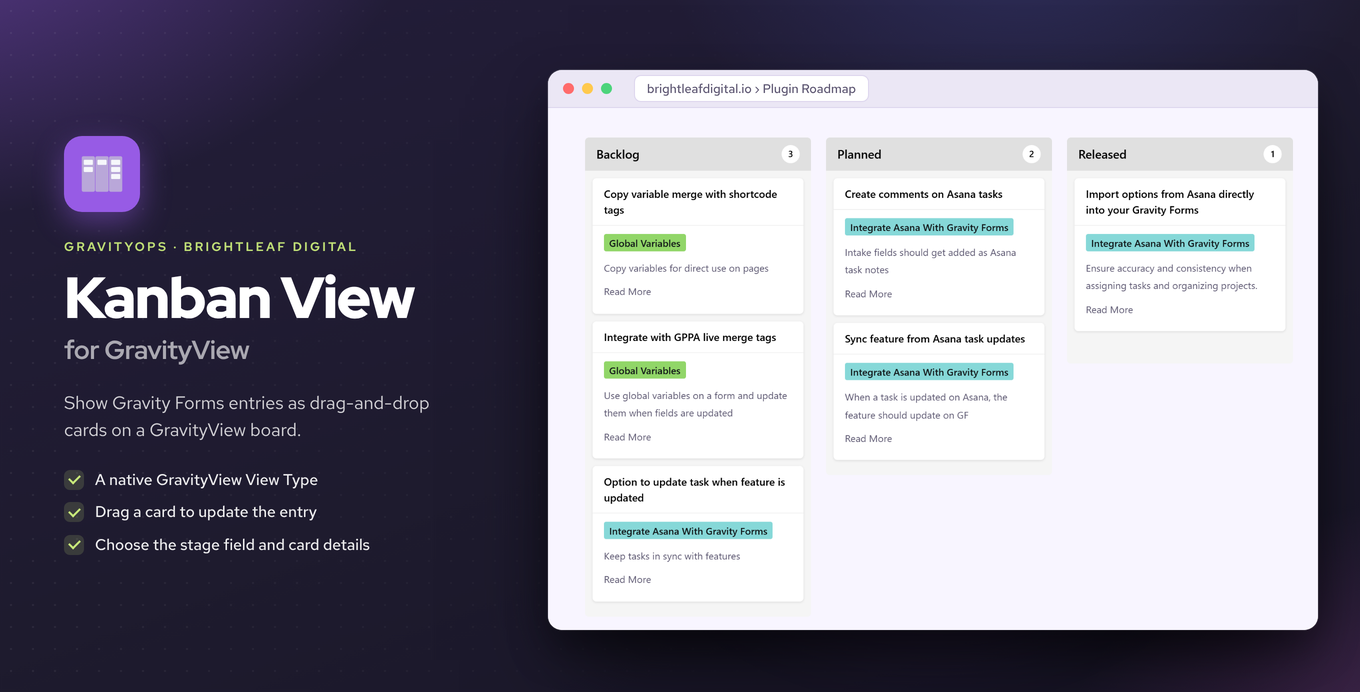
Managing entries in a list can make it hard to see where things stand across different stages. Kanban View for GravityView adds a Kanban view type to GravityView so your entries appear as cards arranged in columns, one column per stage.
You pick the field that defines the stages and choose which details show on each card. Dragging a card to a new column immediately updates that field value in the entry, so your data stays current without any manual editing.
GravityView's built-in approval and visibility settings control who can see which entries. If you use Gravity Flow, moving a card can also trigger the next step in a workflow.
Key features
- Adds a Kanban view type to GravityView
- You choose which field defines the column stages
- You control which entry details appear on each card
- Dragging a card updates the entry field value instantly
- Works with GravityView approval and visibility settings
- Moving a card can trigger next steps in Gravity Flow
Good for
Written from Brightleaf Digital’s own listing. Version and dates come straight from the source and are checked weekly.
Does this work without GravityView?
No, it adds a view type to GravityView, so GravityView is required.
Does dragging a card actually save the change to the entry?
Yes, moving a card to another column updates the entry's field value immediately.
Can I control which users see which entries on the board?
Yes, GravityView's approval and visibility settings apply to the Kanban view.
Does it integrate with Gravity Flow?
Yes, moving a card can trigger the next step in a Gravity Flow workflow.