
The same block of fields ends up in a dozen forms, and then someone asks you to change it. Emergency contact, billing address, consent wording: you build it once, duplicate it everywhere, and from then on every change is a dozen edits. Centralized Fields from Orbital Forge lets you keep one master copy of a field or field group and drop it into any form, where it stays in sync.
Tested November 2026 with Centralized Fields 1.0.1 on a test site running Gravity Forms 3.2.2. I turned an emergency contact group into a reusable “hop”, added it to two forms, submitted both, changed the master and checked what happened to the forms and the entries.
Why Duplicated Fields Drift
Gravity Forms has no shared fields. Duplicating a form or importing a template gives you a copy, and copies have no link back to the original. Add a “Grandparent” option to the relationship dropdown in one form and the other eleven do not know. Centralized Fields stores the group once and has each form pull it in when the form loads.
What You Need
- Gravity Forms (2.5 or newer)
- Centralized Fields: $59 a year for one site, $129 for four, $199 unlimited, or in the Orbital Forge Toolkit from $99 a year (prices checked November 2026)
- Some vocabulary: the library is the Hopper, each reusable item is a hop, and the field that inserts one is the Hopper field
Step 1: Build the Fields as a Normal Form
Create a new form containing only the fields you want to reuse. Mine is called Emergency Contact and has a Name, a Relationship dropdown and a Phone field. Set labels, required rules and choices exactly as you want them everywhere.
Step 2: Move It to the Hopper
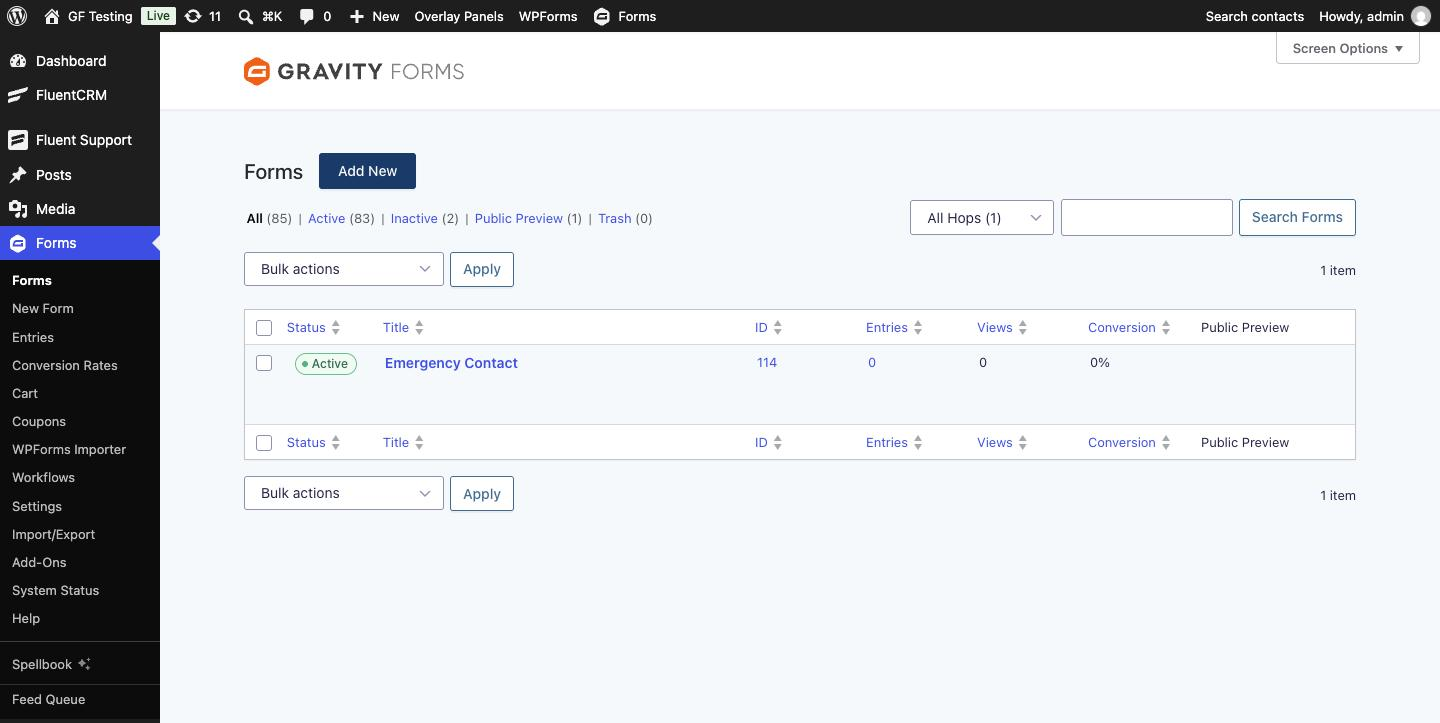
On the forms list, tick the form, choose Move to Hopper from Bulk actions and click Apply.
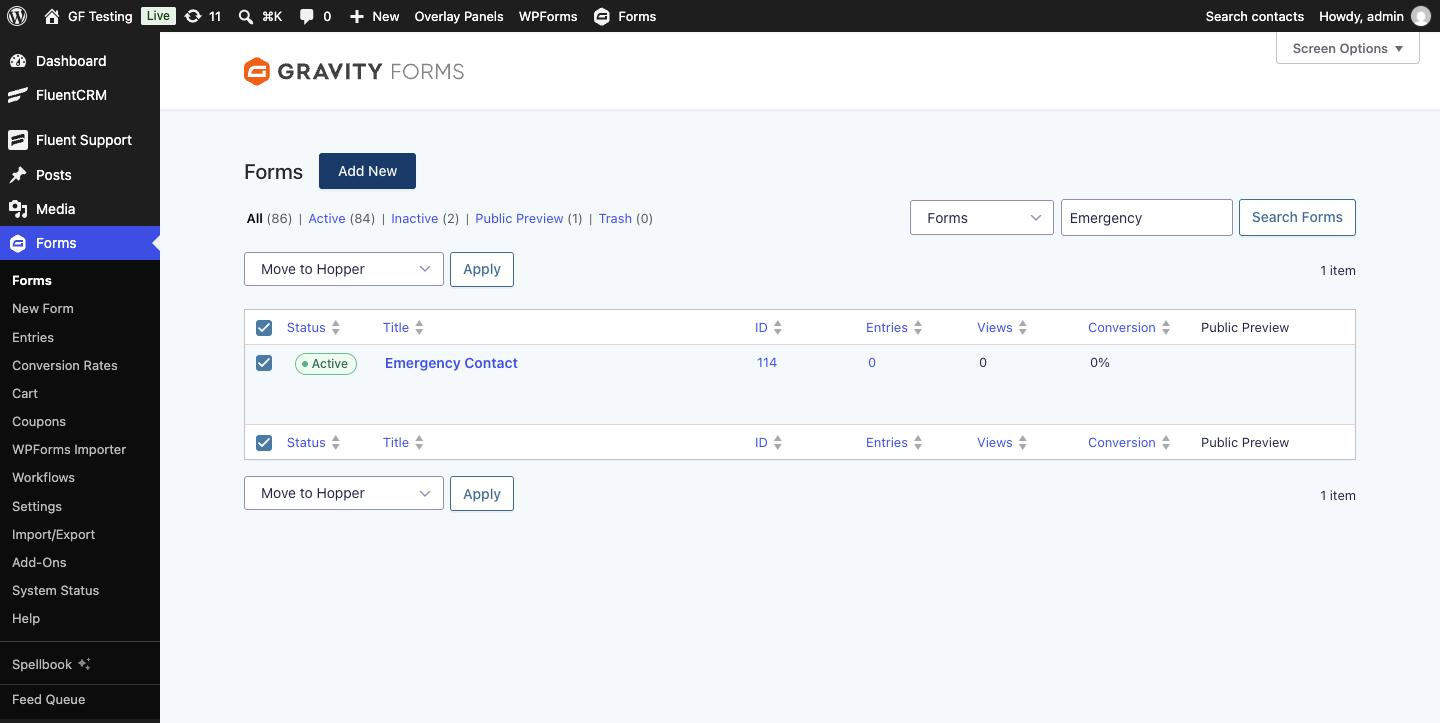
The form leaves the main list. A new dropdown beside the search box switches between Forms, All Hops, Sections, Groups and Fields. The plugin sorts each hop by what it contains; my three fields became a Group.
Step 3: Add a Hopper Field to Your Forms
Open a form that needs the group. Under Advanced Fields add a Hopper field, then choose your hop under Field Group to Insert. The editor shows the hop’s fields as a read-only list.
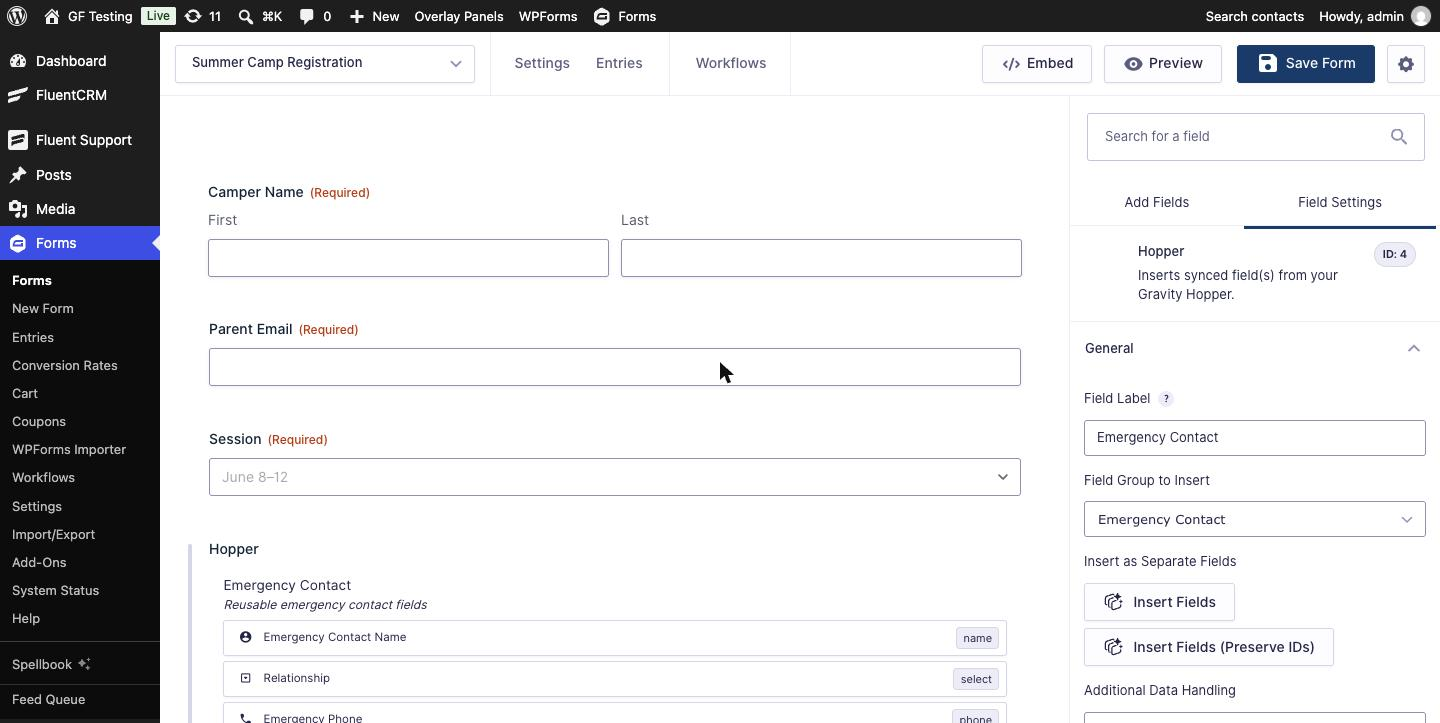
Two more settings sit under it:
- Insert as Separate Fields copies the hop’s fields into the form as ordinary fields. That is a one-way trip: they stop syncing. Insert Fields (Preserve IDs) does the same but keeps the special field IDs so existing entry data stays attached. I left both alone to keep the sync.
- Additional Data Handling → Create Entry in Hopper also saves each submission’s hop values as an entry on the hop itself. More on that in Step 5.
Save the form. I did the same on a second form, Field Trip Permission.
Step 4: Check the Front End
On the page, the hop’s fields look like any other fields in the form. The Hopper field’s own label is not shown.
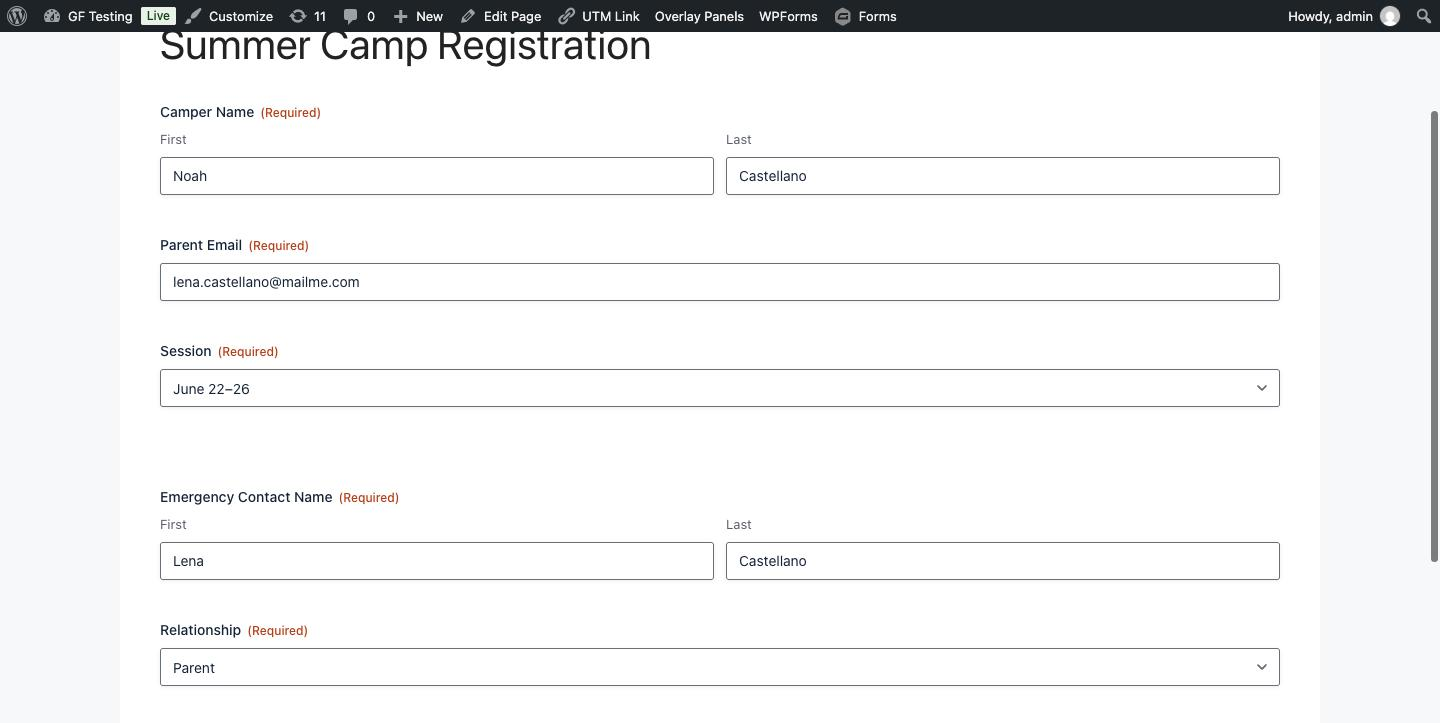
Then the real test. I opened the hop, added an Alternate Phone field and saved. Both forms had the new field the next time they loaded. I did not open either form.
Step 5: Entries and the Central Copy
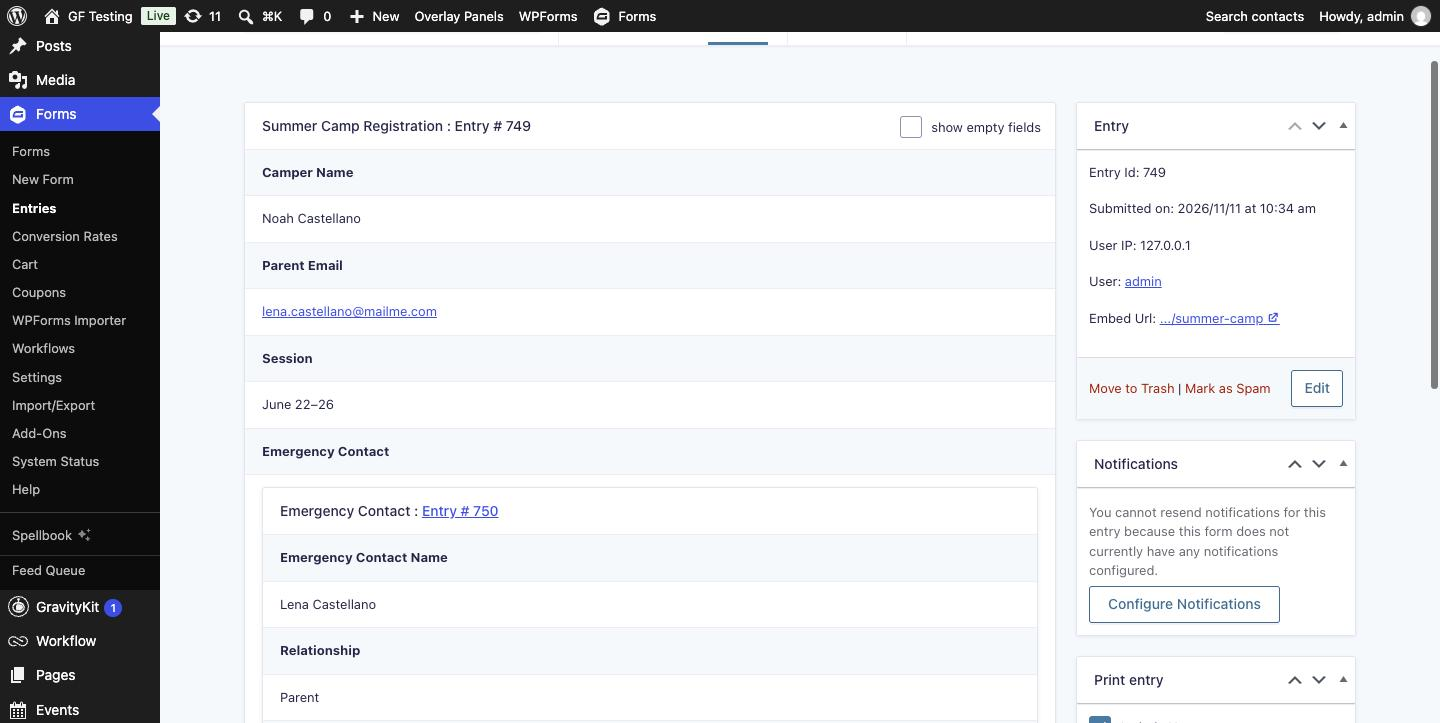
In the form’s own entry, the hop values are grouped in a box under the Hopper field’s label.
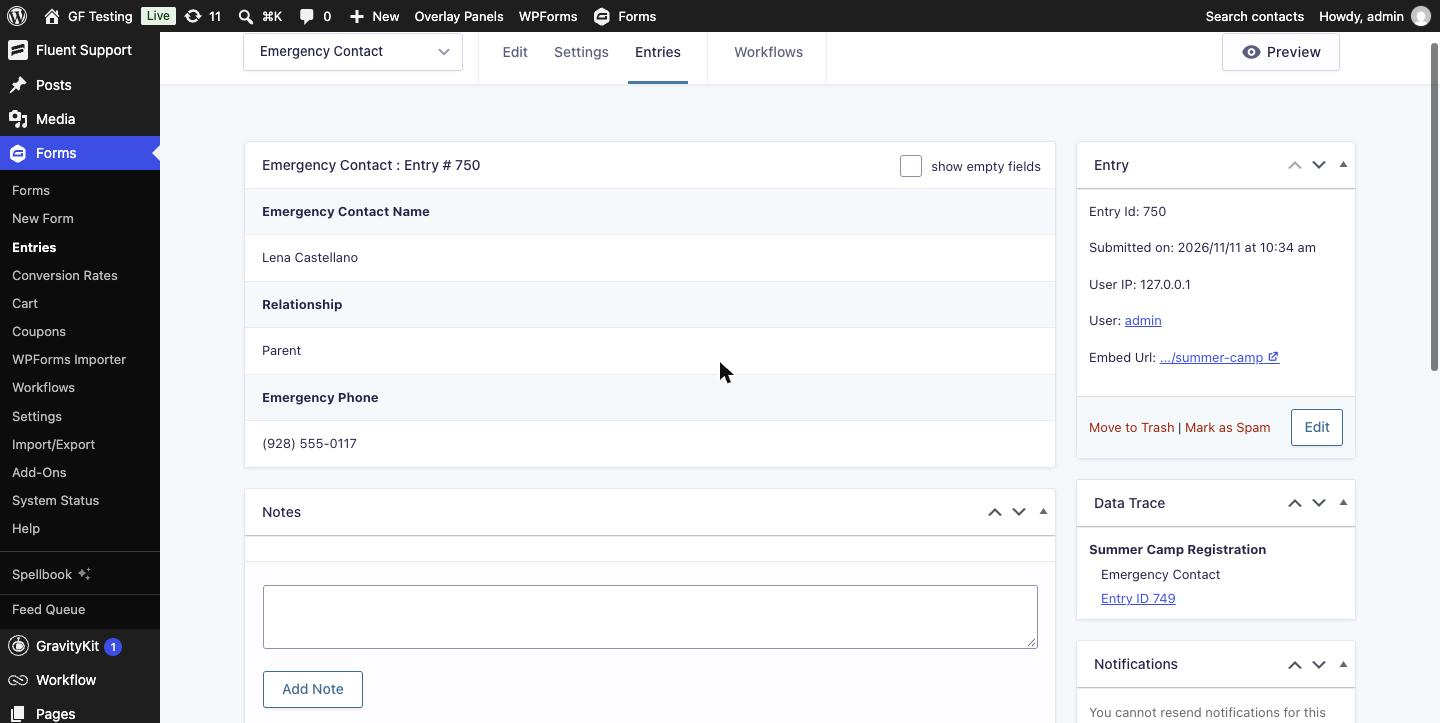
Because I chose Create Entry in Hopper, each submission also created an entry on the Emergency Contact hop. After one submission from each form, the hop had two entries: every emergency contact from every form in one list. Each central entry has a Data Trace box pointing back to the form and entry it came from.
Things to Know
- Field IDs are long. A hop field’s ID is the Hopper field ID, then 77, then the hop’s form ID, then the field ID inside the hop. Field 3 of hop 114 inside Hopper field 4 is
4771143. - Merge tags work but you type them.
{:4771143}returned the phone number in my test and{all_fields}included the hop fields. The merge tag dropdown does not list them. - Orbital Forge’s own list of limits: a hop cannot contain another Hopper field; hop fields do not appear in entry list columns or exports; uploaded files stay attached to the original entry only; and editing a central entry does not update the source entry.
- It is a young plugin. Version 1.0.1 dates from November 2024 and the developer says testing with third-party add-ons has been limited. It behaved on Gravity Forms 3.2.2 here, but test your own stack, especially conditional logic and payment fields that point at hop fields.
- Building hops field by field from inside a form (the “assembler”) is off by default and switched on with the
gravityhopper-cf/enable_assemblerfilter. I did not test it.
Alternatives
- Duplicate the form or import a template. Free and built in, and fine if the block never changes. See Free Gravity Forms Templates.
- GP Nested Forms from Gravity Wiz also puts one form inside another, but for a different job: collecting repeating rows (several attendees, several line items) as child entries. It is not built for keeping one field group in sync across forms.
Who Should Use It
Schools, clinics, HR teams and agencies with many forms that share the same blocks, particularly where wording matters (consent, policies) and has to change everywhere at once. If you have five forms and the shared part never changes, duplication is still simpler.
Get Centralized Fields from Orbital Forge
Frequently Asked Questions
Can I reuse the same fields across multiple Gravity Forms?
Not with Gravity Forms alone, which only copies fields. Centralized Fields from Orbital Forge stores a field or field group once as a hop and inserts it into any form with a Hopper field. Changes to the hop appear in every form that uses it.
What happens when I edit a centralized field group?
Every form with a Hopper field pointing at it shows the change the next time it loads. In testing, a field added to the hop appeared in two forms without editing either form.
Where is the data saved?
In the entry of the form that was submitted, grouped under the Hopper field. If Additional Data Handling is set to Create Entry in Hopper, a second entry is also created on the hop, with a Data Trace link back to the source entry.
Can I use merge tags for centralized fields?
Yes, by typing them. The field ID is the Hopper field ID, then 77, then the hop form ID and the field ID, for example {:4771143}. The all_fields merge tag includes them automatically.
Can I turn a centralized group back into normal fields?
Yes. The Hopper field has Insert Fields and Insert Fields (Preserve IDs) buttons that copy the group into the form as ordinary fields. After that they no longer sync with the hop.
Need More Help?
If you still need help, use the chat or leave a comment below and we’ll get back to you.
Comments