
To make Gravity Forms look good, use the Orbital form theme, then set your colors, input size, border radius and button style in the Gravity Forms block. For anything the block doesn’t cover, override Gravity Forms’ CSS variables in your own CSS. If you’d rather not touch code, a styling add-on or your page builder’s Gravity Forms widget can do it visually.
Here’s each option, from easiest to most flexible, plus the design habits that make the biggest difference.
1. Use the Orbital Theme
Orbital is Gravity Forms’ modern form theme and the default for new installs since version 2.7.15. It gives you clean fields, consistent spacing and good-looking checkboxes and radio buttons without any CSS. Older sites may still use the “Gravity Forms 2.5 Theme”.
To switch, go to Forms → Settings and set Default Form Theme to Orbital. You can also pick a theme for one form in its block settings. If a form still has Legacy markup turned on in its settings, turn it off: legacy markup is the pre-2.5 structure, and Gravity Forms plans to remove it in version 4.0.
2. Set Colors and Sizes in the Gravity Forms Block
Select the Gravity Forms block in the editor and open its settings. With Orbital, you get:
- Input Styles: size, border radius, background, border and text colors, and an accent color
- Label Styles: font size and color
- Description Styles: font size and color
- Button Styles: background and text color
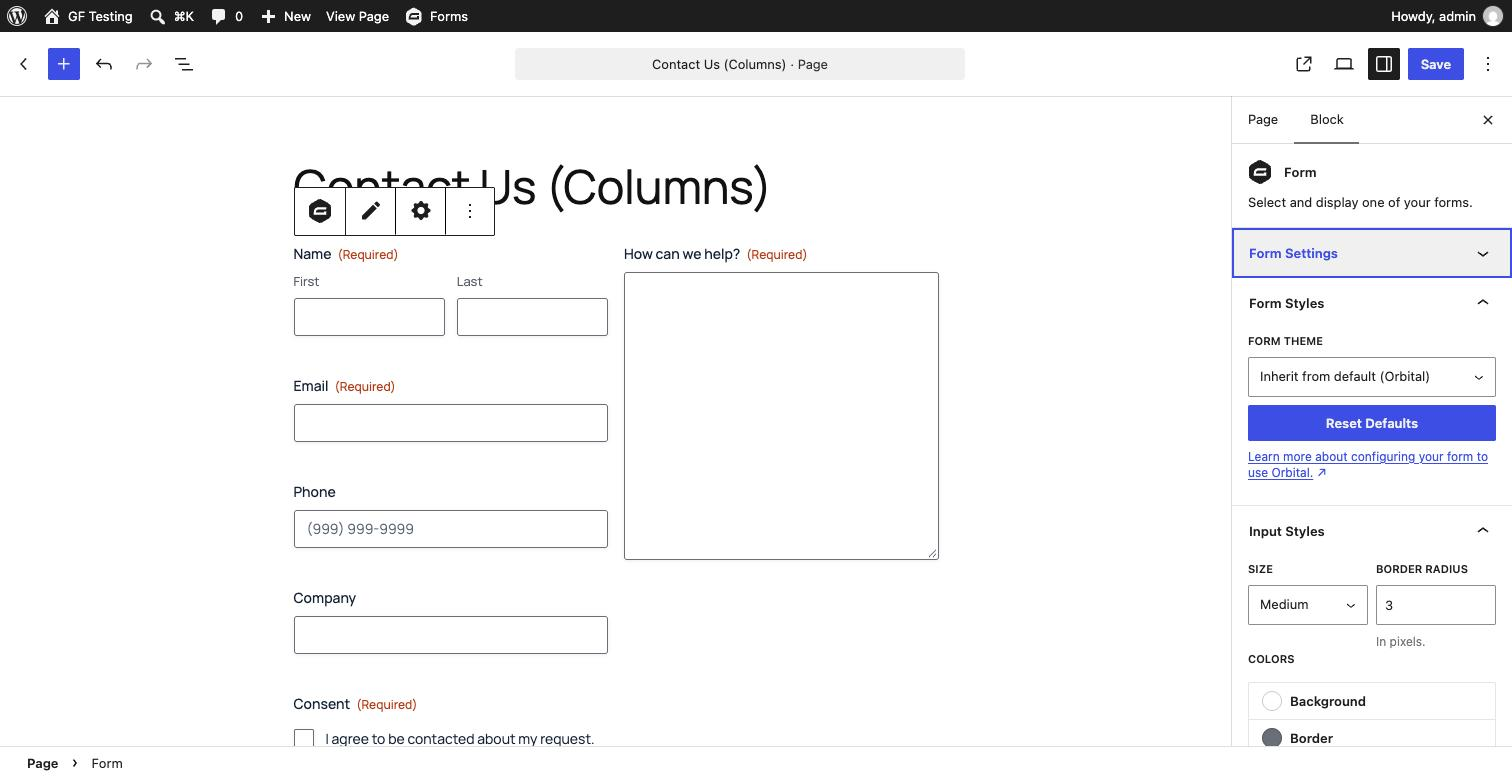
These settings are per form, so each form can match the page it’s on. Not using the block editor? The same settings can be passed through the shortcode’s styles attribute, or set site-wide with the gform_default_styles filter.
3. Fine-Tune With CSS Variables
Orbital is built on CSS custom properties (variables) that start with --gf-. Changing a variable restyles everything that uses it, so a few lines go a long way:
.gform-theme--framework {
	--gf-color-primary: #1f8a4c !important;          /* buttons, focus rings, checked boxes */
	--gf-ctrl-border-color: #9aa5b8 !important;      /* input borders */
	--gf-ctrl-radius: 10px !important;               /* rounded inputs */
	--gf-ctrl-label-color-primary: #1f2a44 !important; /* field labels */
}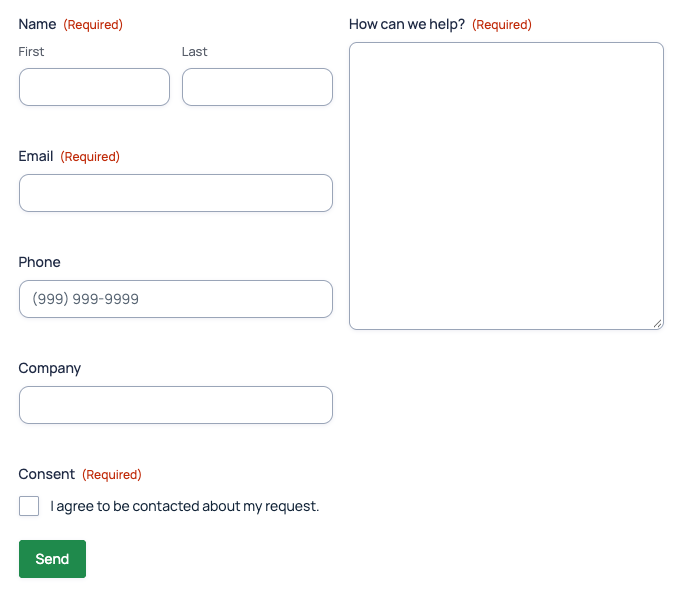
Why !important? Gravity Forms prints each form’s block style settings with a very specific selector. In my test, a plain .gform-theme--framework rule changed the corner radius but not the colors, and even a form’s ID selector lost. Adding !important to the variables made all four changes stick. To style one form only, swap .gform-theme--framework for #gform_wrapper_5 (with your form’s ID) and keep the !important.
Add the CSS under Appearance → Customize → Additional CSS (classic themes), in the Site Editor’s Styles → Additional CSS (block themes), or in your child theme’s stylesheet.
4. Get the Layout Right
Layout does more for looks than color. In the form editor you can drag fields side by side or set a field’s width, up to four across. The old “ready classes” like gf_left_half were deprecated in Gravity Forms 2.5, so use the editor’s columns instead.
Need real columns, like four short fields beside one tall message box? See Put Gravity Forms fields in side-by-side columns.
5. Use a Styling Add-On
If you want point-and-click control or features Gravity Forms doesn’t have:
| Add-on | What it does | Price |
|---|---|---|
| Styles and Layouts | 150+ visual style options, per-form styles and separate mobile settings | Free (premium add-ons) |
| Block Styler | Style the form inside the block editor with a live preview | Free (premium version) |
| Image Choices (JetSloth) | Pictures on radio and checkbox choices | Paid |
| Color Picker (JetSloth) | Color swatches as choices | Paid |
| Collapsible Sections (JetSloth) | Accordion-style sections for long forms | Paid |
| Tooltips (JetSloth) | Help icons with tooltips instead of long descriptions | Paid |
Browse more in the Gravity Forms add-ons directory.
6. Style It in Your Page Builder
Page builders can style Gravity Forms in their own editor. The free Gravity Forms Widget for Elementor by GravityKit gives Elementor basic style controls with a live preview, and the free Divi plugin makes forms match your Divi theme automatically. More: Which page builders work best with Gravity Forms?
Design Tips That Make the Biggest Difference
- Ask for less. Every field you remove makes the form look simpler and convert better.
- Put labels above fields (the default). They’re easier to scan than side labels, especially on phones.
- Group related fields with Section fields, or split long forms into pages with a progress bar.
- Write a specific button label, like “Get My Quote” instead of “Submit”.
- Match your site: use your brand’s accent color for the button and focus states, and nothing else.
- Check it on a phone. Side-by-side fields stack on small screens; make sure the order still makes sense.
Frequently Asked Questions
Can I style each Gravity Form differently?
Yes. Block style settings are saved per form, and in CSS you can target one form with #gform_wrapper_ followed by the form ID.
Do Gravity Forms ready classes still work?
The column and inline ready classes such as gf_left_half were deprecated in Gravity Forms 2.5. Use the form editor’s field widths and columns instead.
Why don’t my CSS changes apply to my Gravity Form?
Usually specificity. Gravity Forms prints each form’s style settings with a very specific selector, so override its –gf- CSS variables with !important, or change the setting in the block. Also check that the form uses the theme you’re styling (Orbital or the 2.5 theme) and clear any page cache.
Where do I put custom CSS for Gravity Forms?
In Appearance, Customize, Additional CSS for classic themes, in the Site Editor under Styles, Additional CSS for block themes, or in a child theme stylesheet.
Can I style Gravity Forms without code?
Yes. Use the Orbital theme and the style settings in the Gravity Forms block, a free add-on like Styles and Layouts, or your page builder’s Gravity Forms widget.
Need More Help?
If you still need help, use the chat or leave a comment below and we’ll get back to you.
Comments